43 Advanced Features
&RQÀJXULQJ7ZRRU0RUH&RQWUROOHUV
Multiple controllers can be congured in a MultiWave system. Follow this procedure to congure
additional controllers to your MultiWave system.
The rst controller that you congure is the PRIMARY control and the other controller(s) are
SECONDARY control(s).
Only the PRIMARY controller can be used to add or remove devices from the network.
• SECONDARY controllers control devices in the network.
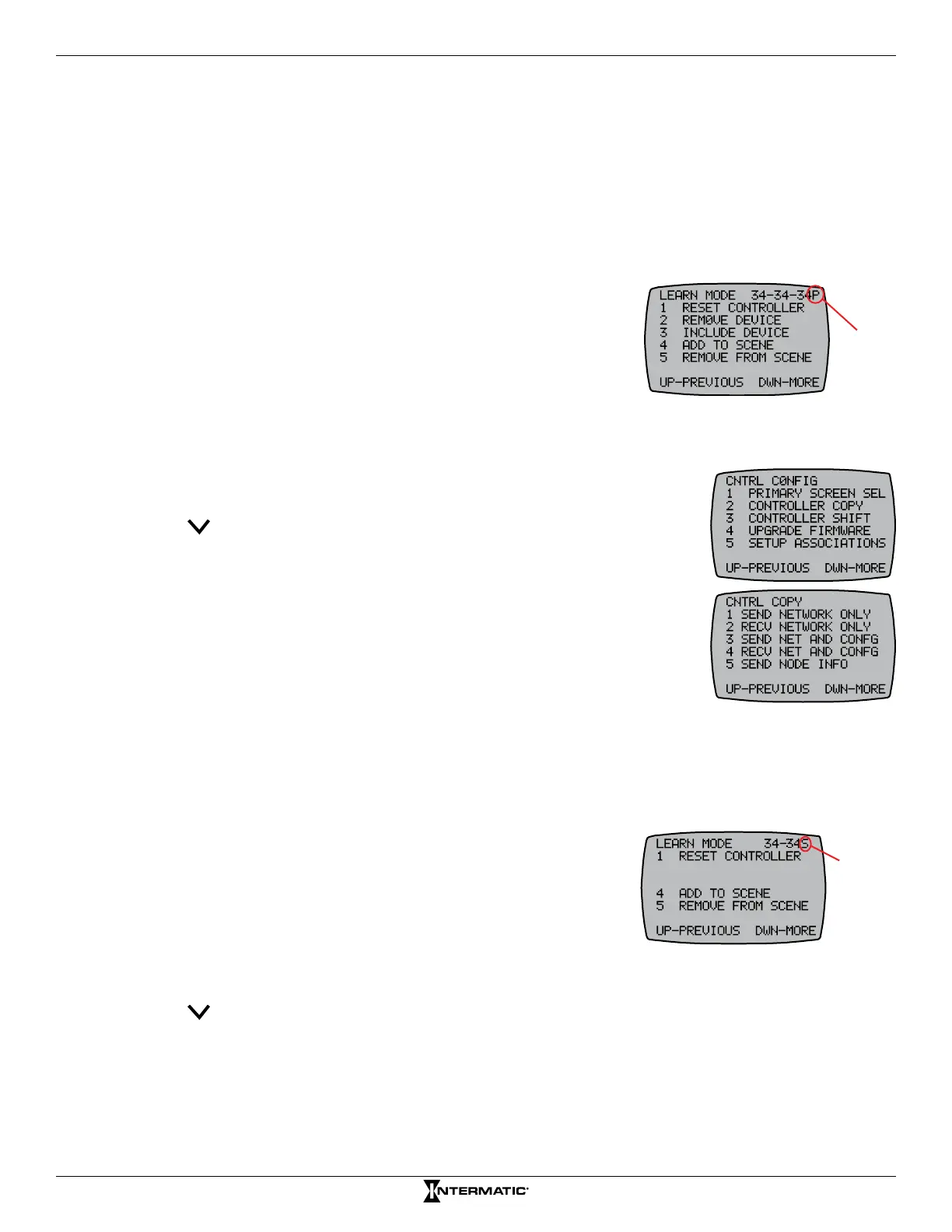
• To determine whether a controller is PRIMARY or
SECONDARY, observe the controller status from the
VER (version) code at the top right corner of the display
on the programming screens: P = PRIMARY and S =
SECONDARY.
• The PRIMARY controller must be used to include
additional (SECONDARY) controllers.
Follow this procedure to congure additional controllers.
1. On the primary controller, press P/S and ENTER simultaneously to
access LEARN MODE.
2. Press to scroll to the CNTRL CONFIG screen.
3. Press 2 to select CONTROLLER COPY.
4. Press 3 to select SEND NET AND CONFG. The screen displays
INCLUDING DEVICE and then returns to the CNTRL COPY screen.
5. On the controller you are adding to the network, repeat steps 1 to 3.
6. On the controller you are adding, press 4 to select RECV NET AND
CONFG. The screen displays INCLUDING DEVICE at the bottom of the
PRIMARY controller screen. The screen then briey displays SENDING
NET INFO, SENDING SCENE INFO, SENDING CFG INFO during the transfer of info to the
secondary device. After a few seconds, the controller returns to the CNTRL COPY screen. The
secondary controller screen displays WAITING FOR INCLUDE at the bottom of the screen. After
the information is transferred to the secondary controller, SUCCESSFUL appears at the bottom of
the secondary controller screen and then the main screen appears.
7. On the secondary controller, press P/S and ENTER
simultaneously to access LEARN MODE. The following
appears:
8. The secondary controller screen displays S at the top right
corner to indicate it is the secondary controller.
• Selections 2 and 3 are blank so only the options that can be performed by a secondary
controller appear.
9. Press to scroll to the CNTRL CONFIG screen. Items 2, 3, and 5 on the screen show the
options that the secondary remote can perform.
10. Repeat steps 1 to 8 as necessary to add another secondary controller.
NOTE: If you are adding another controller(s), be sure to copy the controller to all secondary
controllers, if applicable. Repeat steps 1-8 as necessary.
11. Press ENTER on both controllers to scroll to the main screens.
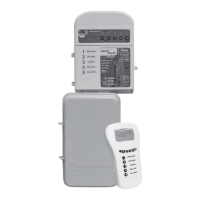
Primary
Controller
Secondary
Controller



 To Next Page