www.intermatic.com
38
MultiWave Control System Programming and User Guide
Chapter 10:
Programming — Use with Z-Wave Home Control Devices
The MultiWave system controller and PE953 receiver are compatible with Z-Wave enabled
networks. Each Z-Wave enabled device is designed to act as a repeater, re-transmitting the RF
signal around obstacles and radio dead spots as possible to ensure messages are received by
the intended destination device. Follow the steps in this chapter to add Z-Wave devices to your
network.
¸ Including Z-Wave Devices into the Network
¸ Adding Z-Wave Devices to Scenes
¸ Conguring Scene Names in Controller
¸ Controlling Z-Wave Devices
¸ Removing Z-Wave Devices from Scenes
¸ Removing Z-Wave Devices from a Network
,QFOXGLQJ=:DYH'HYLFHVLQWRWKH1HWZRUN
Perform this procedure for each Z-Wave device that you want to include in the network:
1. Press P/S and ENTER simultaneously to access LEARN MODE.
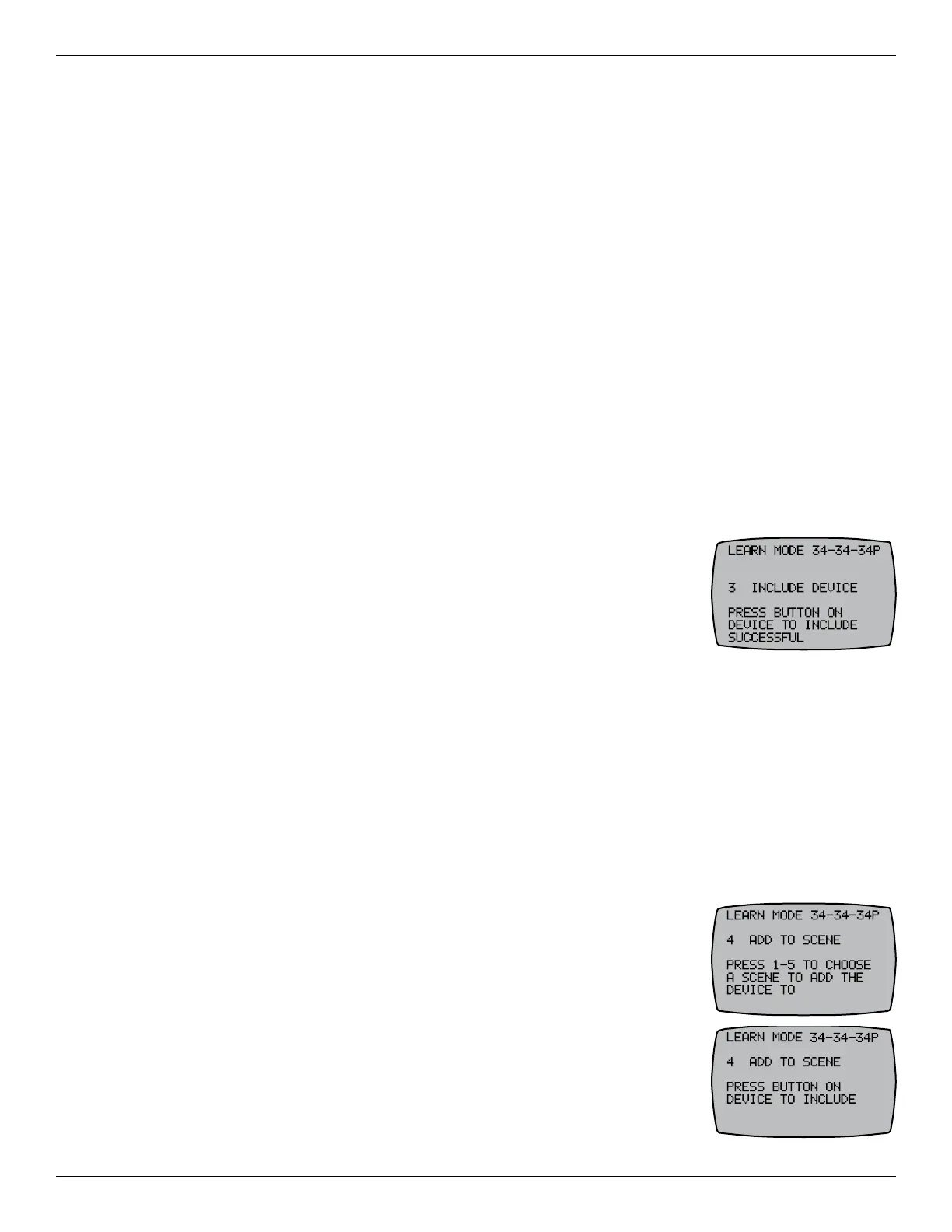
2. Press 3 INCLUDE DEVICE. The screen displays PRESS BUTTON ON
DEVICE TO INCLUDE.
3. Press the button on the Z-Wave device for including the device in
a network. See manufacturer’s instructions. The controller displays
SUCCESSFUL and then returns to the programming screen.
4. Repeat this procedure as needed to include additional Z-Wave devices in the network.
5. When all the Z-Wave devices are included in network, press ENTER to return to the main
screen.
$GGLQJ=:DYH'HYLFHVWR6FHQHV
Scenes are groups of Z-Wave devices that act together. Congure scenes in the controller to
enable users to activate devices in a Scene by pressing a button on the controller. Up to ve
Scenes can be congured in the controller.
NOTE: If a Z-Wave controlled light is on a dimmer switch, you can preset the dimmer level when
adding the light to a Scene.
1. Press P/S and ENTER simultaneously to access LEARN MODE.
2. Press 4 ADD TO SCENE. The controller displays PRESS 1-5 TO
CHOOSE A SCENE TO ADD THE DEVICE TO.
3. Press a controller button (1, 2, 3, 4, or 5) to add a device to a Scene.
The screen displays PRESS BUTTON ON DEVICE TO INCLUDE.
NOTE: The buttons represent the different Scenes.
4. Press the INCLUDE button on the Z-Wave device to include the
device in a Scene. See manufacturer’s instructions.



 To Next Page