www.intermatic.com
44
MultiWave Control System Programming and User Guide
&KDQJLQJD6HFRQGDU\&RQWUROOHUWR3ULPDU\
Follow this procedure to change a secondary remote to primary.
NOTE: There can only be one primary controller in a given network.
1. Press P/S and ENTER simultaneously to access LEARN MODE.
2. Press to scroll to the CNTRL CONFIG screen.
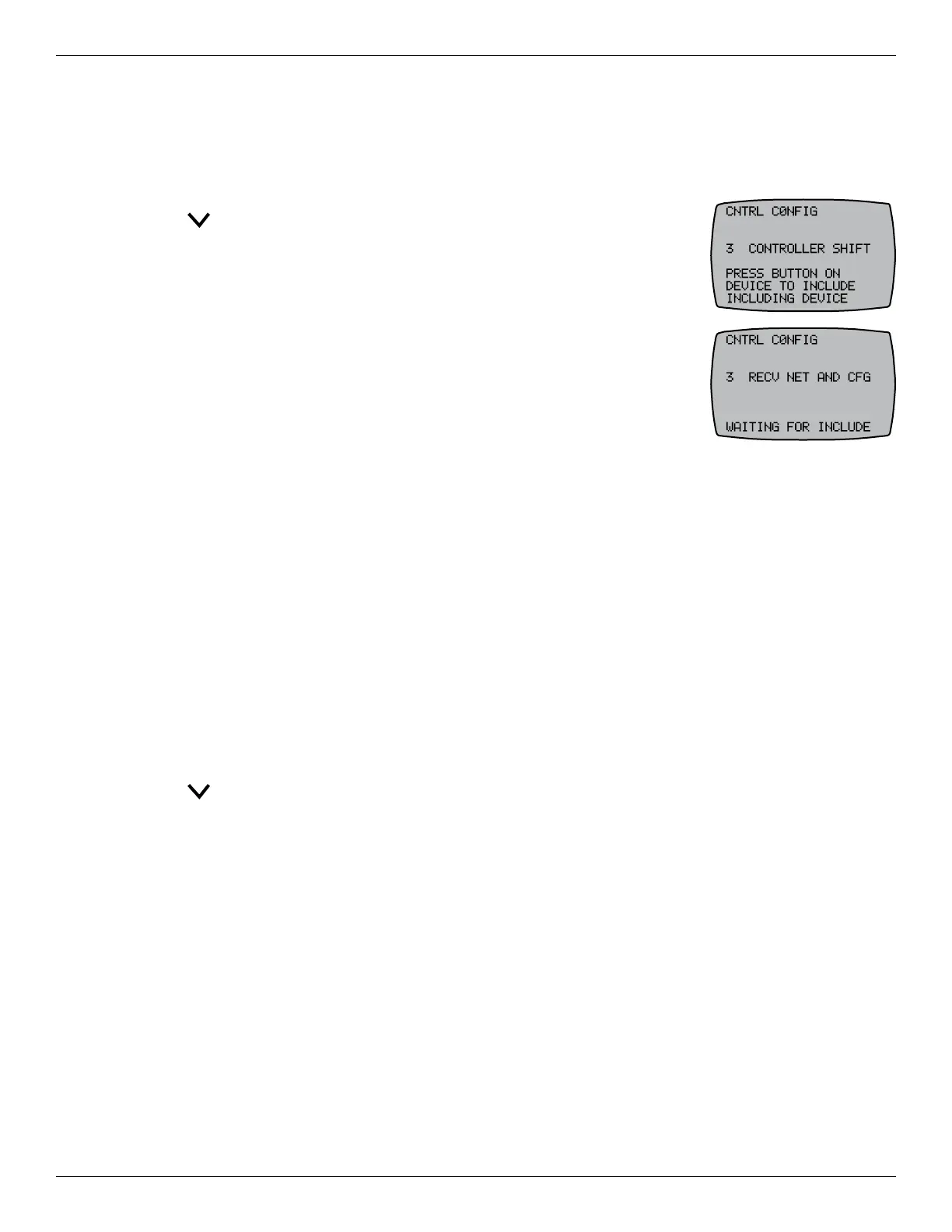
3. On the primary controller, press 3 CONTROLLER SHIFT. The controller
displays PRESS BUTTON ON DEVICE TO INCLUDE INCLUDING
DEVICE.
4. On the secondary controller that you want to change to primary, press
3 RECV NET AND CFG. The primary and secondary controllers restart
and then the following notications appear on the PRIMARY and
SECONDARY controllers:
• The PRIMARY controller: INCLUDING DEVICE appears, followed
by SENDING NET INFO, SENDING SCENE INFO, SENDING CFG
INFO. The controller then returns to the CNTRL COPY screen.
• The SECONDARY controller: WAITING FOR INCLUDE appears. After data is moved from
the to the secondary controller, SUCCESSFUL appears and the controller returns to the
main screen.
5. Make sure both controllers are returned to the main screens. The procedure is complete.
,QFOXGLQJD&RQWUROOHULQWRD7KLUG3DUW\1HWZRUN
The MultiWave controller is a Z-Wave compliant device that can be included in networks created by
other manufacturer’s Z-Wave compliant controllers. If applicable, follow this procedure to include the
MultiWave controller in another manufacturer’s controller network.
1. Activate the replication function on the third party controller to transmit network information to the
MultiWave controller.
NOTE: See the third party manufacturer’s instructions for further instructions.
2. On the MultiWave controller, press P/S and ENTER simultaneously to access LEARN MODE.
3. Press to scroll to the CNTRL CONFIG screen.
4. Press 2 to display the CONTROLLER COPY screen.
5. Press 2 to receive network information for the MultiWave controller. The controller displays
WAITING FOR INCLUDE, followed by SUCCESSFUL. The screen then reboots. The controller is
congured as a secondary controller for the third party network.
([FOXGLQJD&RQWUROOHUIURPD7KLUG3DUW\1HWZRUN
To exclude a MultiWave controller from a third-party network, reset the MultiWave controller. Perform
the procedure Resetting the Controller in Chapter 2 “Programming — Controller Setup”.



 To Next Page