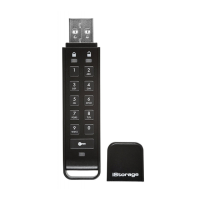
iStorage datAshur® PRO
+
C
User Manual v1.0
11
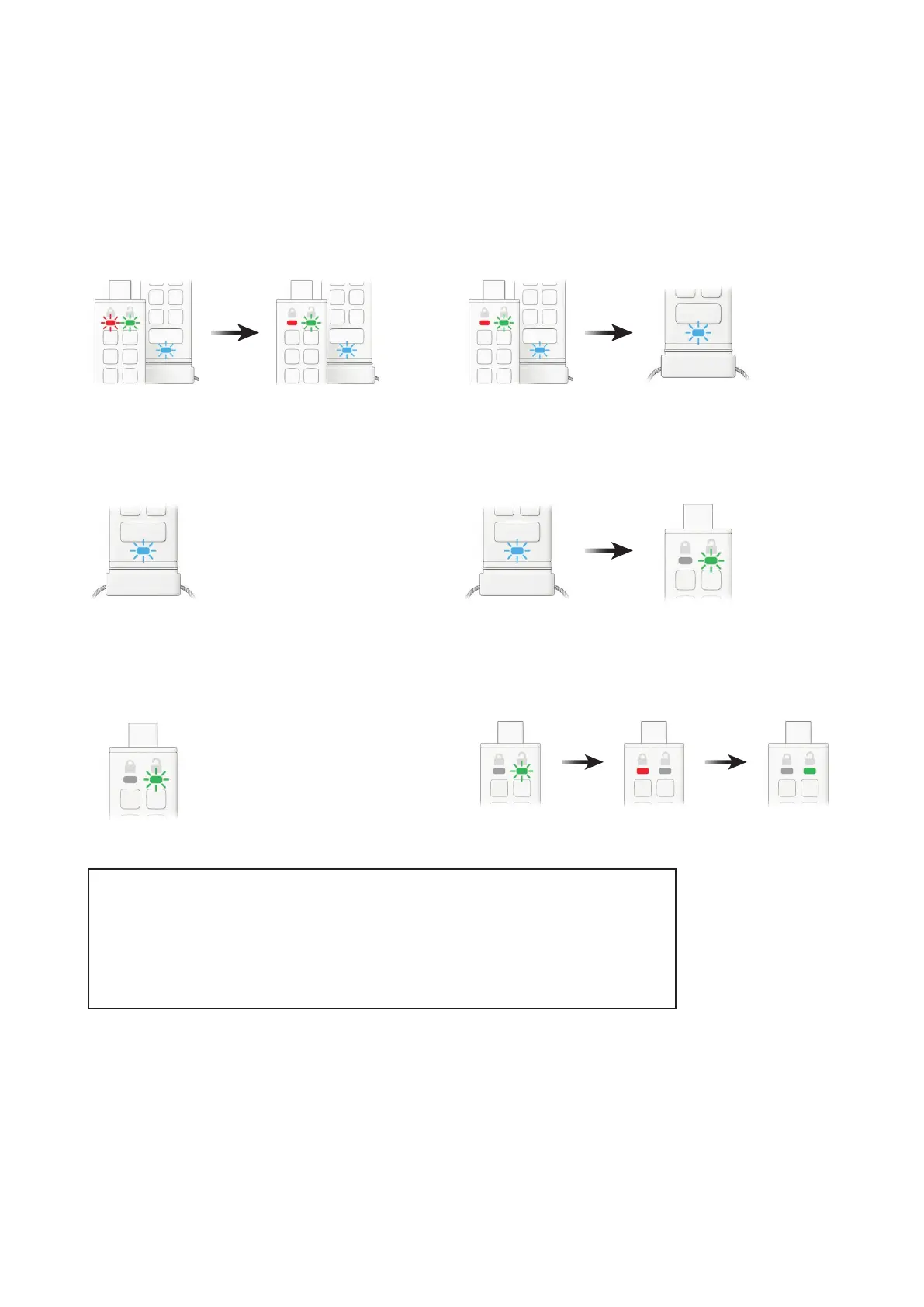
To create a User PIN, proceed with the following steps.
1. Press KEY button once
RED, GREEN & BLUE LEDs will ash together once and then switch to a
solid RED LED and blinking GREEN and BLUE LEDs.
2. Press the KEY button TWICE (double-click)
Solid RED LED and blinking GREEN and BLUE LEDs will switch to a
blinking BLUE LED.
3. Enter your new 8-15 digit User PIN
BLUE LED will continue to blink.
4. Press KEY button TWICE (double-click)
Blinking BLUE LED will switch to a blinking GREEN LED.
5. Re-enter your new User PIN
GREEN LED continues to blink.
6. Press KEY button TWICE (double-click)
Blinking GREEN LED will change to solid RED LED and then switch to a
solid GREEN LED indicating that the User PIN was successfully created.
Note: Once the datAshur PRO
+
C has been successfully unlocked, the GREEN LED will remain on and in a solid
state for 30 seconds only, during which time the datAshur PRO
+
C needs to be connected to a powered USB
port. It can be locked down immediately (if not connected to a USB port) by pressing and holding down the KEY
button for 3 seconds, or by clicking the ‘Safely Remove Hardware/Eject’ icon within your operating system when
connected to a USB port.
When the datAshur PRO
+
C is unlocked and connected to a USB port, it will not accept further instructions via
the keypad.













 To Next Page