iStorage datAshur® PRO
+
C
User Manual v1.0
35
29. How to format datAshur PRO
+
C for macOS
To format your datAshur PRO
+
C on macOS,
please follow the steps below.
1. Unlock and connect the datAshur PRO
+
C to your macOS machine.
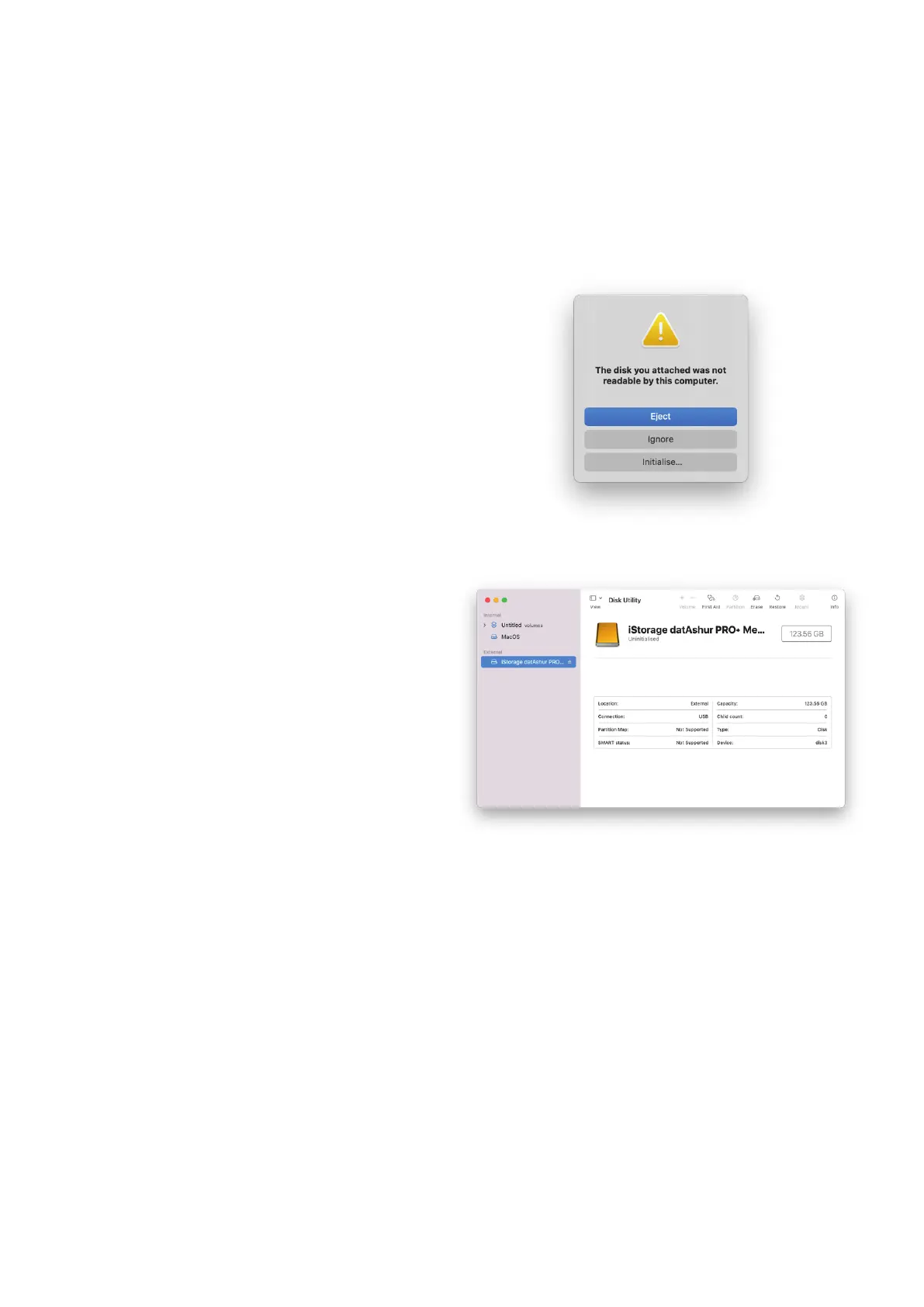
2. A warning message will pop up (Image 1). Press “Initialise”.
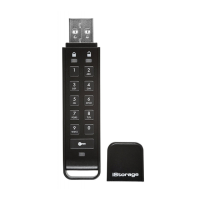
3. Select the external volume labelled “iStorage datAshur PRO
+
C…”
(Image 2) and press “Erase”.
4. Enter a name for the drive. The name of the drive will eventually
appear on the Desktop. The Volume Format dropdown menu lists
the available drive formats that macOS supports. The recommended
format type is macOS Extended for macOS and MS-DOS or exFAT for
cross platform including windows. Select Scheme as GUID
Partition Map.
5. Click Erase.
6. The formatted drive will appear in the Disk Utility window and will
mount onto the desktop.
Image 1
Image 2













 To Next Page