iStorage datAshur® PRO
+
C
User Manual v1.0
23
16. How to change the Admin PIN
Once an Admin PIN has been created, the datAshur
PRO
+
C needs to be unlocked in Admin mode in order
to change the Admin PIN. The Admin PIN cannot be
changed from the User mode.
Caution: Entering the Admin PIN to access a locked drive will
clear (delete) the User PIN.
PIN Requirements:
• Must be between 8-15 digits in length
• Must not contain only repetitive numbers, e.g. (3-3-3-3-3-3-3-3)
• Must not contain only consecutive numbers, e.g. (1-2-3-4-5-6-7-8),
(7-8-9-0-1-2-3-4)
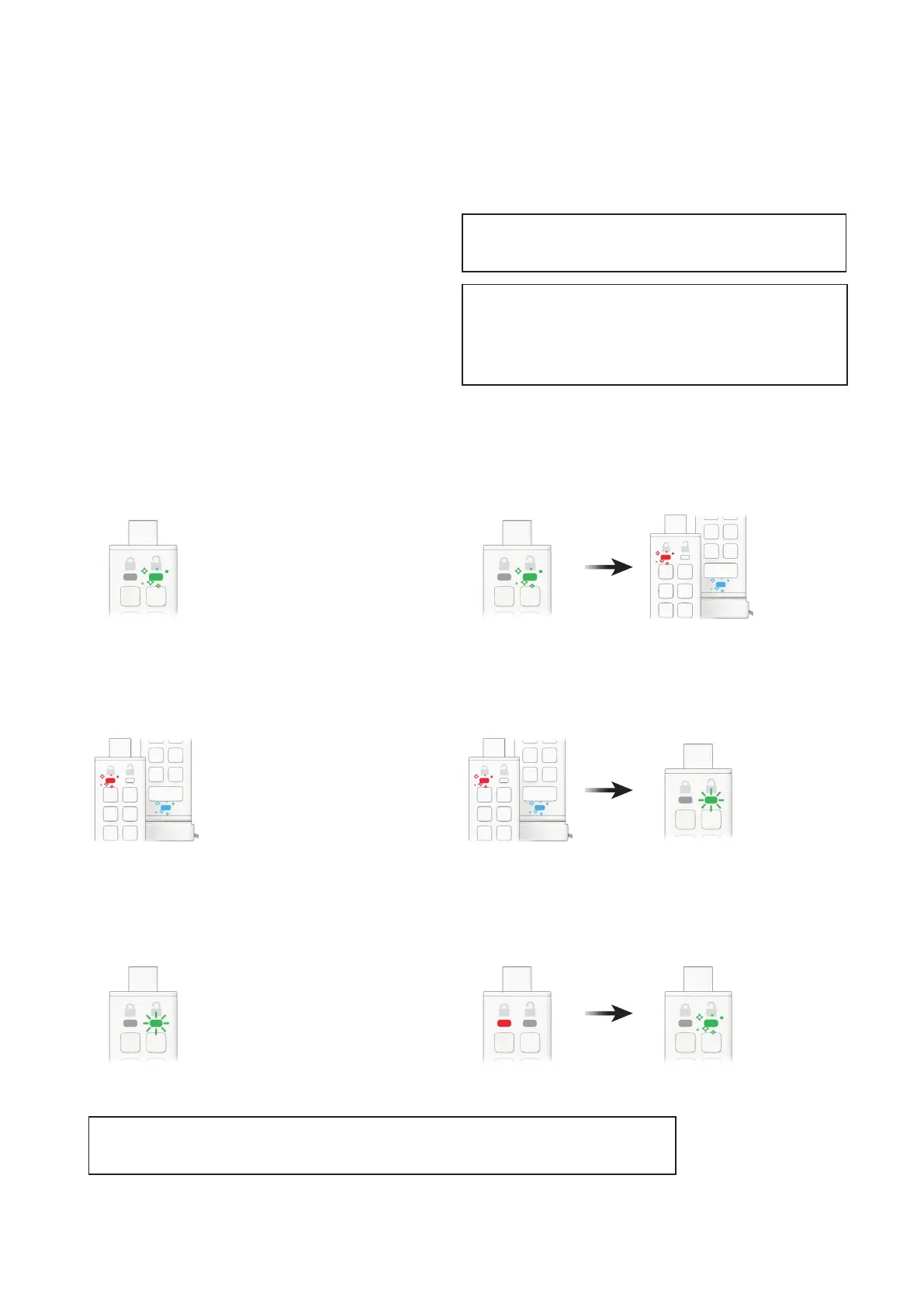
1. Unlock the datAshur PRO
+
C with existing Admin PIN
GREEN LED will icker indicating successful Admin PIN entry.
3. Enter your new 8-15 digit Admin PIN
RED and BLUE LEDs will continue to icker together.
5. Re-enter your new Admin PIN
GREEN LED will continue to blink.
2. Press and hold down the number 1 button and press the
KEY button TWICE (double click)
Flickering GREEN LED switches to RED and BLUE LEDs ickering together
ready to receive new Admin PIN.
4. Press KEY button TWICE (double click)
RED and BLUE LEDs will switch to a blinking GREEN LED.
6. Press KEY button TWICE (double click)
Solid RED LED switches to a ickering GREEN LED indicating successful
Admin PIN change.
Note: If a mistake was made while dening a new Admin PIN or the procedure was not completed,
the drive will retain the old Admin PIN.













 To Next Page