iStorage datAshur® PRO
+
C
User Manual v1.0
32
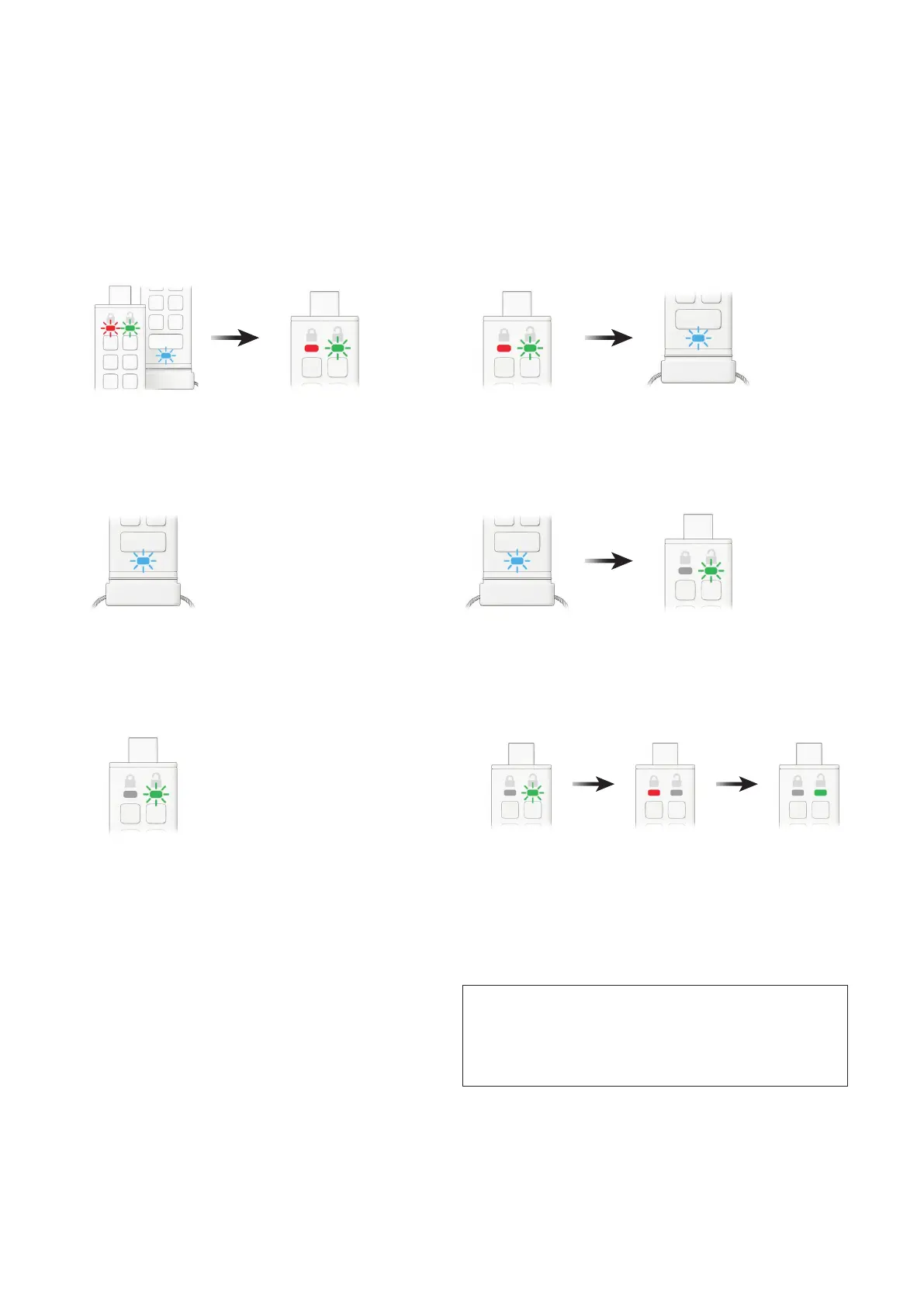
To create a User PIN after a Brute Force attack
or Reset, proceed with the following steps.
1. Press KEY button once
RED, GREEN & BLUE LEDs will ash together once and then switch to a
solid RED LED and a blinking GREEN LED.
3. Enter your new 8-15 digit User PIN
BLUE LED will continue to blink.
5. Re-enter your new User PIN
GREEN LED will continue to blink.
2. Press KEY button TWICE (double click)
Solid RED LED and blinking GREEN LED will switch to a blinking BLUE LED.
4. Press KEY button TWICE (double click)
Blinking BLUE LED will switch to a blinking GREEN LED.
6. Press KEY button TWICE (double click)
Blinking GREEN LED will change to solid RED LED and then switch to a
solid GREEN LED indicating that the User PIN was successfully created.
26. How to create an Admin PIN after
a Brute Force Attack or Reset
It will be necessary after a Brute Force attack or when
the datAshur PRO
+
C has been reset to create a new
Admin PIN and format the drive before it can be used.
To create a User PIN instead of an Admin PIN, refer to
section 25.
PIN Requirements:
• Must be between 8-15 digits in length
• Must not contain only repetitive numbers, e.g. (3-3-3-3-3-3-3-3)
• Must not contain only consecutive numbers, e.g. (1-2-3-4-5-6-7-8),
(7-8-9-0-1-2-3-4)













 To Next Page