12
JAKA Zu MiniCab v1.1
the running program is written and loaded by default.
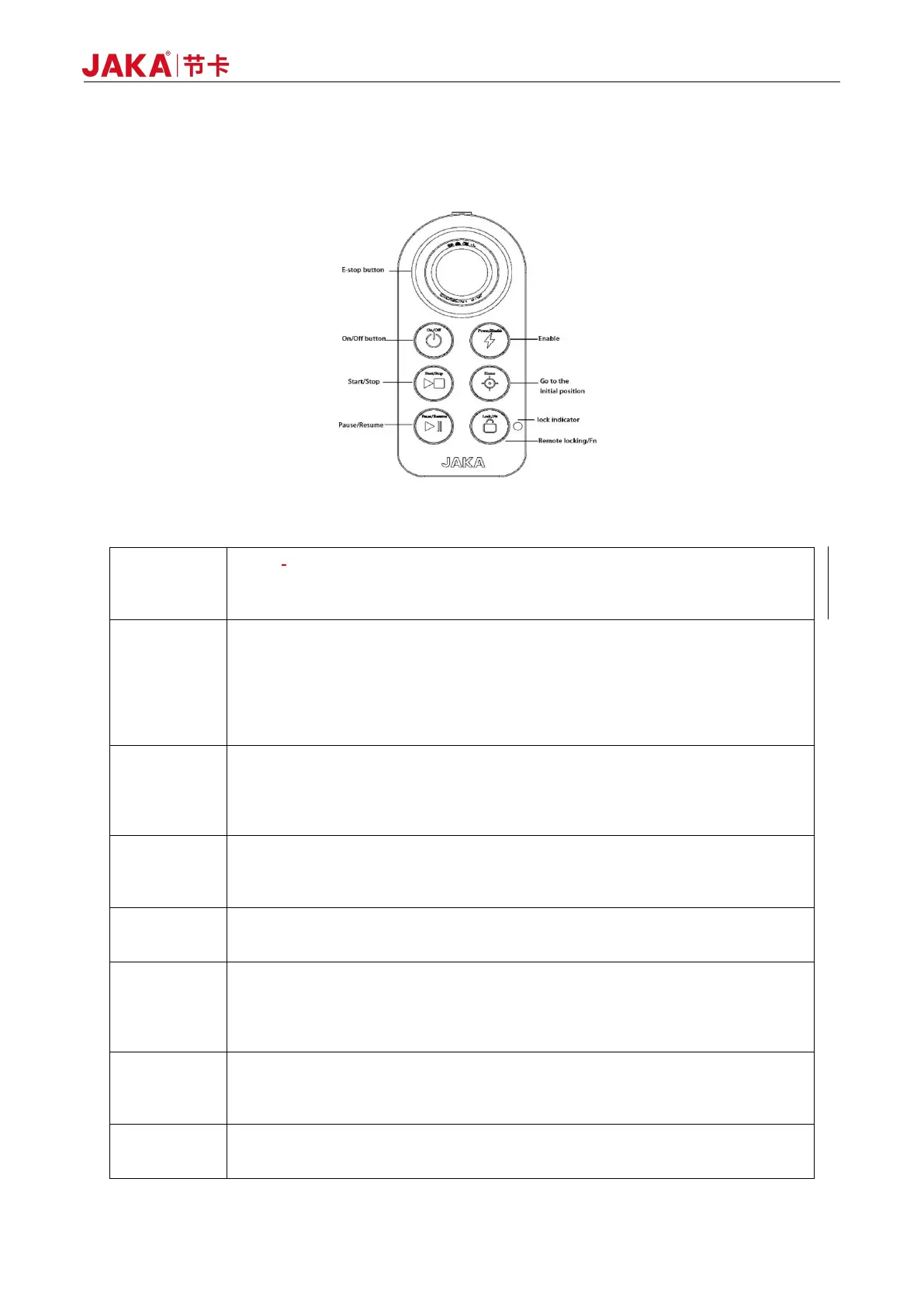
The handle sends control commands to the controller through the combination of keys. The function of the
combination of keys is described as follows:
Table 2-2 Handle Function Description
Power on: Short press the power button for 1s and then release. The buzzer rings,
and the electric control cabinet turns on.
Shutdown: Long press the power button for more than 3s. The handle rings 6~7
times, and the electric control cabinet turns off.
Power on the robot: If the power is not turned on, short press the button to electrify
the robot.
Power off the robot: When the power is on, short press the button to turn the robot
off.
Enbale the robot: When the power is on, short press the Lock key + Enable key.
Disable the robot: When the robot is enabled, short press the Lock key + Enable
key.
Terminate program operation: Short press the Stop button to start the loaded
default program, and after it moving to the initial position of the program, execute
the default program.
Terminate program operation: In the robot running program, short press to
terminate the program.
Reset: After the robot is enabled, when the program is not running, press
continuously to control the robot to move to the set default position. When the robot
runs to the default position, keep pressing and lock the prompt light to blue
breathing light.
Pause: During the automatic operation of the robot, press Pause program
execution.
Recover: When the machine is suspended, press Recover program execution.
Lock handle: Long press the Lock button for 3s and the lock indicator light flashes
orange.
Unlock handle: Long press the Lock Key for 3s and the locking prompt lights are
switched off.
Combined functions: Other keys can be used with the Lock Key.
Locked state: When in a locked state, the light flashes orange. All buttons are
invalid except the Unlock button. The robot can be controlled through the App.
Unlocked state: When in the unlocked state, the lights are off and the handle can
be used. When the APP interface is grey, the robot can no longer be controlled.
For emergency stop.
Note: The E-STOP button is only used in the case of an emergency and shall not be
used as a general Power-Off device.


 To Next Page