Cuelists EditingtheCuelist
.
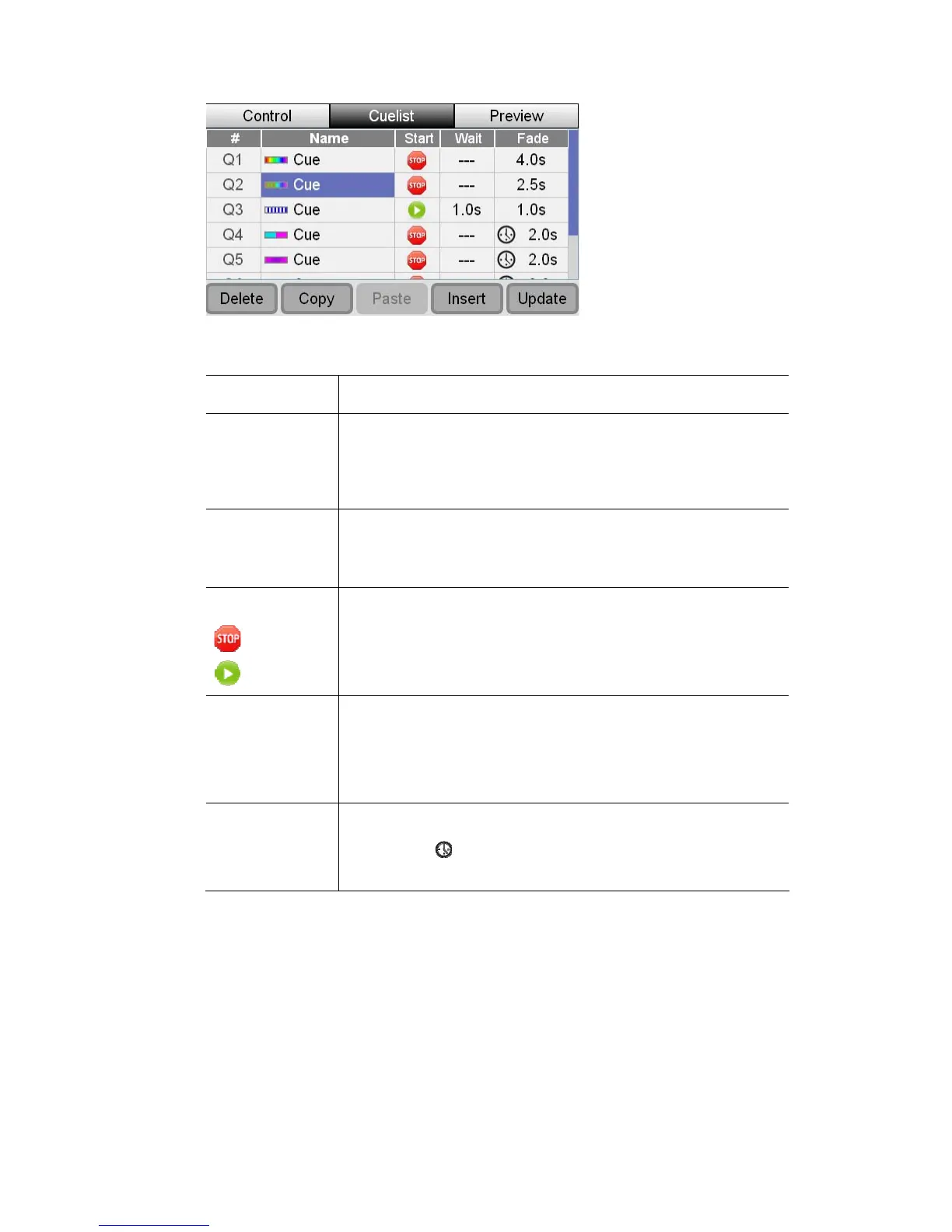
The Cuelist window shows a table of all the cues you have recorded:
This column… does this…
#
e number)
Cues that have been played have a Green background
(Cu
Is the cue number.
Cues that are playing have a Yellow background
Name
Shows the Cue name and an icon representing t
Press the touchscreen dial to
Cue.
he Cue.
edit the name of the selected
Start
Sets the Cue start action:
Stop - the Cue will play when the Pl
Play – the Cue plays automati
ay button is pressed
cally after the previous Cue
Wait
evious cue that the cue
plays (if set to automatically start).
ding in.
Sets the time, after the end of the pr
A negative time means the cue will start while the previous
cue is still fa
Fade
Sets the in fade time for the cue, in seconds.
Cues with a
icon beside the time are set to follow the
current setting of the fade time dial
Renamingacueinthecuelist
he
give it a name that’s easier to remember you d
1. Touch the name of the Scene you want to change or rotate the dial until the
scene name is highlighted then press down on the touchscreen dial. Stage CL
displays the on screen keyboard window
2. Type a name for the scene and click the OK button.
W n you record a Cuelist each Cue is given a name (i.e. Cue). If you’d like to
o this:
StageCLUserGuide,Version1.3 8‐9


 To Next Page