Cuelists EditingtheCuelist
DeletingaCue
If you don’t want to keep a Cue you have recorded, you can delete it. To do this:
1. tton. Stage CL displays the Cuelist window.
2. Touch the name of the Cue you want to delete or rotate the dial until the
scene name is highlighted.
at the bottom of the touchscreen. Stage CL displays
aCuelist
into your cues with the Preview tab. To
do this:
w tab button in the Cuelist window. Stage CL displays the
Press the Cuelist’ tab bu
3. Touch the Delete button
the delete confirmation window.
4. Press Yes to complete the change
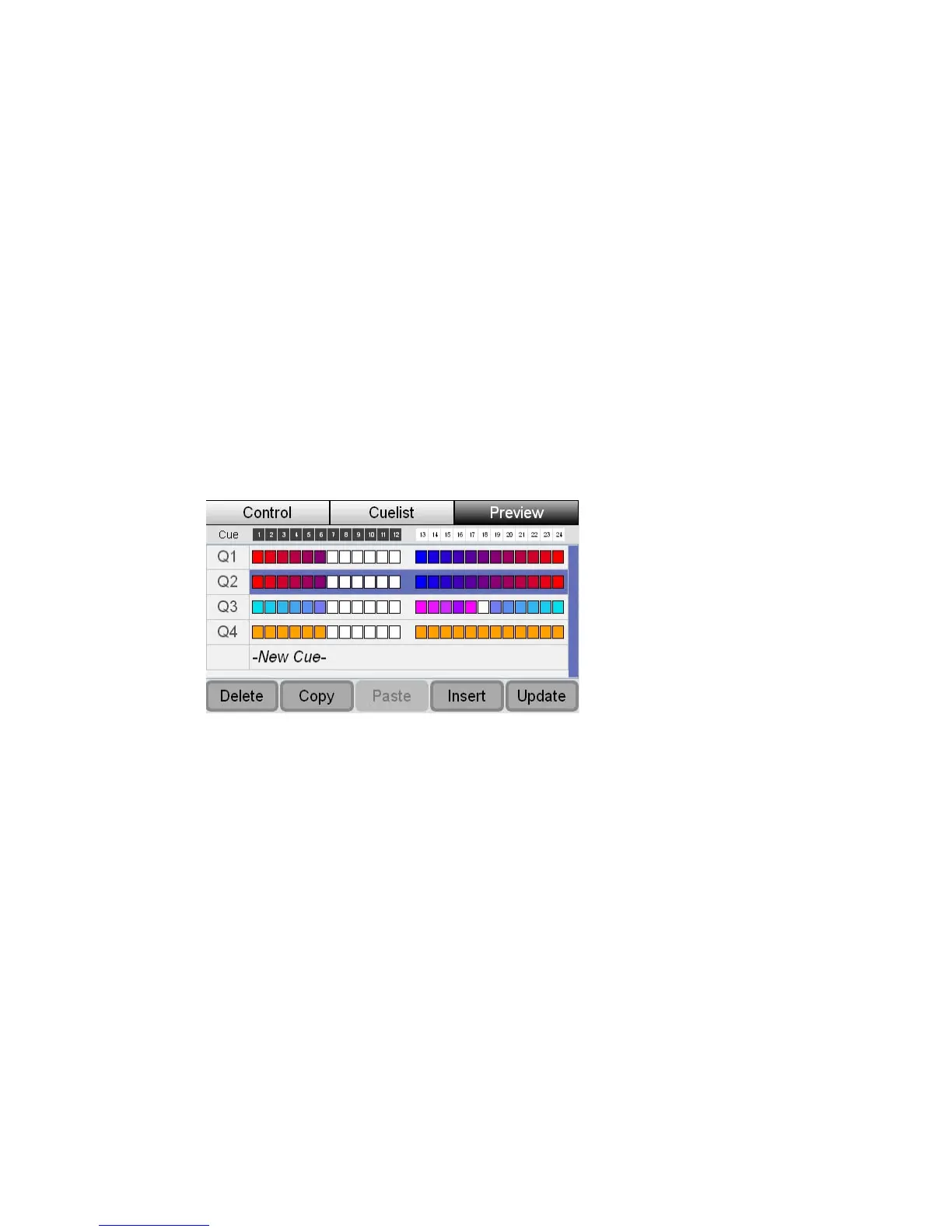
Previewingthecontentsof
You can check what you have recorded
1. Press the Previe
list of cues:
2. If the cue you want to see is not visible use the to
or down the list of scenes.
The icons show the colour and intensity of each
you have recorded. Fixtures with a ‘X’ icon are not included in the
DetailedCueinformation
You can view more detailed information about the content
cuelist. To do this:
1. Use the touchscreen dial to scroll up or down th
uchscreen dial to scroll up
of the fixtures for each cue that
scene.
s of each cue in a
list of cues. When the cue
you want is highlighted press the touchscreen dial. Stage CL opens the
e
detailed preview window:
StageCLUserGuide,Version1.3 8‐11


 To Next Page