Chases EditingaChase
This column… does this…
touchscreen dial to change this setting
To change a Chase’s other settings you do this:
1. Tap on the name of the Chase, to select it
2. switch to the Chase control window
settings. For
information on changing these settings see Playing a Chase on page 9-14
Pre
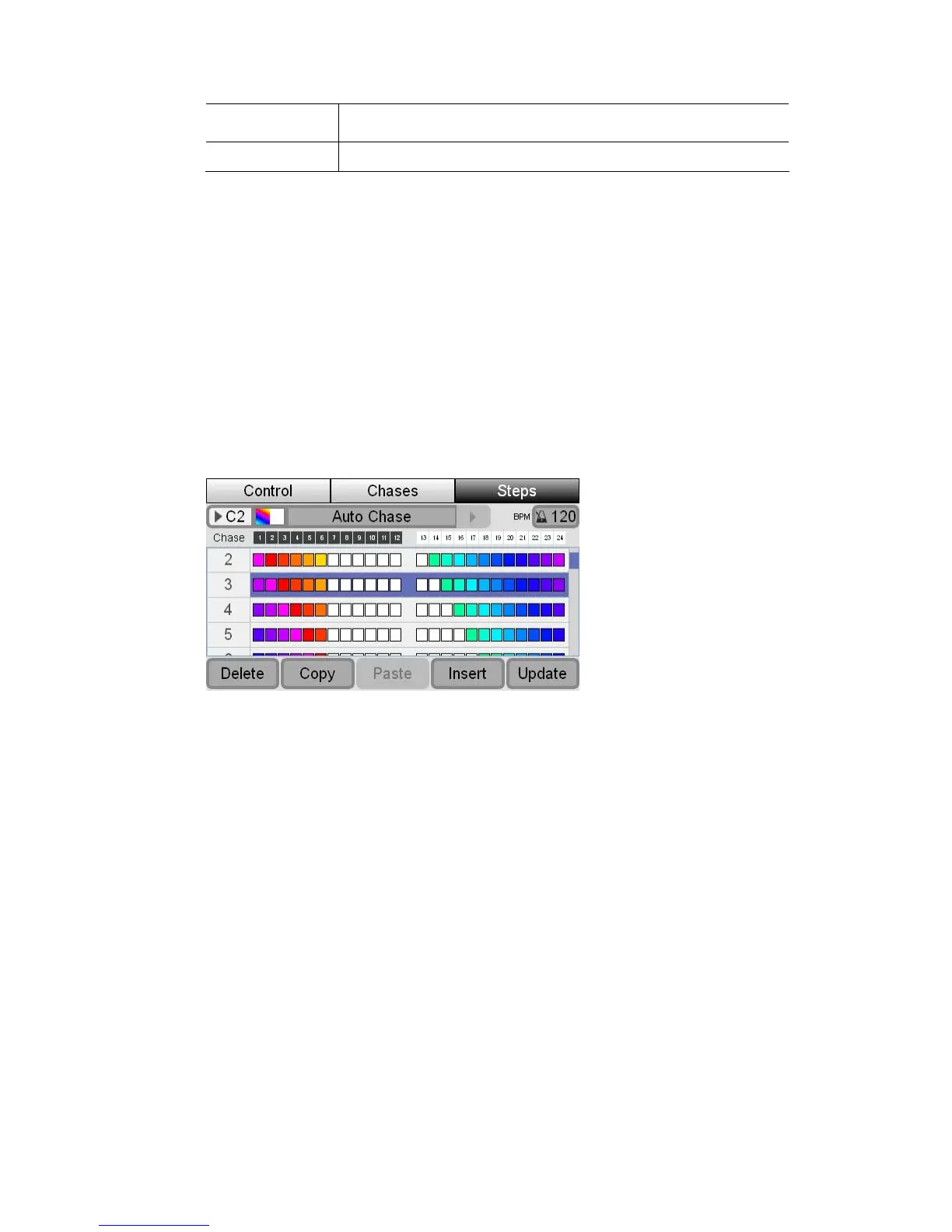
You can check what you have recorded into a Chase with the Steps tab. To do
s
1. Press the right hand button above the touchscreen or touch the Steps tab.
e Chase window with the Steps tab selected:
Push the Control button to
3. Set the Direction, Crossfade, Mirror, Audio and Filter
viewingtheChasecontents.
thi
Stage CL displays th
2. If the step you want to see is not visible use the touchscreen dial to scroll u
or down the list of scenes.
p
The icons show the colour and intensity of each of the 12 fixtures for each step
step.
as
3. Use the touchscreen dial to scroll up or down the list of steps. When the step
that you have recorded. Fixtures with a ‘X’ icon are not included in the
DetailedChaseStepinformation
You can view more detailed information about the contents of each step of a
ch e. To do this:
you want is highlighted press the touchscreen dial. Stage CL opens the
detailed preview window:
StageCLUserGuide,Version1.3 9‐17


 To Next Page