2. Run the CardioCoach software.
3. Navigate to Help from the top menu.
4. Click the App Registration button.
5. If you have not already entered a valid email and registration key
combination, you will be prompted to enter those. Otherwise, a
popup message will confirm that your registration is up to date.
6. If you have a paid subscription but unable to verify your
registration, contact KORR.
1. Connect the power source to the CardioCoach PRO.
2. Power on the CardioCoach PRO.
3. Navigate to the Bluetooth and other devices page in the Windows
Settings menu. This can be done by clicking the gear icon from the
Windows Start menu, and then selecting Devices.
4. Click Add Bluetooth or Other Device.
5. From the options that pop up, select Bluetooth.
6. When the CardioCoach PRO appears on the list of devices, select it.
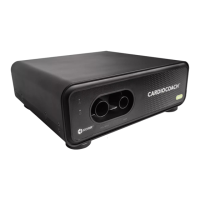
The device name will have the format KORR-[SERIAL NUMBER]-####.
The serial number is found on a label on the back of the CardioCoach
PRO and uses the format LL-NNNN (two letters, a dash, and four
numbers).
7. Follow the computer’s prompts to pair the device.
8. When prompted for a PIN, enter 0000 (four zeroes).
9. Run the CardioCoach software.
10. After a few seconds, the software should recognize and connect to
the CardioCoach PRO. If the software is already running but cannot
connect to the unit, restarting the software may help.
11. When connected, the connection indicator will stay lit and the word
“Connected” will appear in the lower left corner of the CardioCoach
software screen.
Example: Windows settings shows KORR-AA-1234-22A3, where
AA-1234 is the serial number that is shown on the back of the
device. (The last four characters on your screen after the serial
number may be disregarded.)


 To Next Page