Installation and Settings
CardioCoach PRO User Manual | Page 70
take the client from rest and gradually increase the intensity over time in a
linear fashion.
Consent
As with any activity requiring physical exertion, there are issues of safety
and liability. To help you address those concerns, you will find sample
forms and questionnaires in Appendix A of this manual, or by navigating
the software to Help then Forms. These include a sample consent form and
medical clearance form. You may wish to consult legal counsel to develop
your own forms to suit your specific needs and applicable law.
Troubleshooting
Computer Crashes or Freezes Mid-Test
• Be aware that if the computer has an issue during the test that affects
the software, continue running the test as the CardioCoach unit is still
recording data.
• The test will automatically be saved onto the unit as long as it is
ended successfully.
• To retrieve the test from the CardioCoach unit, once the computer is
up and running, contact KORR customer support at 1 (800) 895-4048
or (801) 483-2080 for assistance.
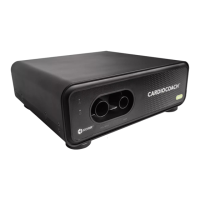
Green Status Light Continues Flashing—USB Connection
Verify that a USB cable is securely connected into the CardioCoach and
your PC/Tablet. Then try the following options. If none of these options
are successful, contact KORR.
Power Cycle the CardioCoach.
1. Power the CardioCoach off, then back on.
2. Allow a few seconds for the software to recognize the CardioCoach.
Restart the Software.
1. Power the CardioCoach off, then back on.
2. Allow a few seconds for the software to recognize the CardioCoach.
Refresh the CardioCoach Connection.
Note: If at any point during troubleshooting the green Status LED
stops flashing, there is no need to continue troubleshooting.


 To Next Page