2. Install driver from https://korr.com/service/product-updates/ entitled
“Drivers for ANT USBm USB Dongle.”
a. The ANT USBm driver is a generic version, not compatible with all
ANT USB devices. Please check with the manufacturer of your
specific USB device for specific drivers first.
3. ANT+ dongle needs to be plugged in before software is turned on.
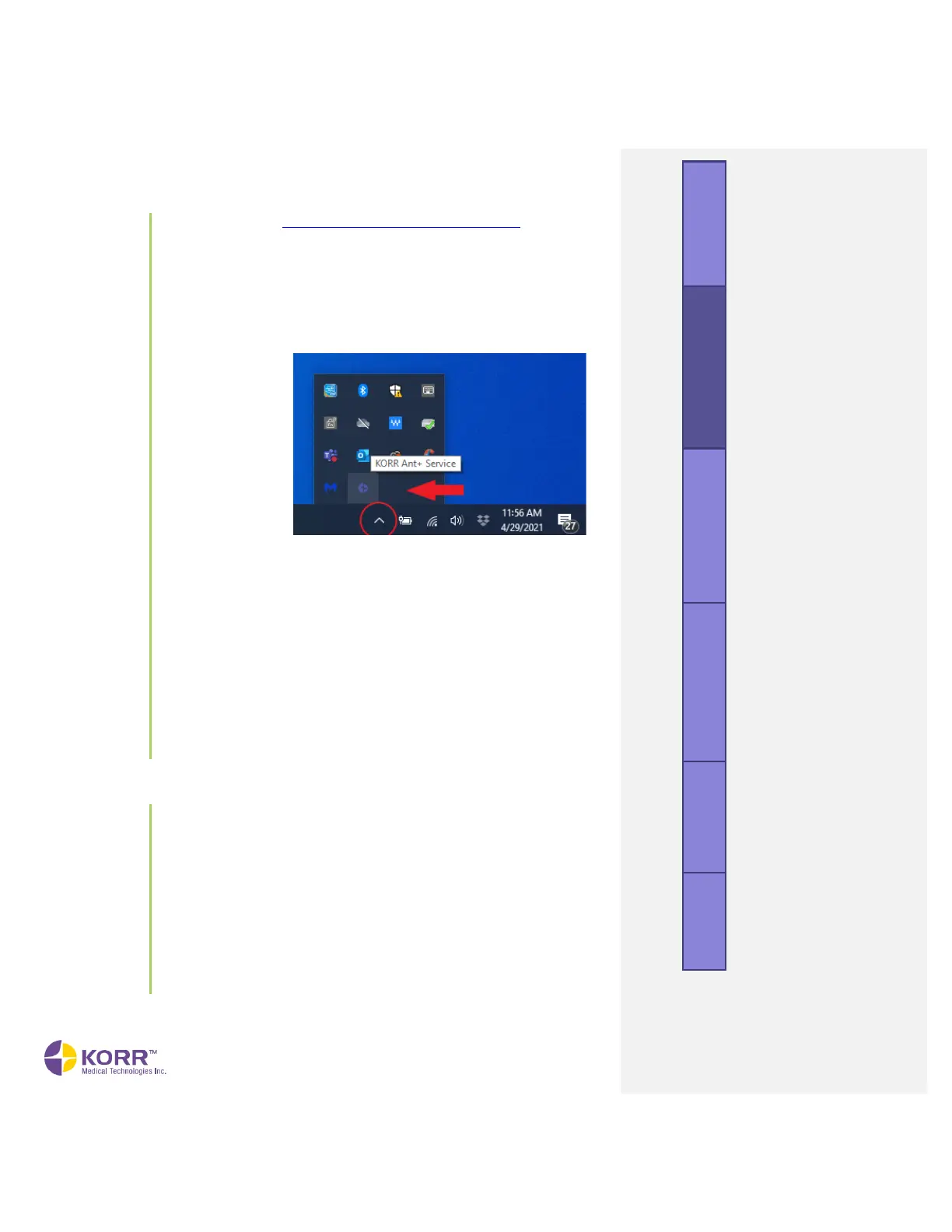
4. Check that device is connected by going to KORR Ant+ service (see
photo below)
5. In KORR CardioCoach software, go to equipment interface in SETTINGS,
and have ANT+ selected.
a. Select new device
ANT+ Trainer
b. Add new
Specify variables (watts/rpms) and choose ANT+ id
Click green SAVE button
6. When running your protocol, the intensity variables (watts, RPM’s, etc.)
need to match the ANT+ intensity variables.
7. Protocol needs to be selected prior to start of test for ANT+ device to
respond to commands during test.
To connect your Moxy MO2 device to your CardioCoach Pro:
1. Make sure you have an ANT+ dongle, and that it is connected to a
USB port in your laptop.
2. In the software, go to your SETTINGS.
3. Under the EQUIPMENT INTERFACE tab, click ADD MO2 DEVICE.
4. Type the muscle being measured by the MOXY and select the ANT+
ID number.
a. If you do not see an ANT+ ID, make sure your Dongle is
inserted.
5. Click SAVE
6. Make sure your results in the FORMAT RESULTS section are
selected to include the hemoglobin data.


 To Next Page