36
www.lannerinc.com
Chapter 5:
BIOS Setup
To enter the BIOS setup utility, simply follow the steps below:
1. Boot up the system.
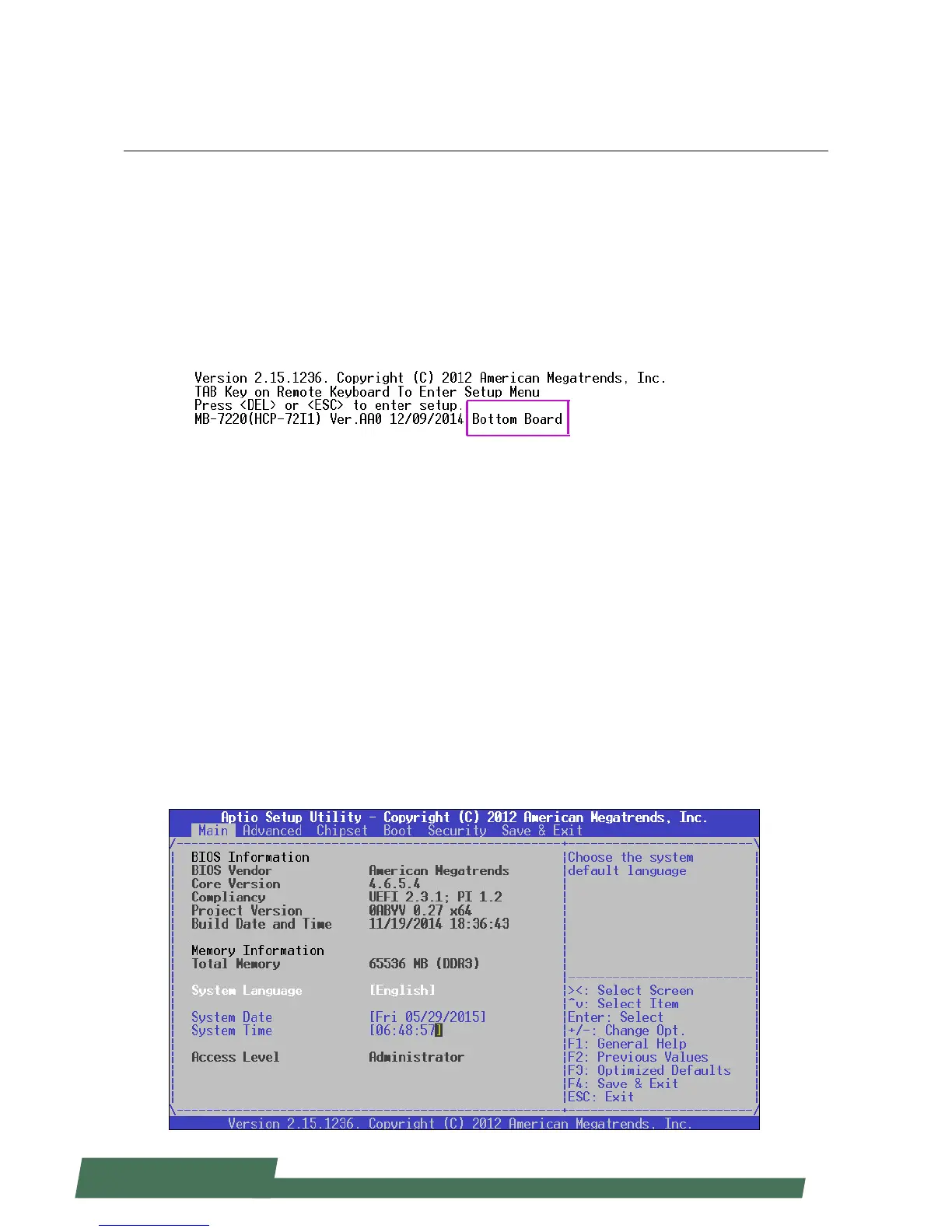
2. Press <Delete> during the boot-up if you connect a keyboard to HCP-72i1. But if you connect a PC to HCP-72i1
through console cable, then press <Tab>. Your system should be running POST (Power-On-Self-Test) upon booting
up.
About the POST Information of HCP-72i1:
HCP-72i1 is built based on HTCA structure with two motherboards. You may access either or both of the boards
depending on the connections established. You will see messages of whether you access the “Upper Board” or the
“Bottom Board” during the booting-up process.
3. Then you will be directed to the BIOS main screen.
4. Instructions of BIOS navigations:
[<--] [-->]: select a setup screen, for instance, [Main], [Advanced], [Chipset], [Boot], [Security], and
[Save & Exit]
[↑] [↓]: select an item/option on a setup screen
Enter: select an item/option or enter a sub-menu
ESC: exit the current screen
+/- = to adjust values for the selected setup item/option
F1 = to display General Help screen
F2 = to retrieve previous values, such as the parameters configured the last time you had entered BIOS.
F3 = to load optimized default values
F4 = to save configurations and exit BIOS
Notes: the images in the following section are for reference only.


 To Next Page