Chapter 10
| Quality of Service
Attaching a Policy Map to a Port
– 259 –
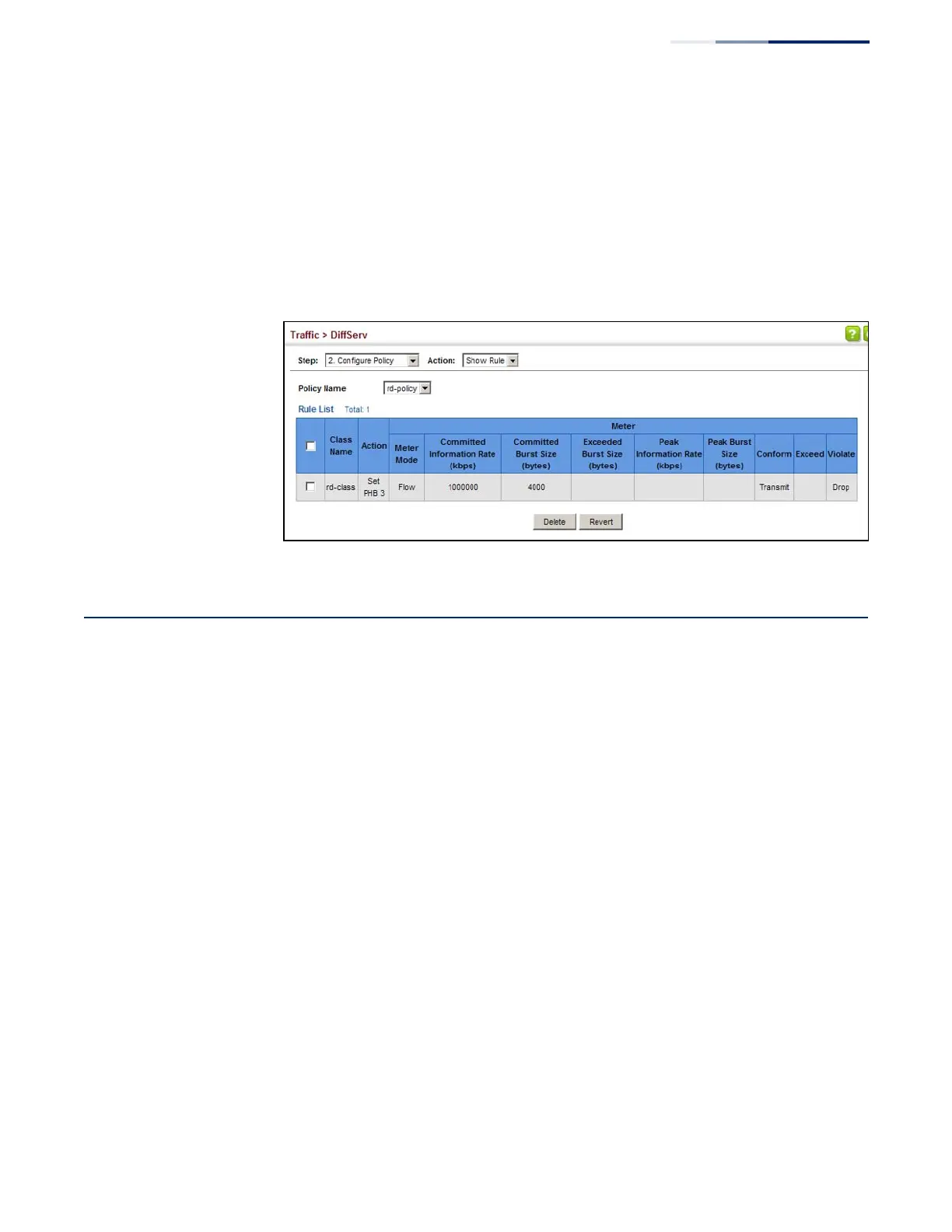
To show the rules for a policy map:
1.
Click Traffic, DiffServ.
2.
Select Configure Policy from the Step list.
3.
Select Show Rule from the Action list.
Figure 154: Showing the Rules for a Policy Map
Attaching a Policy Map to a Port
Use the Traffic > DiffServ (Configure Interface) page to bind a policy map to a port.
Command Usage
First define a class map, define a policy map, and then bind the service policy to the
required interface.
Parameters
These parameters are displayed:
◆
Port
– Specifies a port.
◆
Ingress
– Applies the selected rule to ingress traffic.
◆
Egress
– Applies the selected rule to egress traffic.
Web Interface
To bind a policy map to a port:
1.
Click Traffic, DiffServ.
2.
Select Configure Interface from the Step list.






 To Next Page