Maintenance and Troubleshooting
6
C-DiGit User Manual 6-6
Q: Can I add additional keys to Image Studio for C-DiGit?
A: No. You need to update to the full version of Image Studio.
Q: Can I use marker lanes in my gel analysis in Image Studio for C-DiGit?
A: No. You will need to update to the full version of Image Studio.
Q: Will Image Studio for C-DiGit work on Windows 8?
A: No. Image Studio for C-DiGit is not currently supported on Windows 8.
Q: When I try to connect to the C-DiGit Scanner, I see a list of multiple instruments.
How do I know which one to choose?
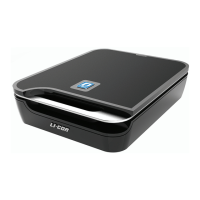
A: If there are multiple C-DiGit Blot Scanners connected, you will have to choose
the desired C-DiGit Blot Scanner from a list of available instruments listed by serial
number. You can find the serial number on a label on the underside of the
instrument.
Obtaining Technical Support
To resolve a problem with your C-DiGit Blot Scanner, start by contacting LI-COR
Technical Support at http://www.licor.com/support
, or sending an e-mail to
biohelp@licor.com. Outside of the U.S., contact your local sales office or
distributor. Be prepared to give the serial number of your instrument, which can be
found on a label on the instrument underside.
LI-COR Technical Support may ask you to provide copies of the instrument log files
to aid in diagnosing problems. The log files can be archived in a standard zip file
by choosing Application Menu > Logs > Export. Archive all the log files or just a
portion if you have restrictions on the file size that can be transmitted via e-mail.
Save the log file and e-mail it to the address recommended by Technical Support.


 To Next Page