Image Studio Software
4
C-DiGit User Manual 4-55
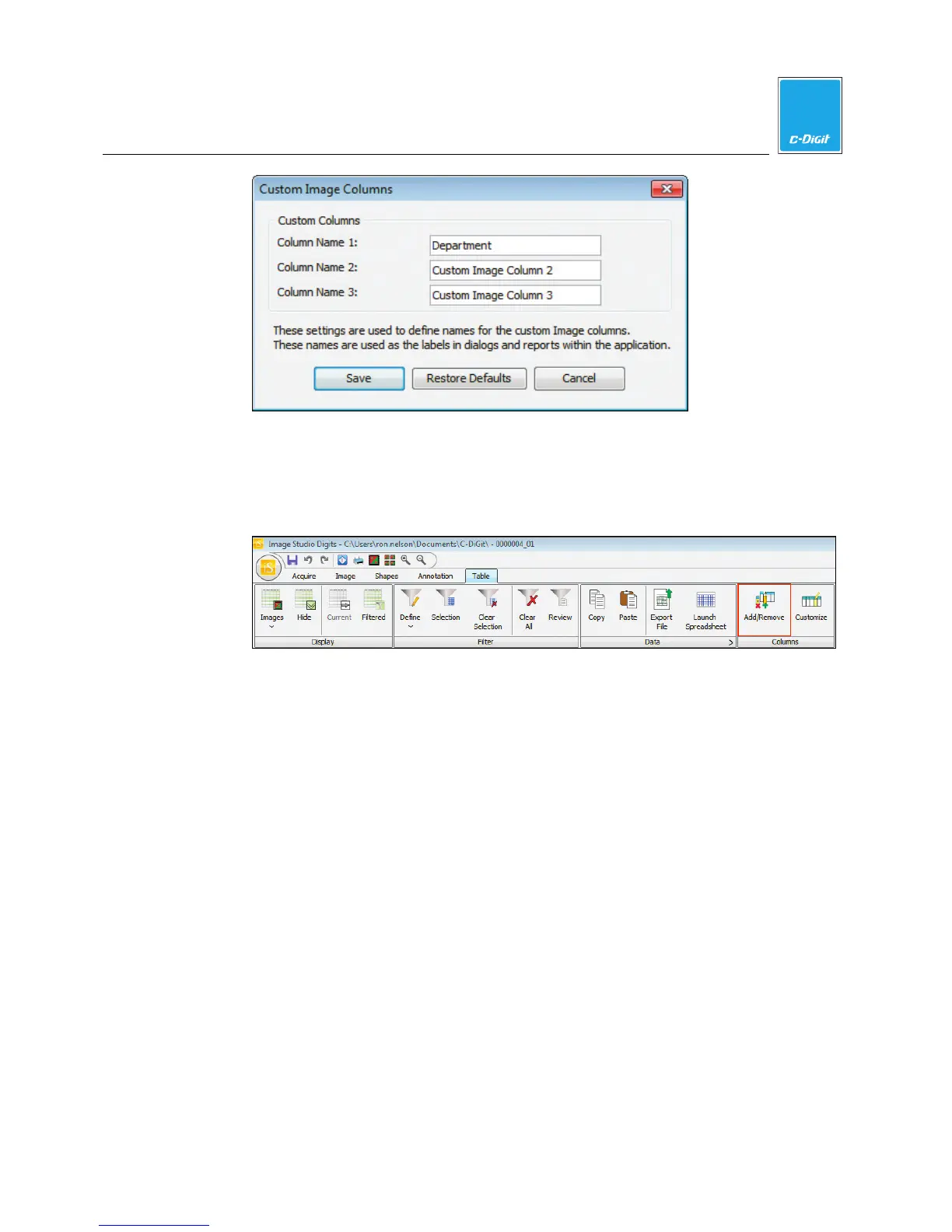
4. Click Save.
5. To add this custom column to the table, click the Table tab to view the Table
ribbon.
6. Click Add/Remove in the Columns group.
7. To add the De partment column, click the column description to enable the
check box.
8. Click Save. The Department column will be added to the right of the existing
columns.
Paste Data in a Column
Use Paste in the Data group to quickly fill a column with information.
1. Double-click the first cell in the Department column so that a cursor appears in
the cell.
2. Type ‘Tutorial’ at the cursor position using the keyboard.
3. Drag the mouse over ‘Tutorial’ to highlight it. The cursor should still appear in
the cell.
4. Press Ctrl+C on the keyboard to copy the data to the clipboard.
5. Drag the mouse over the cells in the Department column (or press the Ctrl key
while clicking each cell once) to select which cells to fill with ‘Tutorial’.
6. Click Paste in the Data group, press Ctrl+V on the keyboard, or use the right-
click menu to paste the data in the selected cells.


 To Next Page