Trackit Mk3 User Manual
22
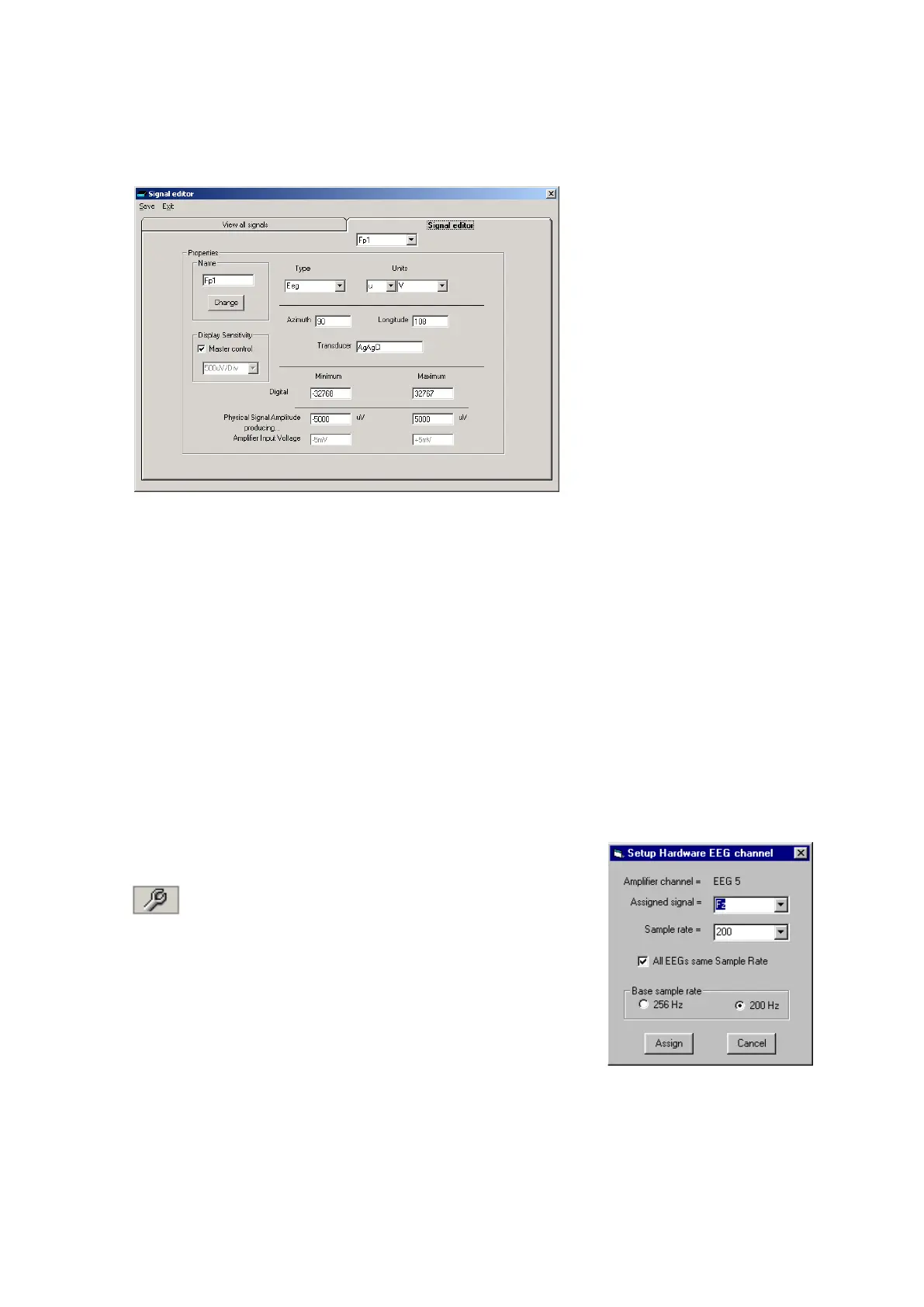
2 Double click on t he signal you want t o edit . This brings up t he Signal editor tab), allowing you to
creat e a relevant signal or label to be ent ered int o the signal list .
Figur e 8 Signa l edit ing t ool
3 Type in the Signal nam e ( e.g. Fp1) . Note t hat for EEG signals this m ust be case- sensitive.
4 Select a signal t ype ( in t his case EEG).
5 Click on the Change butt on. The signal is now ent ered int o t he list under the View all signals
t ab.
6 I f t he signal is not an EEG signal, it m ay be necessary to insert a display sensit ivity value by un-
checking t he Mast er cont rol check box.
Signals t hat have been defined wit h their own independent sensit ivities appear in red in t he
trace display. Furt her editing and changes to these sensit ivit y values in the trace display will be
saved back into t he signal library.
Ca ut ion: e dit ing signa ls t ha t are alr e a dy u se d in a n a ct iv e m ont a ge m a y re n de r t h a t
m ont a ge invalid. You w ill ne e d t o re - ent e r t he or igina l m ont a ge in t he Set - u p re cor d-
ing t a bbe d dialog box – se e ste ps 3 , 4 a n d 5 .
Step 3 Define the inputs
1 Select the Spanner icon on the t oolbar. This opens t he tabbed
Set up Recording dialog.
Spanner icon
2 Under the Am plifier Channels tab select the signals (labels) t o be
attached t o t he physical input s.
For exam ple, EEG input 1 m ay require t he label Fp1 and so on
according t o t he standard 10/ 20 nom enclat ure.
Double click the channel nam e and select the relevant signal label
from t he Setup Hardware EEG channel dialog.
Figur e 9 EEG set up


 To Next Page