Trackit Mk3 User Manual
66
Applicat ion PC Set up
There are two aspects to Set t ing Up – first ly, t he Application running on t he PC and secondly, the
Trackit and its Bluet ooth Module. Bot h part s of t he setup are accom plished from the PC. This sec-
tions covers t he Applicat ion set up, the next section the Trackit setup.
Options | Tab 1
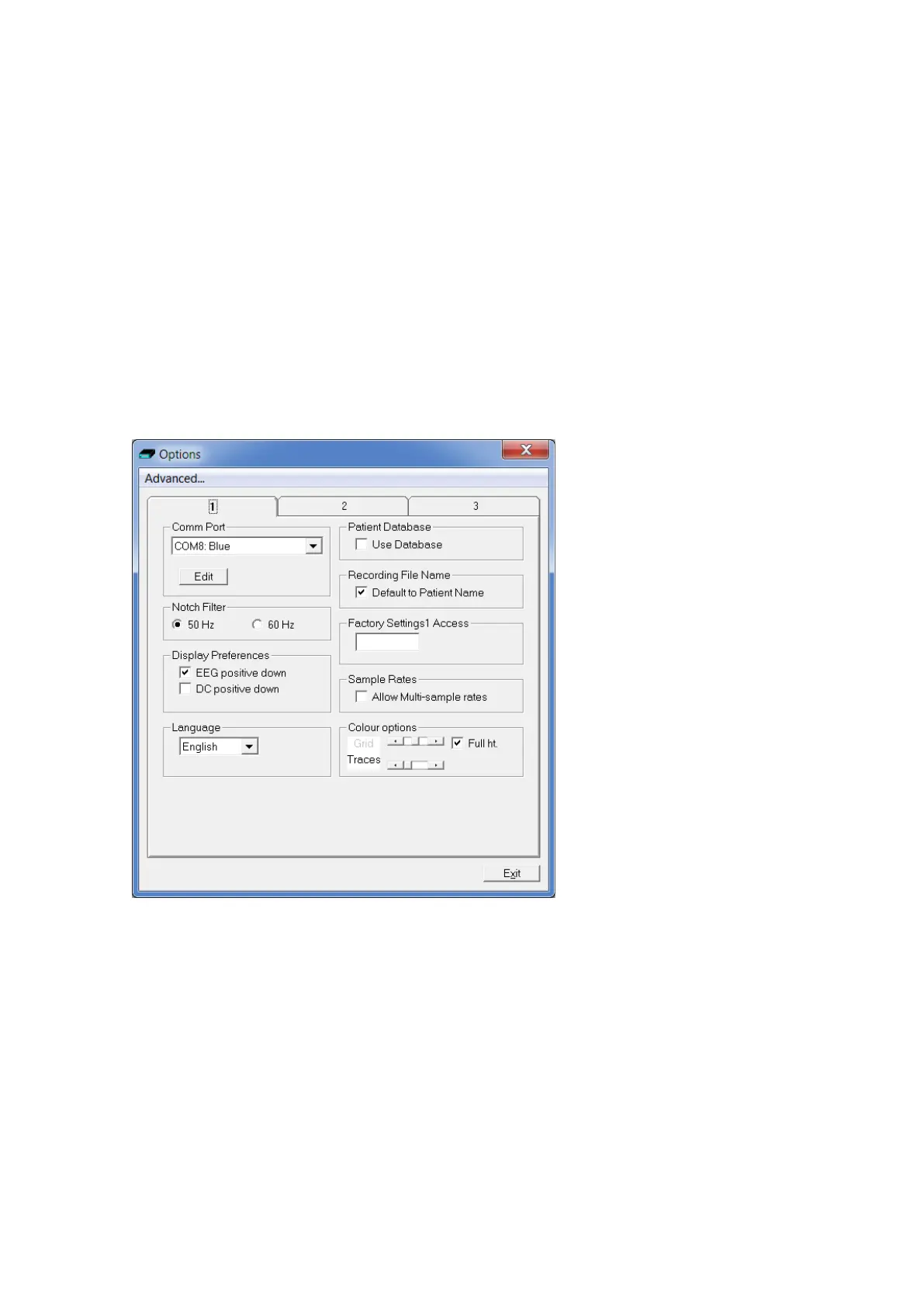
The Options panel now includes two t abs as shown in Figure 50 below. Tab 1 cont ains the sam e
option set tings as before but wit h som e addit ions concerning t he Com m . Port assignm ent. By click-
ing on the Edit butt on, each Com m . Port can be assigned a descript ion. This descript ion helps in
the identificat ion of which Trackit is t o be connect ed t o (and t hereaft er which Trackit is being con-
trolled) . I t applies to the Trackit Bluet ooth Module and if this is m oved from one Trackit t o anot her,
the connect ion follows the Module not the Trackit . Each Module has a unique nam e that can be re-
peat ed here if desired, or som e ot her nam ing convention used. Not e t hat t here m ay well be hard-
ware ports, USB port s and Bluetooth port s – all of which can be used by the Trackit application.
All descript ions for all Com m . Port s are saved in the regist ry, so t hey only need set t ing once.
Figur e 5 0 Opt ion s Tab 1
Not e: When t he Bluet oot h com m port is not identified correct ly by t he software as a Bluetooth port
(see previous sect ion) , the port nam e can be edit ed and the word ‘Blue’ added to the descript ion as
shown above.
Options | Tab 2
The second t ab in Options is shown in Figure 51 below.


 To Next Page