Trackit Mk3 User Manual
29
Depending on t he sam ple rat e and num ber of channels select ed it m ay be necessary to observe
groups of channels separately, e.g. with 256 Hz sam pling wit h 24 recording channels it is only
possible to view 12 channels at a t im e.
To switch from the upper to the lower group, use the up and down arrow keys on the t oolbar, or
choose Tr ace Page from t he Trackit Menu.
4
To perform an im pedance check, click on t he I m pedance Check icon 1n t he Trackit
5
To perform a calibrat ion, click on the Calibration icon in the Trackit toolbar.
6 Click the St art but t on in the Recording Cont rol dialog. Wait for the prom pts to st art a recording.
I f there is an old file on t he card the syst em asks you whether the file should be overwritt en.
I f there is a file on the card belonging to t he sam e pat ient , and t he file is < 24 hours old, t he
recording will be appended t o the existing file. (To enable or disable this feat ure, > Trackit Con-
trol Panel > Advanced Operations > Sett ings > Set Trackit defaults)
The Trackit Mk3 is now recording to the flash card and will continue unt il the card is full or t he bat -
teries have run low on power.
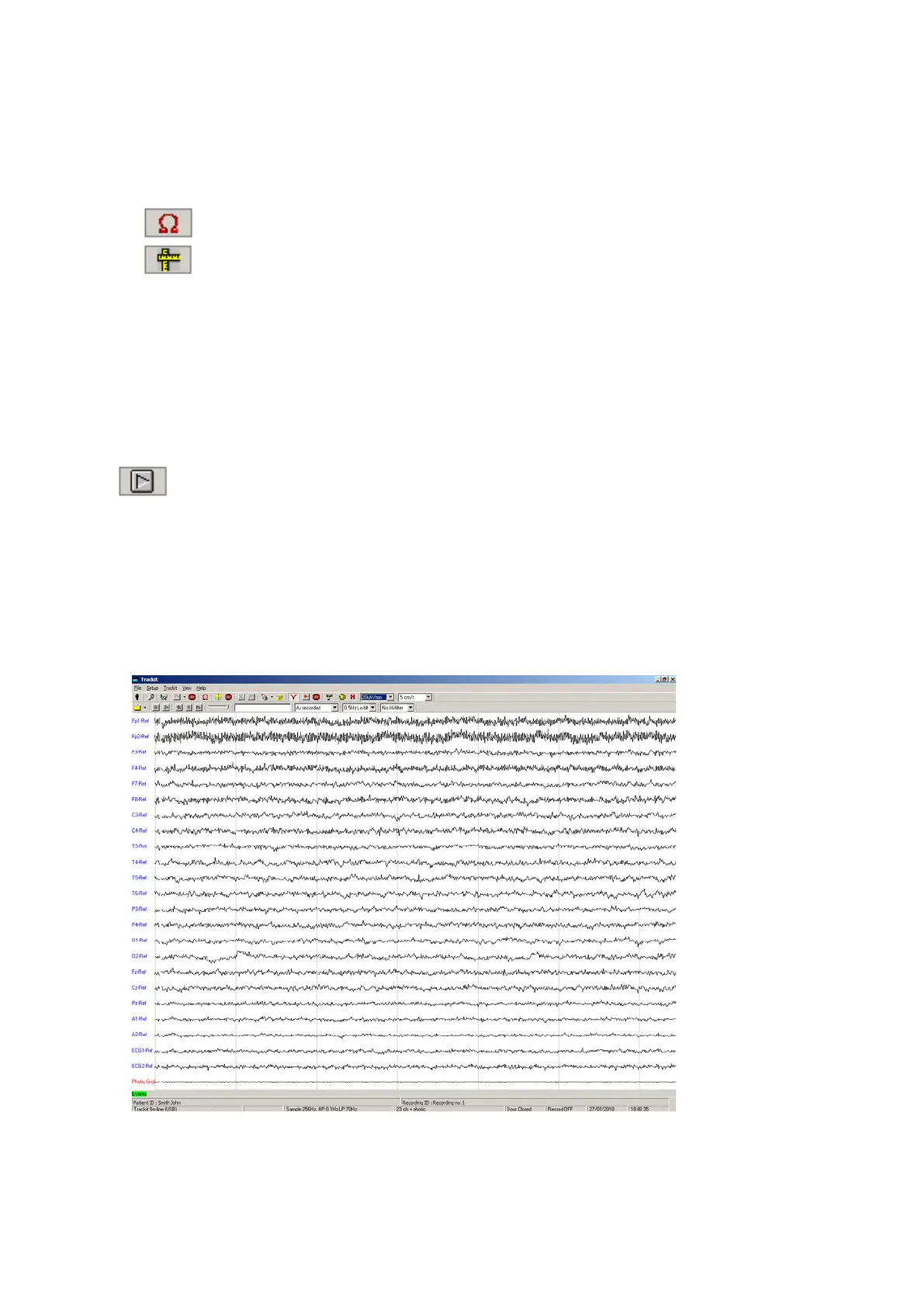
Step 9 View the ongoing EEG traces
To view the ongoing EEG traces before or after recording t o card has start ed, click on
the Ongoings On icon in the Trackit t oolbar
When you do t his, one of t hree t hings occur:
I f the Trackit Mk3 is connected t o t he PC, and has been sent a valid recording set up, the tr aces
appear wiping from left to right across the display.
I f the Trackit Mk3 is already recording and st ill connect ed to t he PC, the traces appear as soon
as t he Ongoings On icon is pressed.
I f the Trackit Mk3 is already recording and is then reconnected t o t he PC, t he syst em asks for
the recording set up held in t he Tr ackit Mk3 recorder before displaying t he t races.
Figur e 1 8 Ongoing t r a ce display


 To Next Page