Trackit Mk3 User Manual
30
The prim ary purpose of viewing t he ongoing traces is t o verify t hat t he signals are correct before
st art ing an am bulatory recording.
You can view select ed t races in blocks of 12 channels (at 256Hz or 200Hz) or 16 channels (at
128Hz) for the Mk 1 or up to 40 channels wit h the Mk 2. Or select the num ber of t races for display
by choosing Num ber of Traces from t he Trackit Menu.
Page Up and Page Down on the toolbar allow you to swit ch between t he top and bott om group of
t races.
Sensit ivit y, Cha r t spe e d and H i/ Lo f ilt e r s: as is oft en t he case when viewing a live t race dis-
play, t he sensit ivity, chart speed and filt ers need be adj ust ed for optim al viewing. Use t he drop
down list s on t he t oolbar.
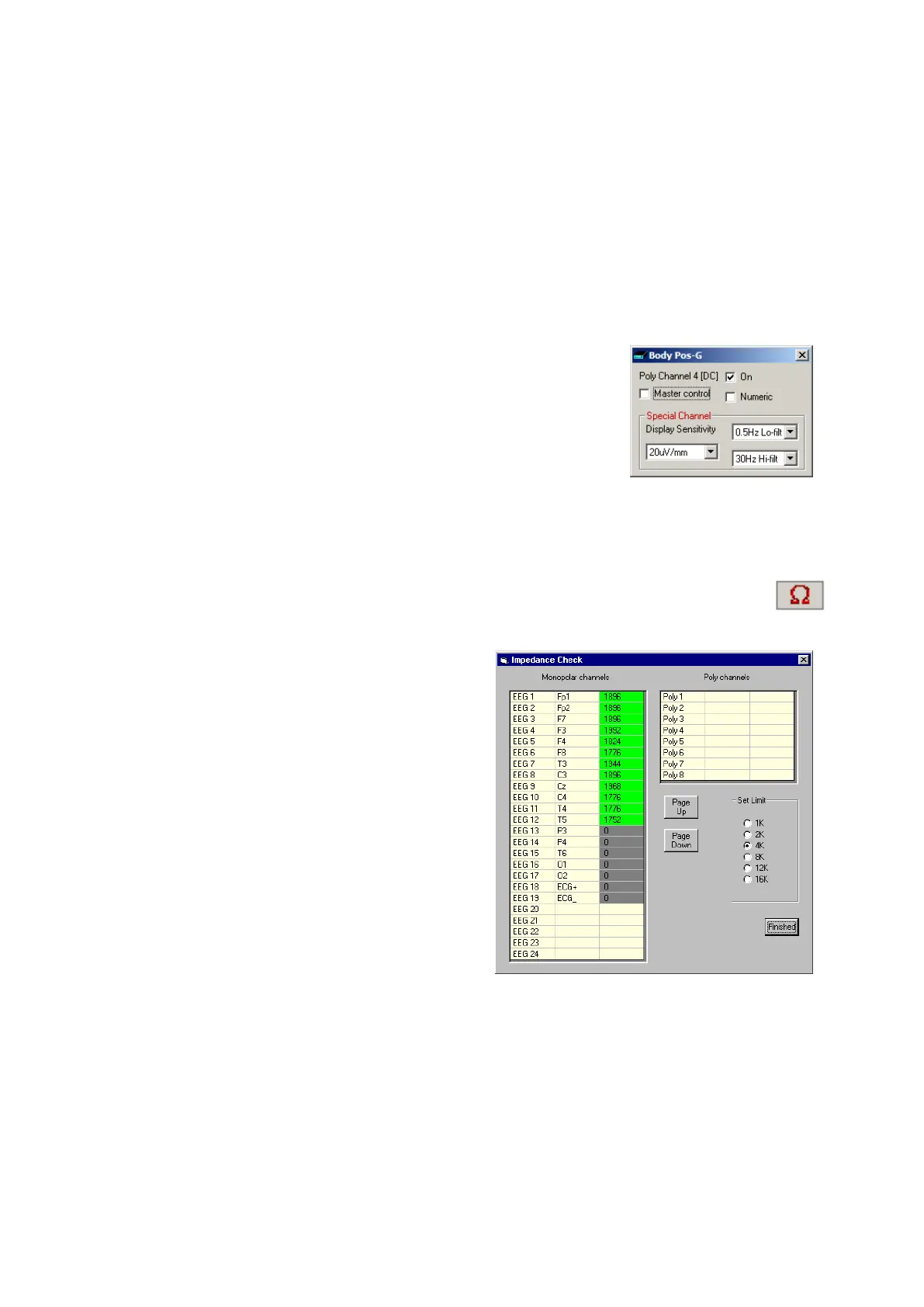
To adj ust t he display param et ers for an individual channel, click on the
channel label. This displays a dialog box for t hat channel, with a check-
box for m ast er control, t race On or Off, and Num eric. Click on Num eric
if you want the num eric value displayed under t he label. This can be
useful when for displaying units such as m m Hg or degrees C.
When a channel is under individual channel cont rol the label is depict ed
in red. When display of t hat channel is turned off, t he label is greyed
out.
I m peda nce che ck: t o carry out an im pedance check, click on t he im pedance check icon
on t he Trackit toolbar.
I f recording to card has st art ed , t he im pedance
check is displayed on t he trace display wit h an im -
pedance check event.
The im pedance check wor ks via pass/ fail t hreshold
selection. See Figure 20. Im pedance values above
the selected threshold ( fail) are displayed on a red
background. Values below ( pass) are displayed on a
green background
Figur e 1 9 Adj ust dis-
play par a m e t e r s
Figur e 2 0 I m peda nce ch e ck


 To Next Page