Troubleshooting Hints
RET
eval
Device User Manual 78
After pressing the Start test button, I get an “Unable to calibrate” error
The RET
eval
device, after checking for ambient light, recalibrates the flash intensity and color to
match the factory-calibrated settings. The white interior sphere that the patient looks into (the
ganzfeld) redirects light from red, green, and blue LEDs to create a uniform, diffuse white light.
A small change in the light reflectance of the ganzfeld will create a large change in the color or
intensity of the light output, which is corrected by this recalibration. If the correction is too large,
the RET
eval
device will create this error. Cleaning the ganzfeld with compressed gas usually will
fix the problem. A damp cloth moistened with water or isopropyl alcohol may be used if
compressed gas doesn’t work. Removing the eyecup (See page 88) will improve the access to
the ganzfeld for cleaning.
The screen is blank but the power light is on
You can turn the device off at any time by pressing the power button and holding it down for at
least 1 second. The screen goes blank immediately, but the device takes a few more seconds to
turn off completely. If the power button is pressed just after the last blink, the display will fail to
turn back on. Press the power button again to turn the device off. If the power button fails to
turn back on, hold the power button for 15 seconds, then release and press the power button to
turn the device off. If all else fails, remove and reinstall the battery, which is located in the handle
of the device.
The RETeval device won’t connect to my PC
The RET
eval
device acts like a USB drive, and
therefore should connect to any modern PC that
has a USB port, independent of the operating
system. The RET
eval
device connects to you PC
through the provided USB cable through the
docking station and into the hand-held portion.
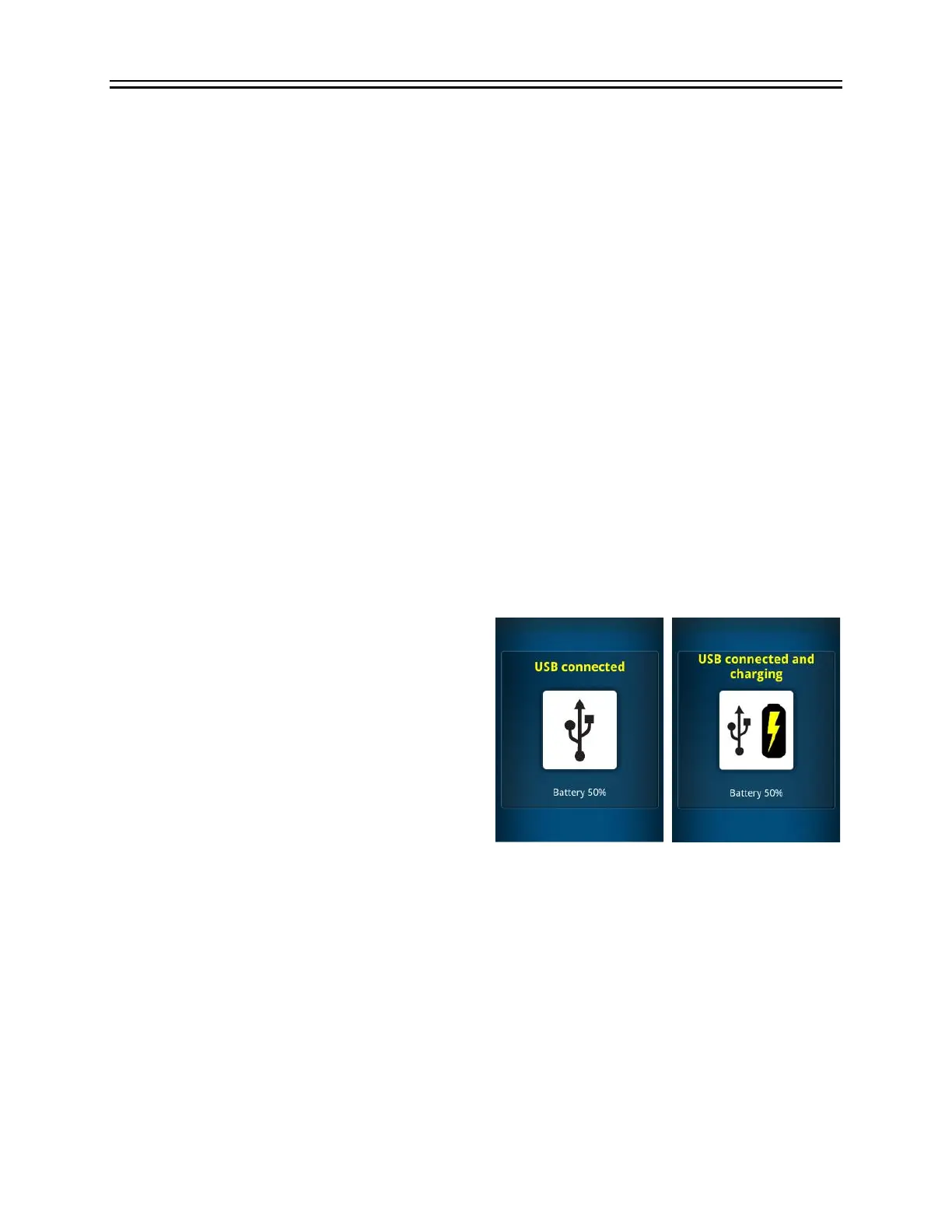
USB power is indicated on the RET
eval
screen
with one of the following two images. If one of
these images aren’t present, check to ensure that
the USB cable is connected on both ends, and
that the device is fully seated in the docking station. It is possible that the USB data connection
has not been made even though the USB power lines are connected, for example, if a poor-quality
USB cable is being used or if your IT department has blocked the use of external USB drives.
Always use the USB cable provided and check with your IT department about not blocking USB
drives. You can test the USB port with any other USB drive to ensure the computer is working.
You can also try removing and re-seating the device from the docking station to reset the USB
connection. If an alternative USB drive works in the same USB port, but the RET
eval
device won’t
connect, then the USB cable, docking station, or device may be defective. Try swapping out
components to isolate the failure if you have any replacement components; otherwise, contact
LKC for service (+1 301 840 1992 or email support@lkc.com).


 To Next Page