Getting Started
RET
eval
Device User Manual 9
Settings
Set up the RETeval device for use in your practice.
Step 1. Turn on the device.
The device goes through a brief internal test and initialization.
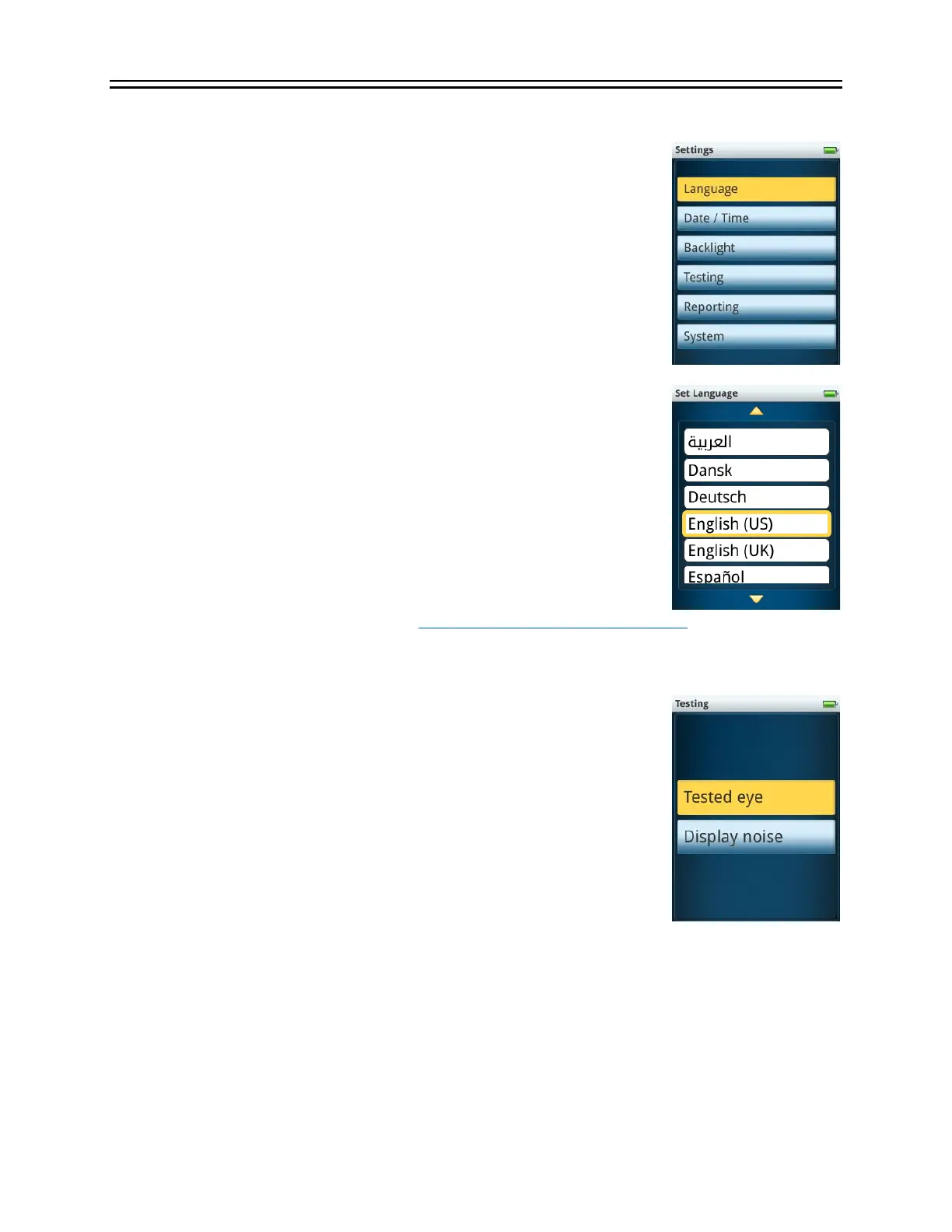
Step 2. Select Settings.
Step 3. Adjust each setting as you prefer.
Language
Select the language you want to use for the device’s user interface and
PDF reports.
If you select a right-to-left language (i.e., Arabic), the RIGHT and LEFT
joystick directions are swapped from the description in this manual.
Date / Time
Use the joystick to select each element of the current date. Use the
RIGHT and LEFT joystick directions to move between pages. The
device uses the date and time to label results and to compute the
patient’s age. The date and time can also be updated via scanning a
barcode at the beginning of a test using the free data barcode
application which runs on Windows (https://bit.ly/retevalbarcodereader) and smartphones
(search for RETeval on your phone’s app store).
Backlight
The LCD backlight for the operator’s display can be adjusted separately
for light-adapted and dark-adapted testing. The device will
automatically switch between those two modes as appropriate during a
test. Brighter settings may be more visible, but will slightly reduce the
number of patients you can test before needing to recharge in the
docking station. For dark adapted testing, brighter settings reduce the
time the operator needs to dark adapt to be able to see the screen clearly
but may affect the patient’s rod sensitivity. For light adapted testing, the
operator’s display can be set to high, medium, or low brightness. There
is also a “red” option that makes the display only use red light. For dark
adapted testing, there are three levels of brightness that only use red light as well as dim full-
color. The default values are medium brightness for light adapted scenarios and dim red for dark
adapted testing.


 To Next Page