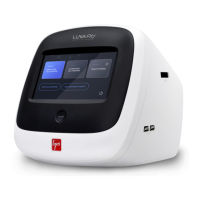
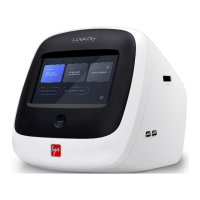
Place the LUNA-FX7™ on a clean, level and sturdy surface.
o Avoid vibrations from other devices.
o Do not install the instrument in a location that will expose the device to intense
ultraviolet light.
o Allow at least 5 cm (2 inches) free space at the back of the instrument to prevent
overheating of the instrument.
o Allow at least 10 cm (4 inches) free space at the right of the instrument to insert/eject
a cell counting slide easily.
Connect the instrument to electrical outlets using the supplied power cord and AC adapter.
o Make sure the power cords are appropriate for your region.
o Always use power cord and AC adapter provided or approved by Logos Biosystems.
If appropriate cord is not used, the electrical safety of the instrument cannot be
guaranteed.
Connect the supplied WiFi dongle to a USB port.
(Optional) Connect a LUNA-FX™ Thermal Printer (P17001) to a USB port.
Push the power button located below the touchscreen to turn on the instrument. After
a short beep, the company logo will appear, followed by the home screen.
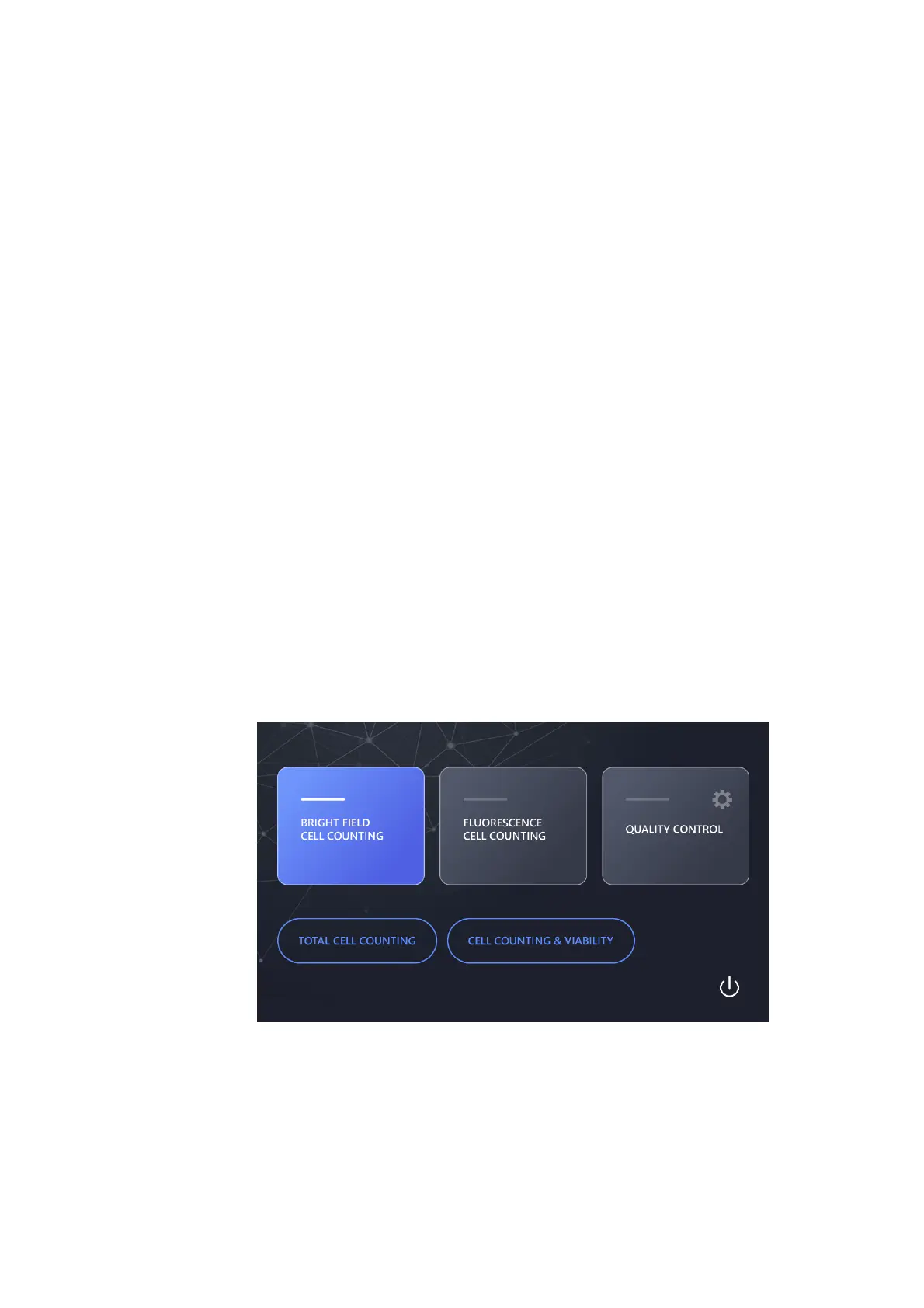
The home screen has three menus:
Brightfield Cell Counting
- Select Total cell counting mode or Cell counting & viability mode.
- Total cell counting mode is used to enumerate total cell numbers without staining ce


 To Next Page