Piccolo 19 from 82
www.lt-light.com
13.1. CHANNEL FADERS
Each channel is controlled from its associated fader. The flash key has a status
LED for level information.
The fader is used to set the channels output level by moving it to any point in
its travel (from 0% to 100%). The fader LED (inside Flash key) is lit
according to the level of the channel in the scene.
The flash key allows to set the channels to 100% (FF) as long as the key is
pressed, when this key is released, the channel returns to its previous level.
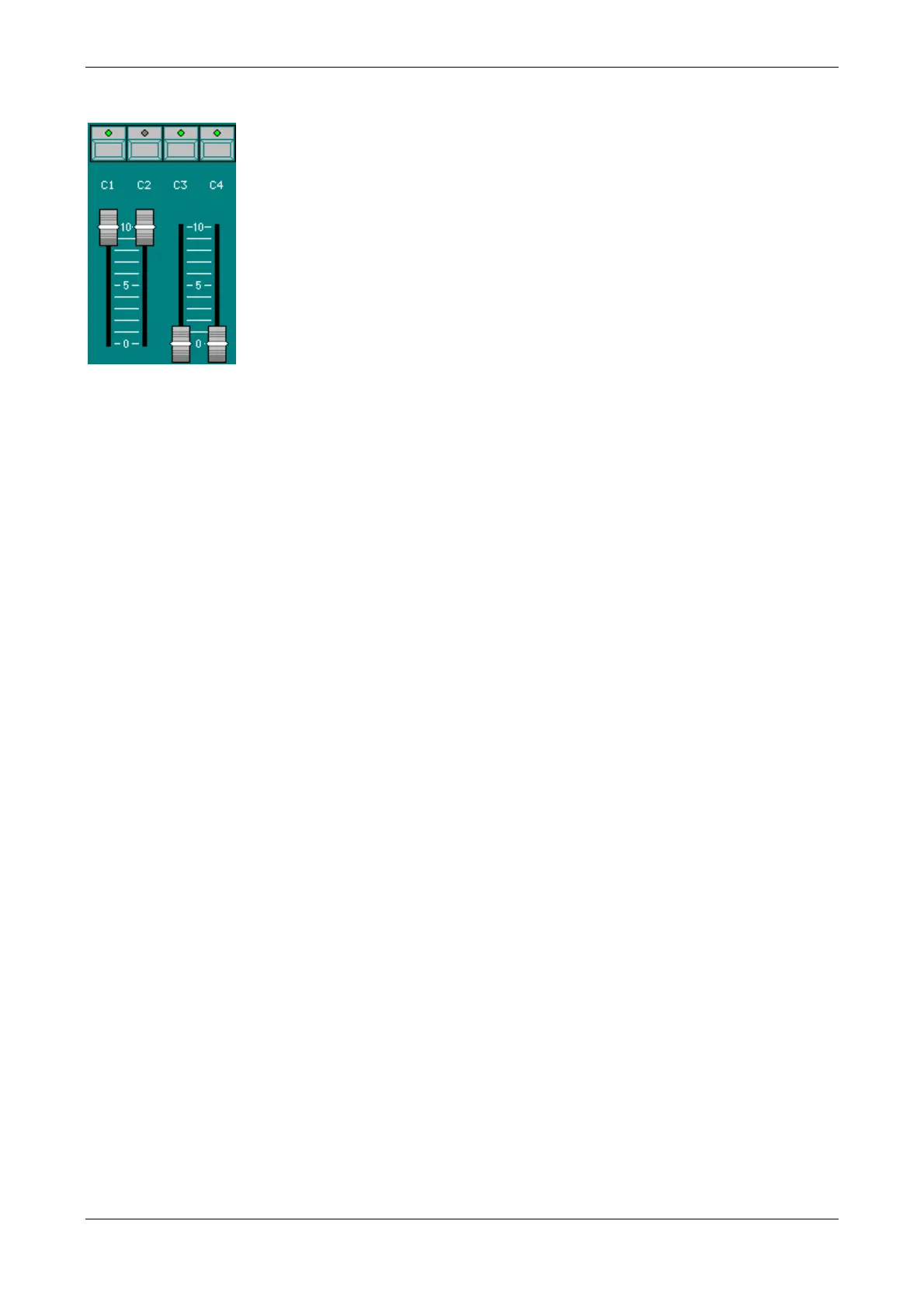
The placement of the channels in banks, the possibility of editing from the
numeric keyboard, and the use of the playback make it possible that the
channel output level and the fader level will be different (as in example,
channels C2, C3 & C4). In this case the fader is “locked” and it has no direct
control over the level, to take back the control:
Move the fader to reach the output level, it will then unlock (a beep is emitted at this moment).
Now, the fader has control over its channel. (For previous example, move down C2 at 0%, and
move up C3 & C4 at full).
These faders can work as editor (for modes: THEATRE, SINGLE, DOUBLE) or as manual
filed (for mode: MANUAL).
13.1.1. CHANNEL FADERS AS EDITOR
Faders set the scene level of channels in priority mode, allowing to add level from these faders and
also to subtract levels that they are controlled from others playbacks. To free a channel of this
prioritary control, it’s needed to liberate it pressing [RST]
13.1.1. CHANNEL FADERS AS MANUAL FIELD
Faders set the scene level of channels in HTP mode (the higest level has preference); that allows to
add level from these faders but never to subtract levels that they are controlled from others
playbacks.
13.2. KEYBOARD
It is also possible (and sometimes faster) to edit channels using the functions keyboard, this always
works in priority mode (as editor). Piccolo has several keys dedicated for editing channel values:
[CHANNEL] Used to select channels (a channel or several not direct following channels)
[THRU] Used to select a range of channels
[@] Used to enter a numeric level for the selected channels.
Encoder Used to set or edit a level, in a continuous mode, for the selected channels.
[EXCEPT] Used to exclude channels from the selection.
[RST] Used to “release” the selection.
Selecting:
[CHANNEL] [#], a channel (with the number #)
[CHANNEL] [#] [CHANNEL] [#] …, several channels
[CHANNEL] [#] [THRU] [#], a channels range
[CHANNEL] [#] [THRU] [#] [EXCEPT] [#], a range, excluding a channel
[CHANNEL] [#] [THRU] [#] [EXCEPT] [#] [EXCEPT] [#], a range, excluding several channels
[CHANNEL] [#] [THRU] [#] [EXCEPT] [#] [THRU] [#], a range, excluding channels in range



 To Next Page