Piccolo 80 from 82
www.lt-light.com
41. APENDIX
41.1. ABOUT DATA TABLES
Some of the working screens are “data tables” such as:
Channels patch, fixtures patch or screen, example: [CUE] [CUE], [GROUP] [GROUP], etc.
More about these screens:
Each horizontal line has the data for one item
Move the item selection cursor (yellow line) pressing [] or []
Move the edition cursor (red cell) pressing [] or []
In OLE software you can use a mouse to select any cell on screen
Items are ordered by number; this number appears to the left of
the table, under a gray background, and cannot be changed
Use any of these cells to search a table item. Or enter the number for
searching and press [] to jump to this item
Each value is entered or changed using numeric values, except
text, that is using the numeric pad as a text pad, just as in any
mobile phone
Over the active cell (in red) enter the data to edit [#] and press
[ENTER] or any arrow key to accept it
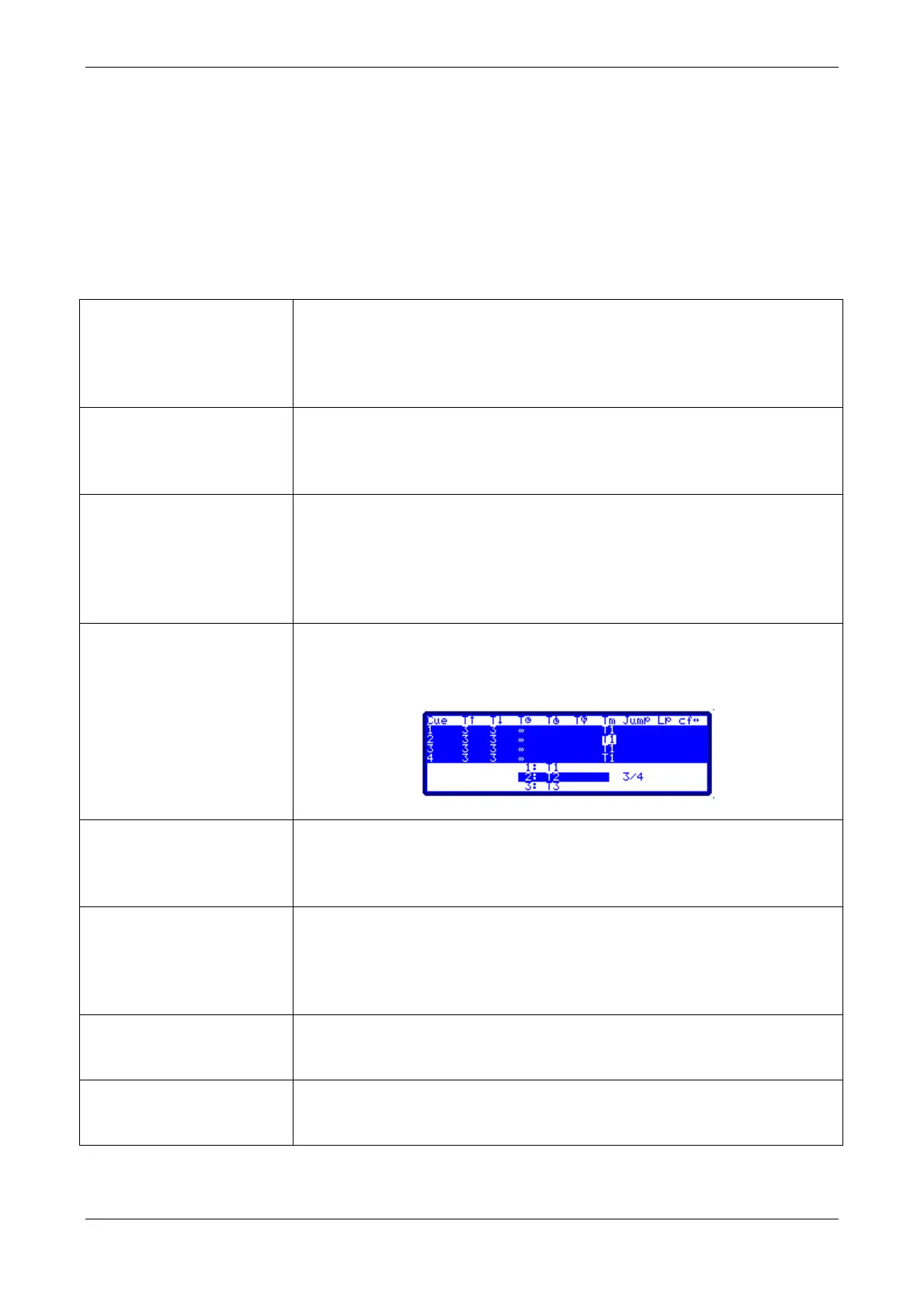
Some cells have an option window as guide for the use of the cell… in
this case, it is possible to enter the index number of the desired option
or use the encoder: Spin the encoder to select the desired option and
press it to activate the option: Encoder [Encoder]
Is used to delete data of the selected cell (in red)… after the data is
erased, some cells will be empty and others cells will show the default
value (depending on the type of cell)
Works in different modes depending of the type of cell… normally it is
used to edit order, copying or incrementing data of the same cell but of
the previous selected item. Useful in the fixtures patch and when
editing effect steps, etc.
If correct, and always when the table is active, this key toggles
between the general options and the table
Closes the table… Do not forget to press [ENTER] to accept the last
cell which was edited before closing the table



 To Next Page