Piccolo 45 from 82
www.lt-light.com
selection. If fixture 1 is in yellow and the rest of fixtures in red, press:
[FIXTURE][1][THRU][5][Encoder de parámetro color1] [WHEEL][WHEEL]
[BANKS], [BNK-] & [BNK+]
These keys are function keys to configure the BANKS keys…
BANKS keys are software keys that allow you a quick accessing to groups, macros, palettes &
libraries of any category. This configuration can be automatic or fixed. To configure the BANKS
keys, press:
[BANKS] 0 To set a interactive fucntion mode, in this mode, each time that [GROUP] is pressed,
the groups are accessible in the BANKS keys; if [MACRO] is pressed, the macros are accessible in
the keys, if a category key ([POS], [COL], etc) is pressed, their libraries or palettes are accessible
in the BANKS keys.
[BANKS] 1 BANKS keys always are a direct access to the stored macros.
[BANKS] 2 BANKS keys always are a direct access to the stored groups.
…
[BANKS] 8 BANKS keys always are a direct access to the XTRA palettes or XTRA libraries. To
palettes or Libraries depend of the status of these keys: [PALs] at on (to access to palettes) or
[LIBs] at on (to access to libraries).
In any configuration of these BANKS keys, these keys are paged to access to more groups, macros,
positions, colors, etc, pressing [BNK-] & [BNK+]
24. MENU 30 – Editor & Times, option: “Virtual dm”
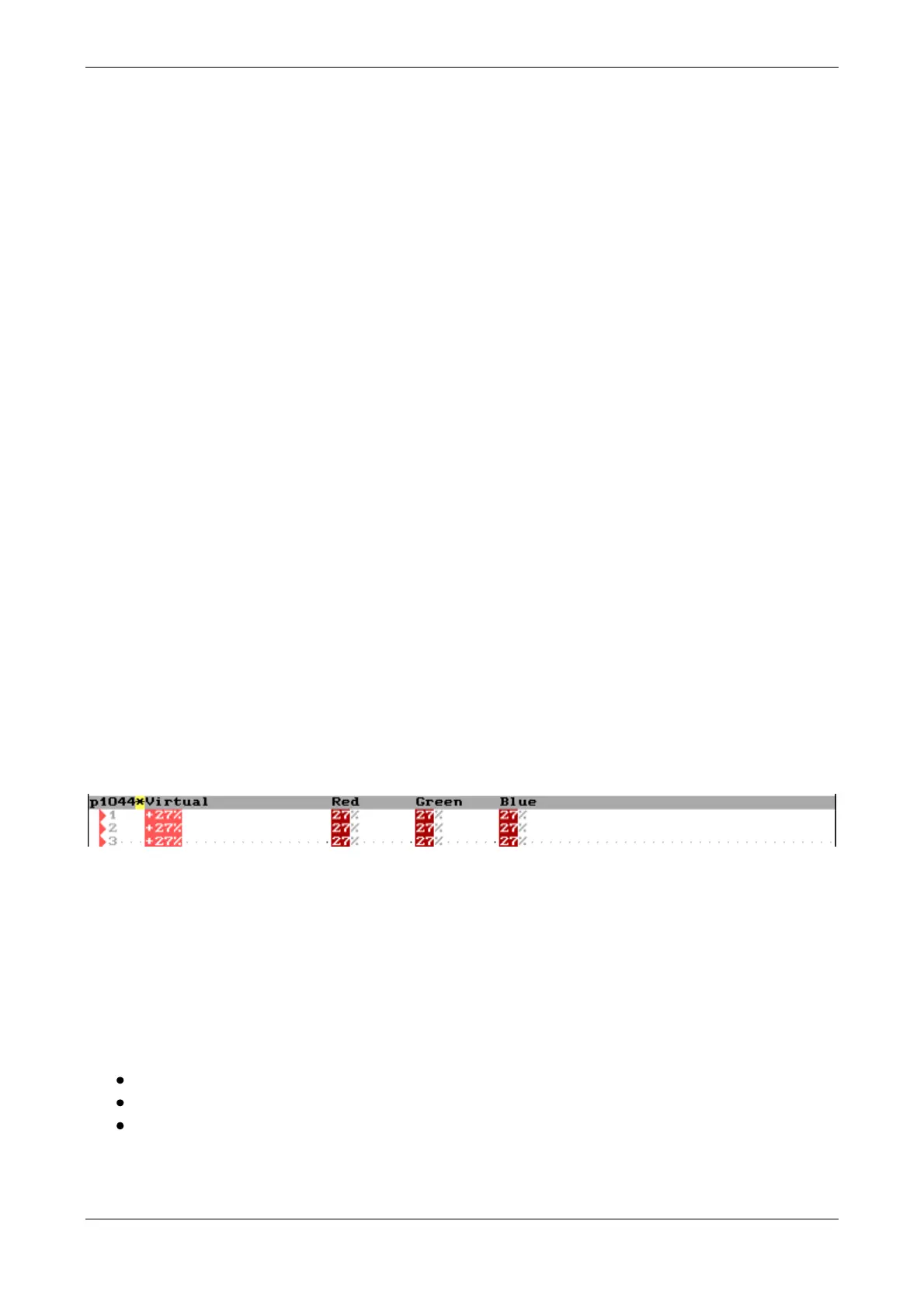
This option allows you to use a “virtual dimmer” only for edition process, for the fixtures with color
mix (RGB CYM, etc) that they have no real dimmer (specially thought for fixtures of LEDs without
dimmer). This option allows you to move the 3 color wheels at the same time, from the
Virtual parameter. This trick improves the edition process, since you can control the saturation
of a color moving the Virtual wheel.
If this option is ENABLED, the console shows us this Virtual control automatically for some
fixture with color mix and without dimmer (parameter ID 20: Dimmer).
Remember, Virtual is not a parameter, only is a specual control for edition process.
25. SHAPES (FOR CHANNELS & FIXTURES)
Shapes are dynamic values for channels, dimmers, parameters or parameter groups (as pan/tilt or
CYM colours)… After choosing a shape trough the selection, the adjustment is possible to obtain
the desired result. To apply a shape:
Select, using the keyboard, channels, fixtures, or fixtures & channels.
Press [SHAPE], and then, select option 0 by pressing [0]
From here, follow the instructions on screen (or display)…
o Selecting the shape type (Type), if necessary (depending of the selection).
o Selecting the primitive function (Palette) to apply.



 To Next Page