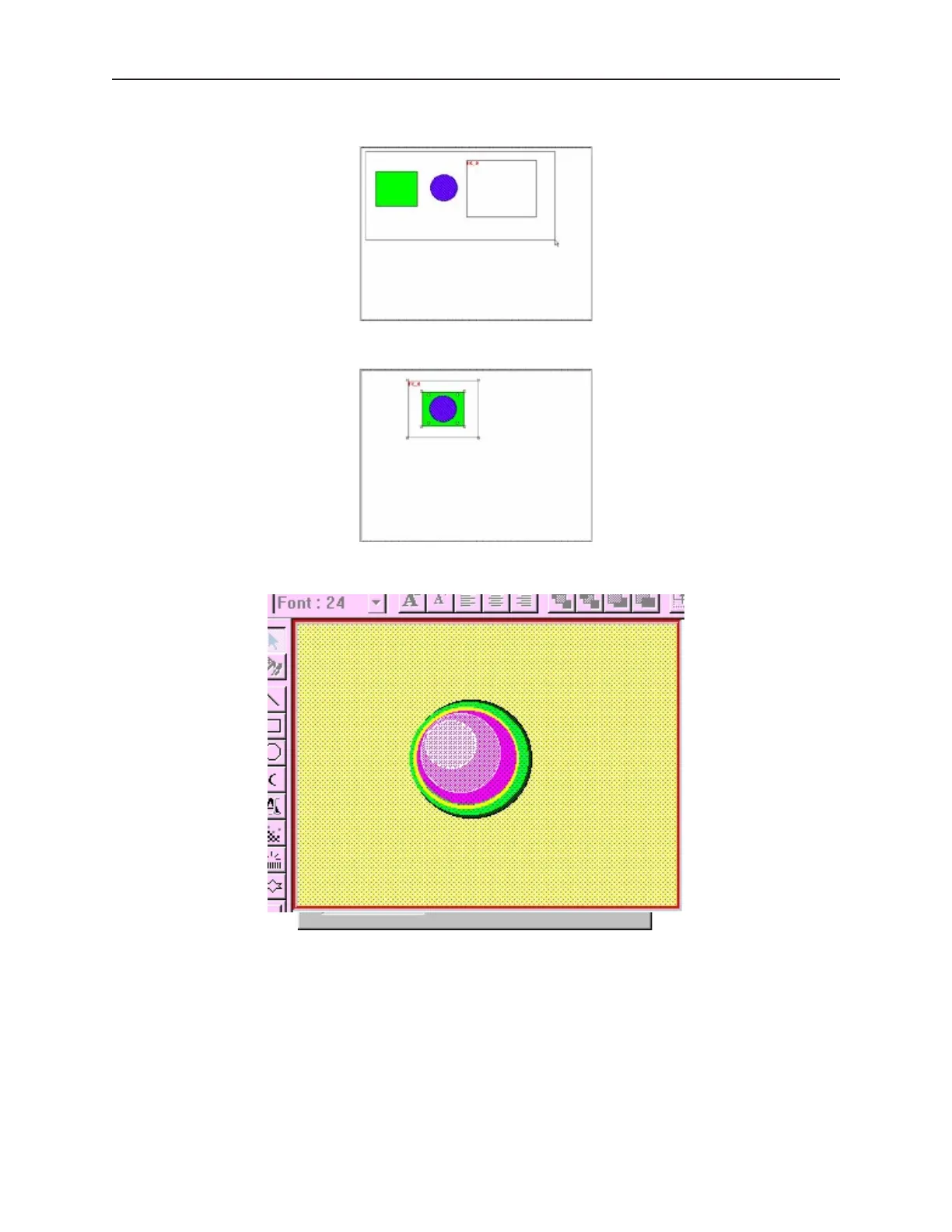
4. Position the objects that compose the new shape inside the function key.
5. Select all objects, including the Function Key.
6. From the Library menu, click Shape, then Save to Library. In the dialog box, notice how
the shape is positioned. The location of the objects inside the Function Key area defines how
the objects will be positioned inside the library.
If you find that some of the shapes included in the libraries are not useful, you have the option of deleting them so
that they may be replaced by another shape.
4 To delete a shape from a library
1. From the Library menu, click Shape, then Call up library.
2. Select the library that the shape is located in.
3. Click on the shape that you wish to delete from the library.
4. Click Delete. The shape is removed from the library.
5. Click Close to go back to the main screen of EasyBuilder.
1010-1001a, Rev 02
140 Sil ver Se ries In stal la tion & Op er a tion Man ual



 To Next Page