6. Save the project file to permanently save changes made to the library. Caution – once project
is saved, the shape is permanently deleted from the library and cannot be replaced.
Finally, you may want to use all or parts of an existing shape to create a new one. To do this, you must first ‘place’
the shape onto the work area of EasyBuilder for editing.
4To place a shape on the work area
1. From the Library menu, click Shape, then Call up library.
2. Select the library that the shape is located in. For this example, select button1.
3. Click on the shape that you want to place on the work area. For this example, select item 12.
4. Click Place… The main screen of EasyBuilder reappears with the shape in the upper-left
corner of the work area.
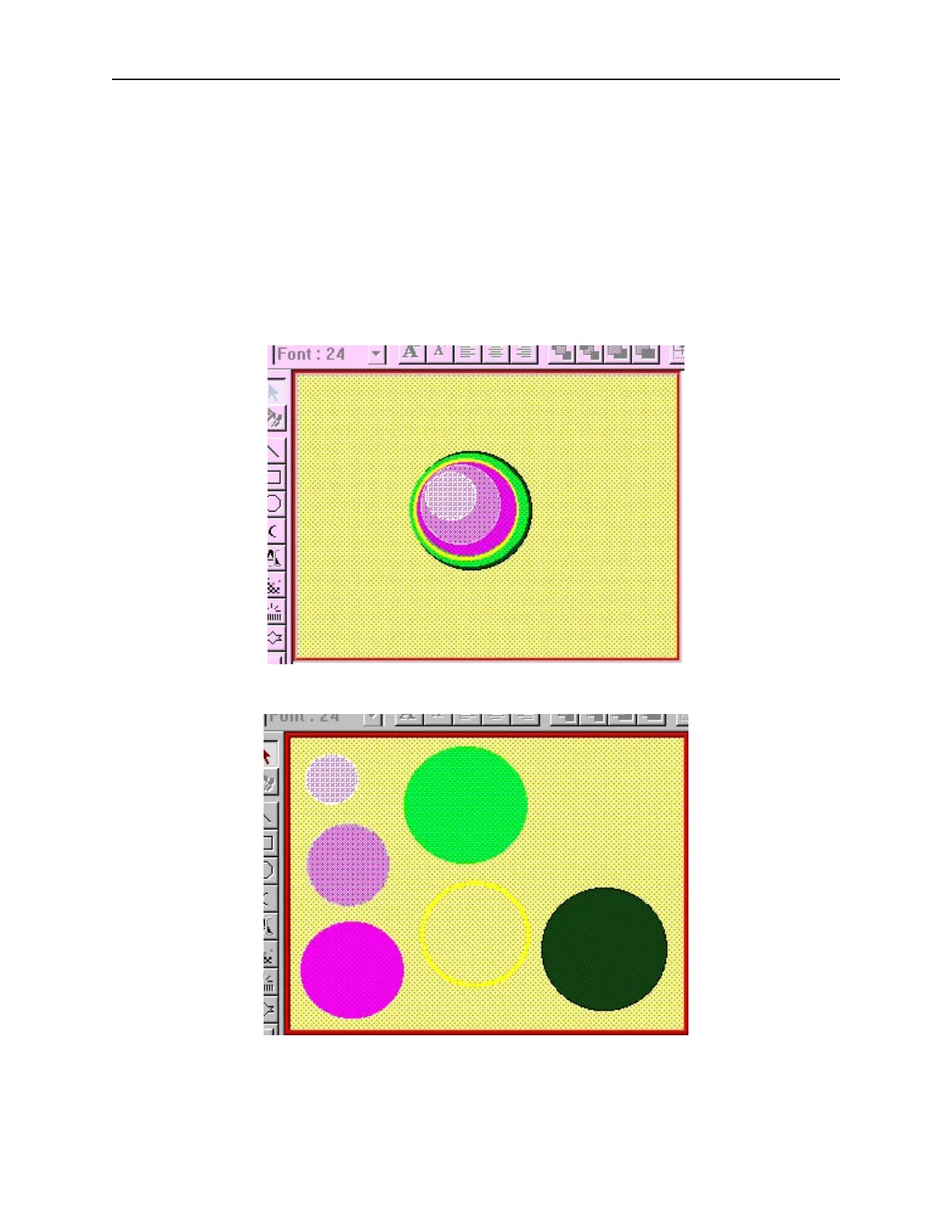
5. For this example, move the shape to the middle of the work area, as shown
6. Highlight the shape and separate each separate component.
7. As you can see, this particular shape is composed of six objects. You can edit these objects to
change the shape or create a new shape from these objects. Please note that you are not
actually changing the shape stored in the library. To change the shape, you must delete the
shape and store any changes you make to a new shape.
1010-1001a, Rev 02
Cre ating Graphic Ob jects 141



 To Next Page