4 For more information on how to use the Numeric Input Extend Object, consult Chapter
8 “Representing Data with Graphics Objects”.
8. Create an ASCII Input Object Extend with the following parameters:
Tab Frame Parameter Value
General
Description ASCII Input Register
Read Address
Device type: LW
Device address: 1
BCD or BIN: BIN
No. of words: 12
Trigger address
Device type: LB
Device address: 9000
Attribute Adjust: Left
Shape Shape
Use Shape checked
Shape library button1, item 0
Font Attribute
Color: Black
Align: Right Adjust
Font: 16
4 For more information on how to use the ASCII Input Extend Object, consult Chapter 8
“Representing Data with Graphics Objects”.
9. Create two text boxes; one to identify the Numeric Input register, and one to label the ASCII
Input register.
4Editing data registers using a keypad
1. Save and compile the new project, then test the operation of the keypad by either running in
Simulation mode or by downloading the project to the OIT.
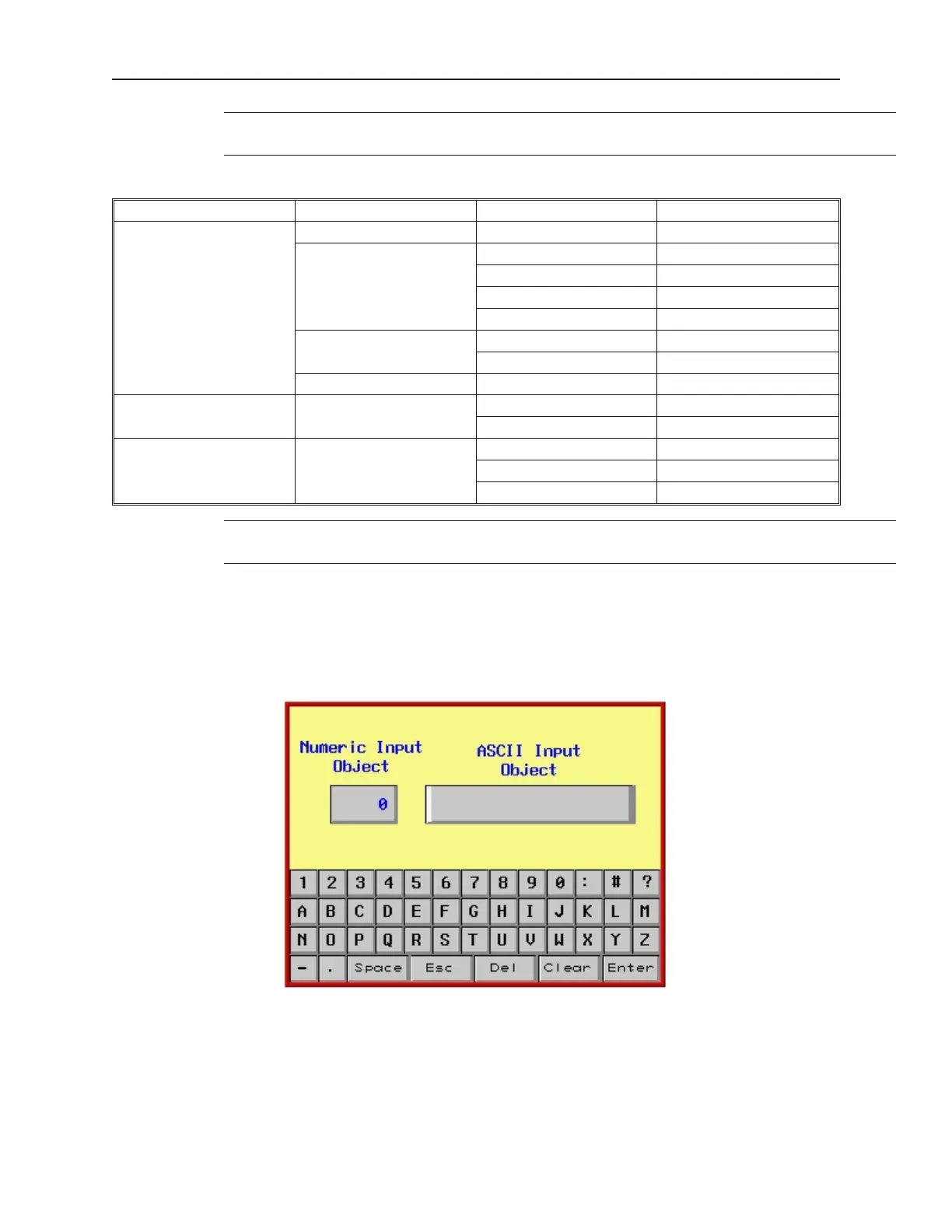
2. The following screen should appear:
3. Change the value of the Numeric Input register. Touch the Numeric Input Object to
activate the edit mode. This should cause the 0 digit to start blinking.
4. Using the keypad, enter digits 1, 2, 3, 4, and 5. As you enter the digits, each one should
appear in the Numeric Input Object box.
5. Press the Del key to delete digit 5.
6. Try pressing any of the alpha characters (A-Z). Notice that alpha characters are not accepted
into a Numeric Input Object register.
1010-1001a, Rev 02
206 Sil ver Se ries In stal la tion & Op er a tion Man ual



 To Next Page