2. Use the Description: box to enter a title for the Bar Graph part. A description is not
necessary but does help you identify the purpose of the part.
3. In the Read address frame, select the PLC register or OIT internal memory address. You can
select BIN (binary) or BCD format.
4. In the No. of words: box, select 1 if you want a bar graph without variable alarms. Select 3
for variable alarms.
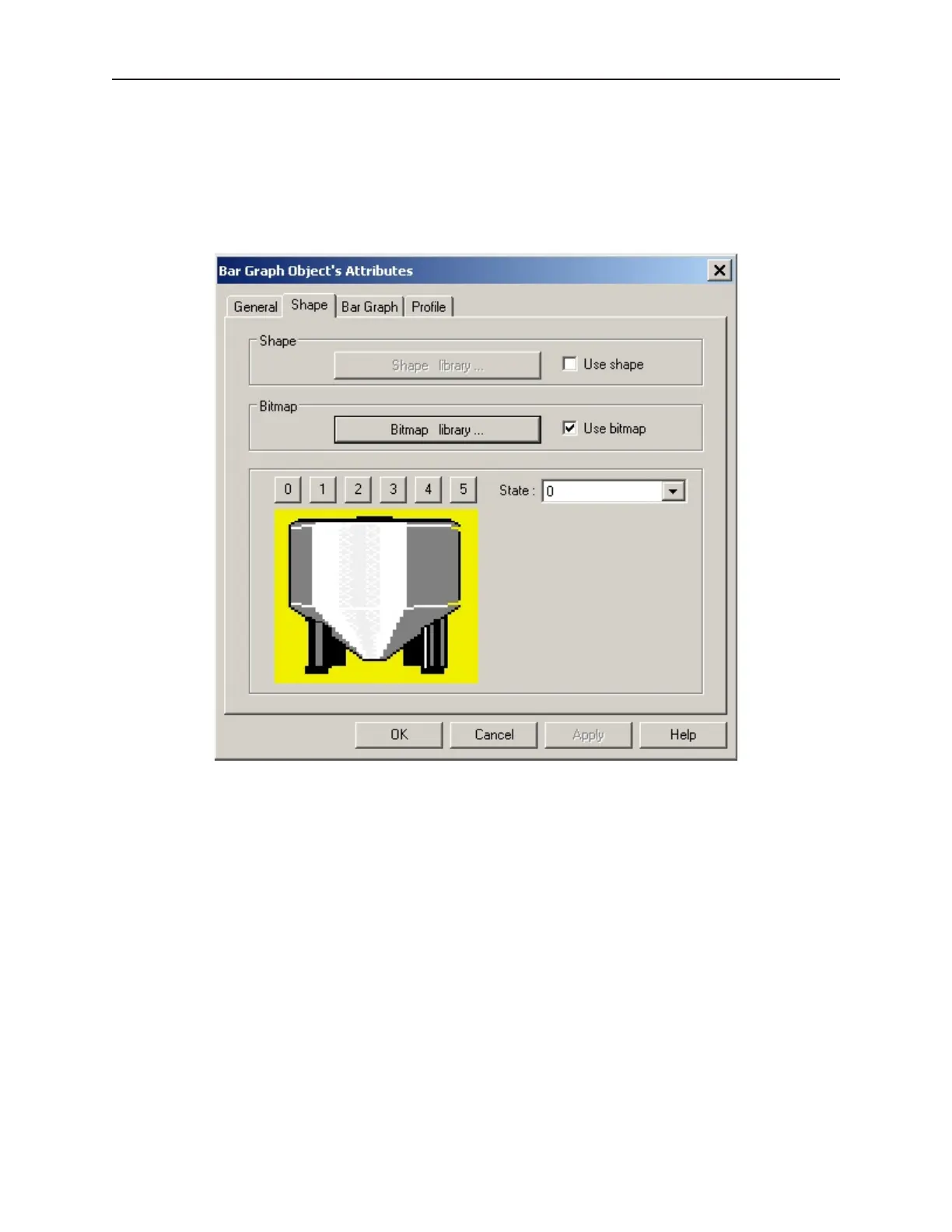
5. Click the Shape tab to display the Shape form.
6. A shape or bitmap is not necessary if you plan to display the bar graph as a rectangular object.
If you do select a shape, the bar graph will only show in areas of the shape in which no color
has been selected (i.e. inside an unfilled rectangle object). If you select a bitmap, the bar
graph will only show in the area of the bitmap tagged as transparent (for example, try using
the flow tank bitmaps in the PIPLINE library, items #16-37). If you need more information
on how to use bitmaps and shapes, consult Chapter 6, “Creating Graphics Objects.”
1010-1001a, Rev 02
214 Sil ver Se ries In stal la tion & Op er a tion Man ual



 To Next Page