4. In the Desti. Window No.: box, enter the number of the window screen in the project you are
currently editing that you wish to copy the contents of the source window to.
5. Click OK. The main screen of EasyBuilder is redisplayed with the Window Copy command
executed.
4To delete a graphics object(s)
1. Select the object or objects you wish to delete.
2. Press the Delete key or from the Edit menu, click Delete.
You can restore the deleted object by using the Undo command.
4To move a graphics object(s)
1. Select the object or objects you wish to move.
2. When you place the mouse cursor over a highlighted object, the cursor changes to a crosshair.
This indicates that you are able to move the selected object. Move the object by clicking on it
and dragging the object to the proper position on the work area.
4To resize a graphics object
1. Select the object to be resized.
2. To resize the object, move the mouse cursor over one of the small black squares. The cursor
changes to a double-arrow icon to indicate that it is in resizing mode.
3. Click and drag the mouse to resize the object.
4. Objects can also be resized by changing the width and height attributes in the Profile tab of
the Attributes dialog box, (see below).
4To change attributes of a graphics object
1. Select the object to be changed, then select Change Attributes from the Edit menu. You can
also double-click the object.
2. The object’s attribute dialog box is displayed. Object Attributes defines what the object is or
how it behaves, (i.e. size, position, color, etc.). Click OK to accept any changes made or
Cancel to cancel any changes.
4To view object attributes of multiple graphics objects on a window
1. There will be times when you may want to quickly determine what PLC data registers are tied
to which objects in a window. This can easily be done using the object attributes command.
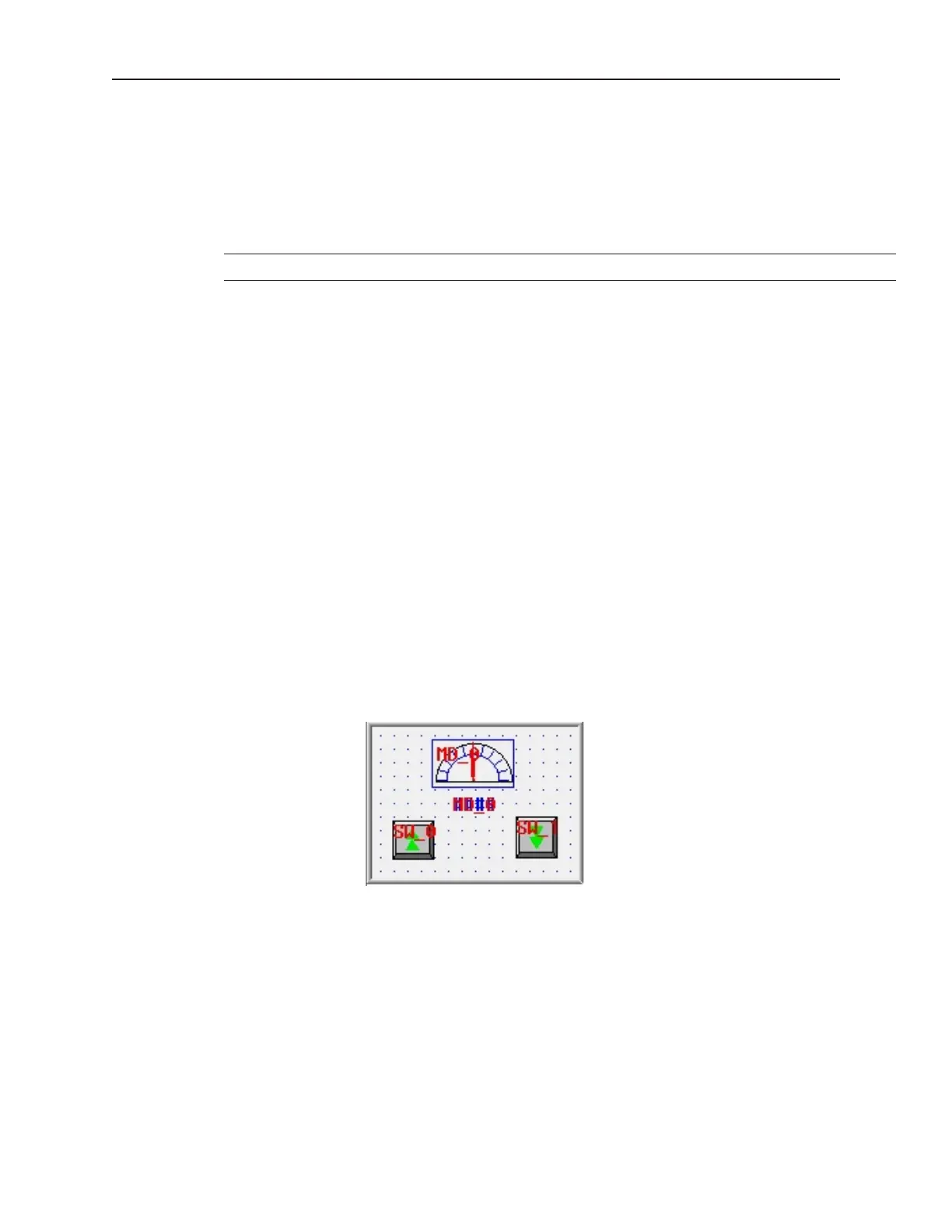
2. For this example, open Window_11 to display the popup window of the sample project.
3. On the Edit menu, click Select all objects.
1010-1001a, Rev 02
48 Sil ver Se ries In stal la tion & Op er a tion Man ual



 To Next Page