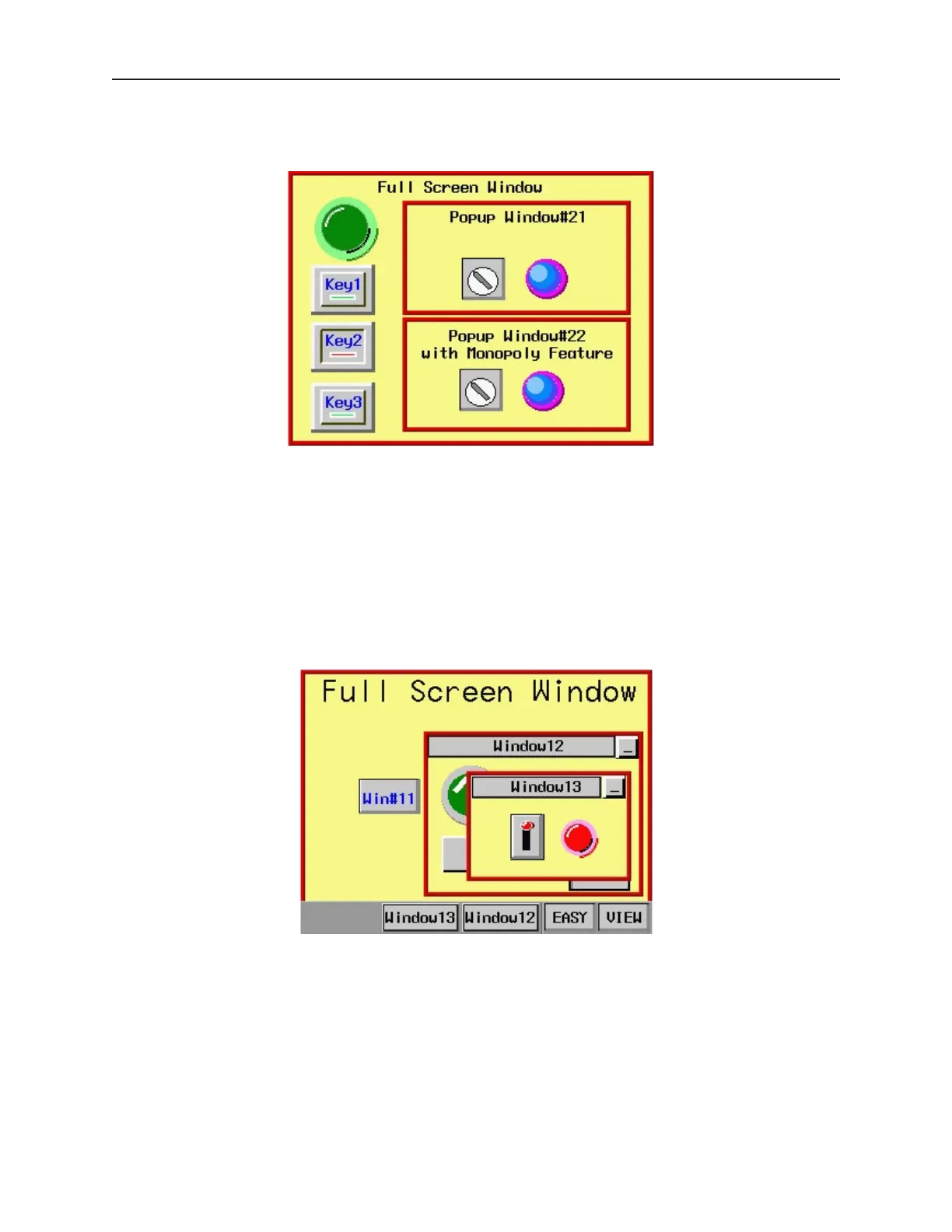
Window#21. If another popup window is displayed that does have the monopoly feature enabled, then Key1-3 on
the full screen window will not respond when pressed.
Please note that the monopoly feature only disables touch screen objects on the full screen window. The switch on
Popup Window#21 can still be activated, as can any popup window displayed on the full screen.
The monopoly feature can be used to display a popup window with some action that the OIT operator must perform
before being allowed to do some other action on the OIT. For example, you might construct a dialog box that asks
the OIT operator if some step in the control process has been performed. The dialog box would have Yes and No
function key options which, with the monopoly feature enabled, the OIT operator must press before continuing.
Clipping Feature
With clipping enabled, any portion of a child window that lies outside the boundary of the parent window is
‘clipped’ or not displayed on the OIT screen. The tracking feature must be enabled when the clipping option is
used. For this example, let’s look at an OIT screen in which Popup Window#13 is a child window that was called
by an object in Popup Window#12, the parent window.
1010-1001a, Rev 02
86 Sil ver Se ries In stal la tion & Op er a tion Man ual



 To Next Page