84
Chapter 6, Setting Up Realtime Effects with Adobe Premiere
Using common controls in the plug-in
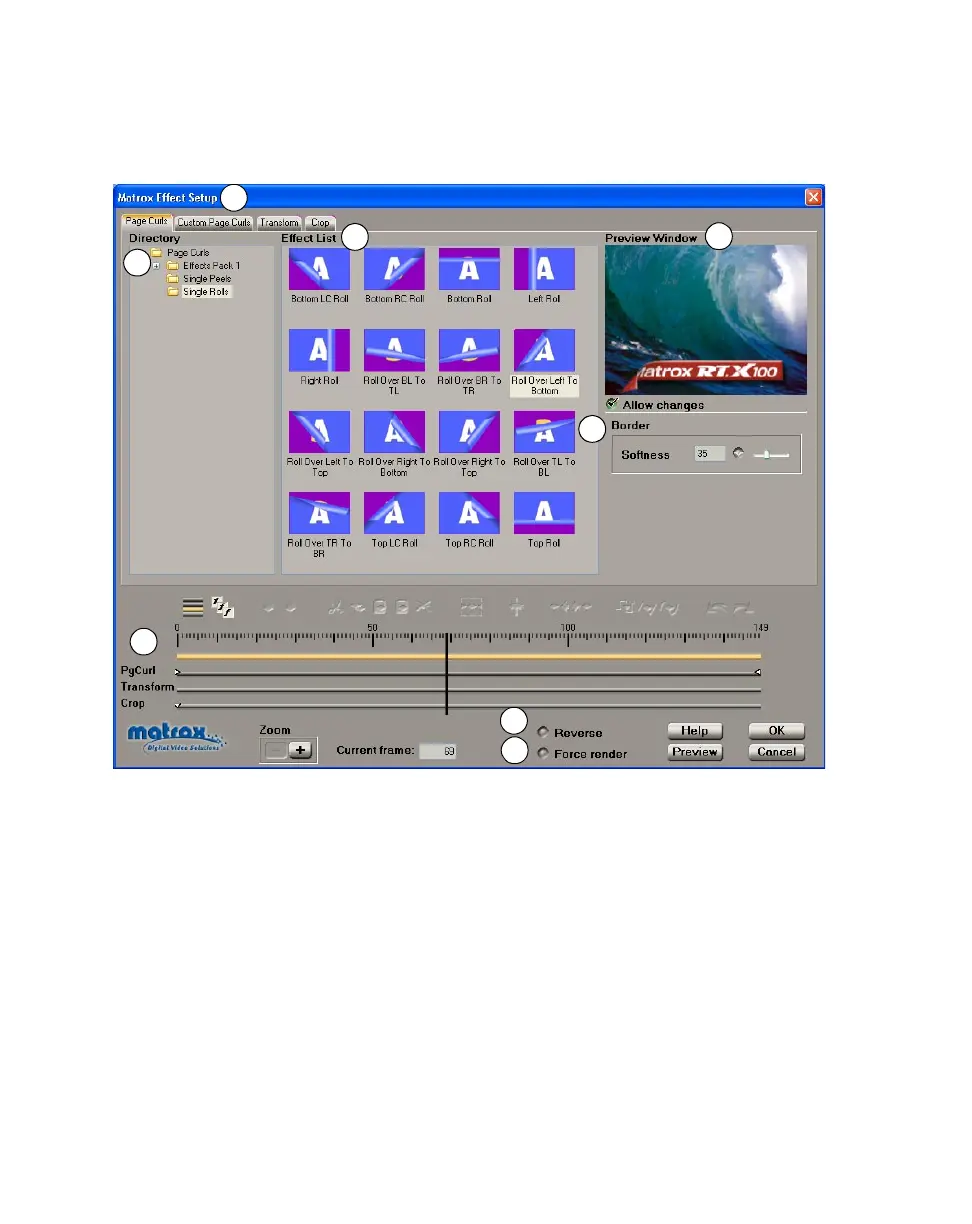
When you apply a Matrox realtime effect, a dialog box similar to the following
appears (the resulting dialog box depends on the type of effect that you apply):
These items are common to most Matrox realtime effects:
✐ Directory This directory tree holds all of the effects for each transition or
video effect type. If any effects have been added or deleted since the last
time you selected a directory, a dialog box will appear with a summary of the
changes.
✑ Effect tabs Several tabs are available to let you switch between pages for
setting up and customizing your effect:
$ “Pre-created effect” tab This tab displays the default page that appears
when you first apply a Matrox effect. On this page, you can select a
pre-created effect from the
Directory, for the type of effect that you’ve
applied (such as any of the available page curls).
$ Custom tab Click this tab to display the Custom page, where you can
customize your effect with various settings. These settings are different
✔
✒
✕
✗
✖
✐



 To Next Page