141
Applying a pre-created particle effect
Applying a pre-created particle effect
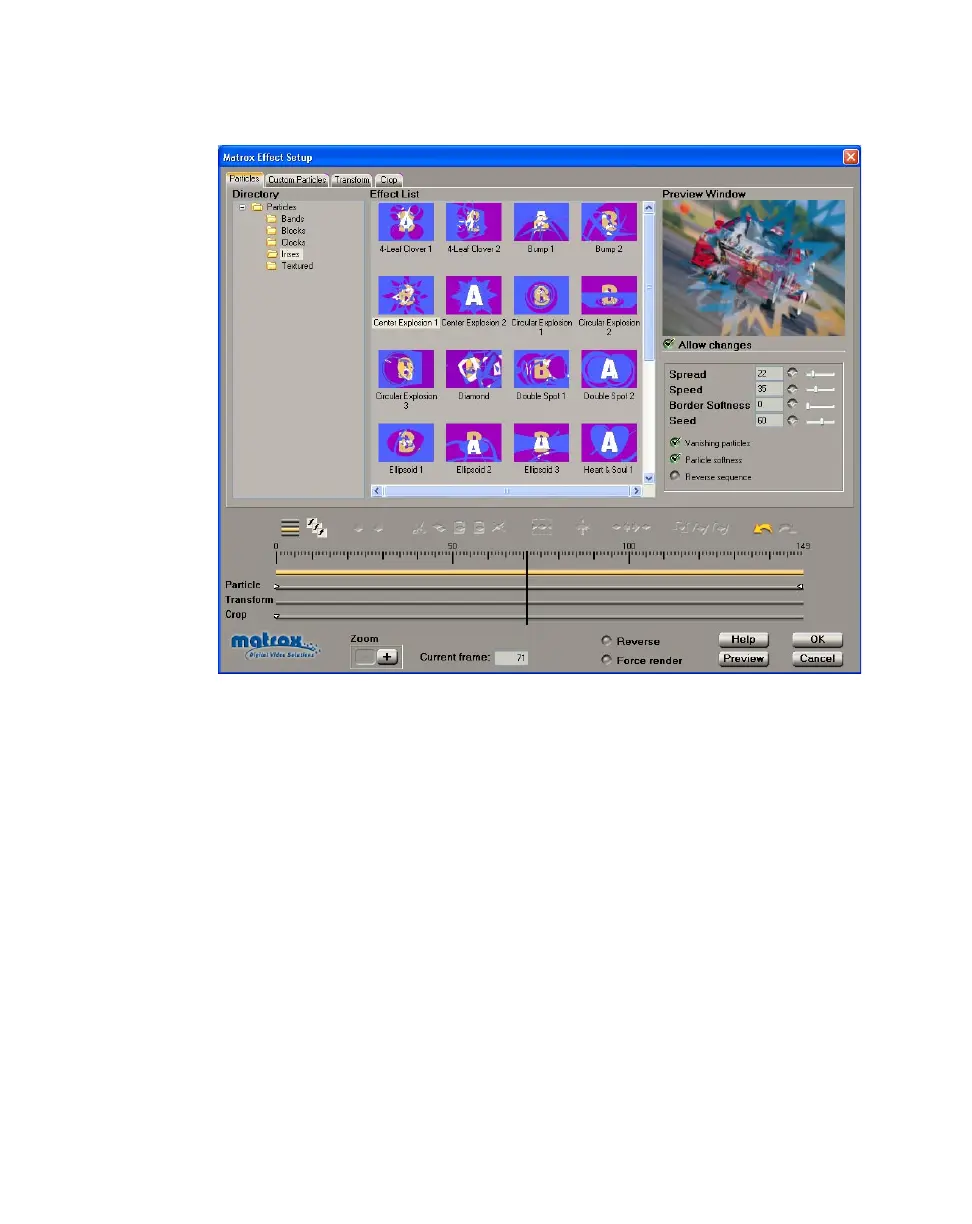
When you apply a Matrox particle effect, the Particles page appears:
°To set up a particle effect:
1 Choose the type of effect you are looking for in the Directory.
2 Click the particular effect you want from the Effect List.
3 To see a preview of your effect at any time, click the Preview button.
4 To change the settings for your effect, select Allow changes, then use the
particle effect modifiers as follows:
$ Spread Sets the progression of the effect. The higher the spread, the
closer to the beginning of your clip the particles start to explode. For
example, a spread of 100 indicates that all particles start to explode at the
first frame of the clip, and a spread of 20 indicates that all particles explode
by the 80% point of the clip.
$ Speed Sets the speed at which the particles explode.
$ Border Softness Sets the softness on the border of your clip.
$ Seed Sets the random behavior of the pattern. Each value (from 0 to100)
represents a different random pattern.



 To Next Page