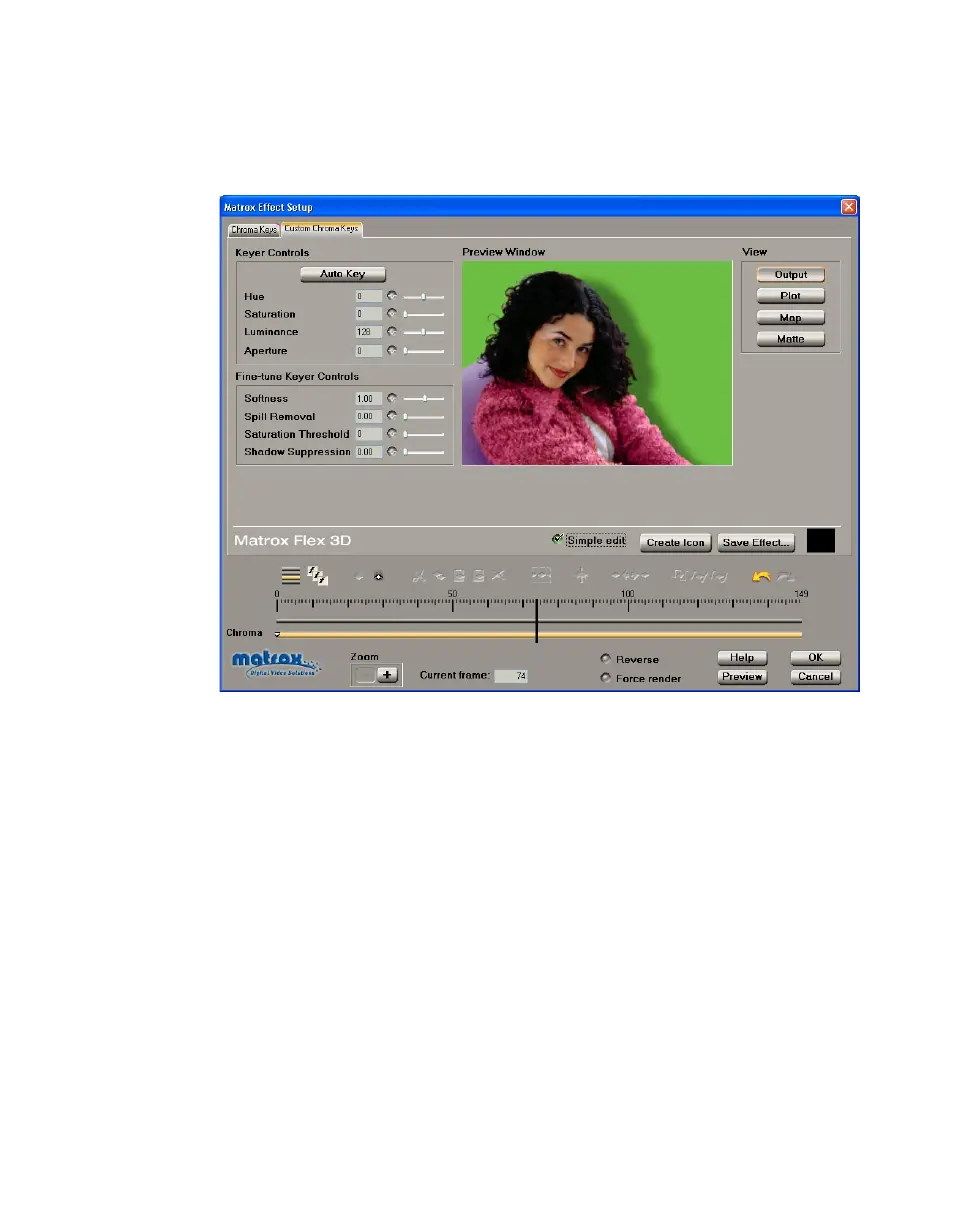
103
Creating a chroma key effect
Creating a chroma key effect
To create a chroma key effect, select the Dud effect from the Effect List on the
Chroma Keys page, then click the Custom Chroma Keys tab or the Chroma
track:
By selecting
Simple edit, all settings are applied for the duration of your clip.
This means that you’ll have only one keyframe at the first frame of your clip. If
you want to change settings at different frames of the clip, you’ll have to clear
Simple edit
.
• Keyer Controls
$ Auto Key Click this button to key on the most common color at the
current frame (except gray). Selecting
Auto Key affects values for Hue,
Saturation, Luminance, and Aperture. If your clip consists of a uniform
key color that is evenly lighted,
Auto Key will usually give you a
good-quality chroma key. You can also use the
A keyboard shortcut to select
Auto Key.
You can use the following controls to customize your chroma key effect:
¥Tip To see the color selector, you’ll need to change the View to Plot or
Map. For more information on the different views, see “Viewing and
selecting your key colors” on page 105.



 To Next Page