249
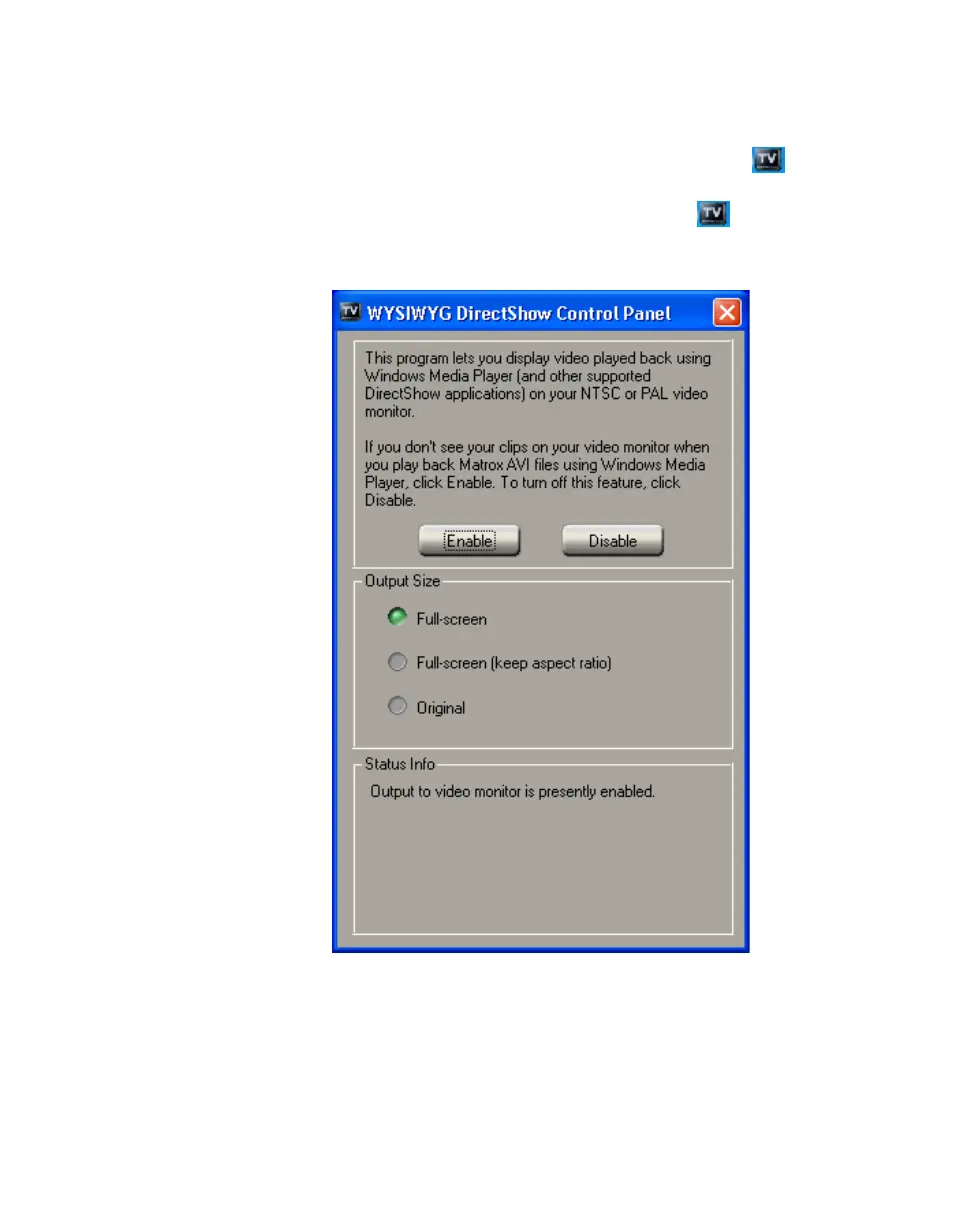
Configuring the WYSIWYG DirectShow Control Panel
Configuring the WYSIWYG DirectShow Control
Panel
1 To open the WYSIWYG DirectShow Control Panel, click the icon on
your Windows taskbar.
¦NoteIf you are using Windows XP and do not see the icon, right-click
the taskbar and choose
Properties. Clear the Hide inactive icons option,
and click
OK.
2 By default, the Matrox WYSIWYG DirectShow output to your NTSC or
PAL monitor is enabled. Some DirectShow applications, however, may not
display the video properly. If this happens, you can disable the display on
your video monitor by clicking the
Disable button.
¦NoteAfter choosing Enable or Disable, you’ll need to restart your
DirectShow application for the change to take effect.



 To Next Page