232
Chapter 10, Using the Adobe After Effects plug-in
About the Adobe After Effects plug-in
The Adobe After Effects plug-in, together with your Matrox RT.X100 Xtreme
hardware, lets you display the contents of your Composition window in Adobe
After Effects (version 4.0 or later) on your NTSC or PAL video monitor. This lets
you see the exact color temperature, safe-title area, and any interlaced artifacts in
your composition as you work.
Required settings to use the plug-in
1 Start Adobe After Effects.
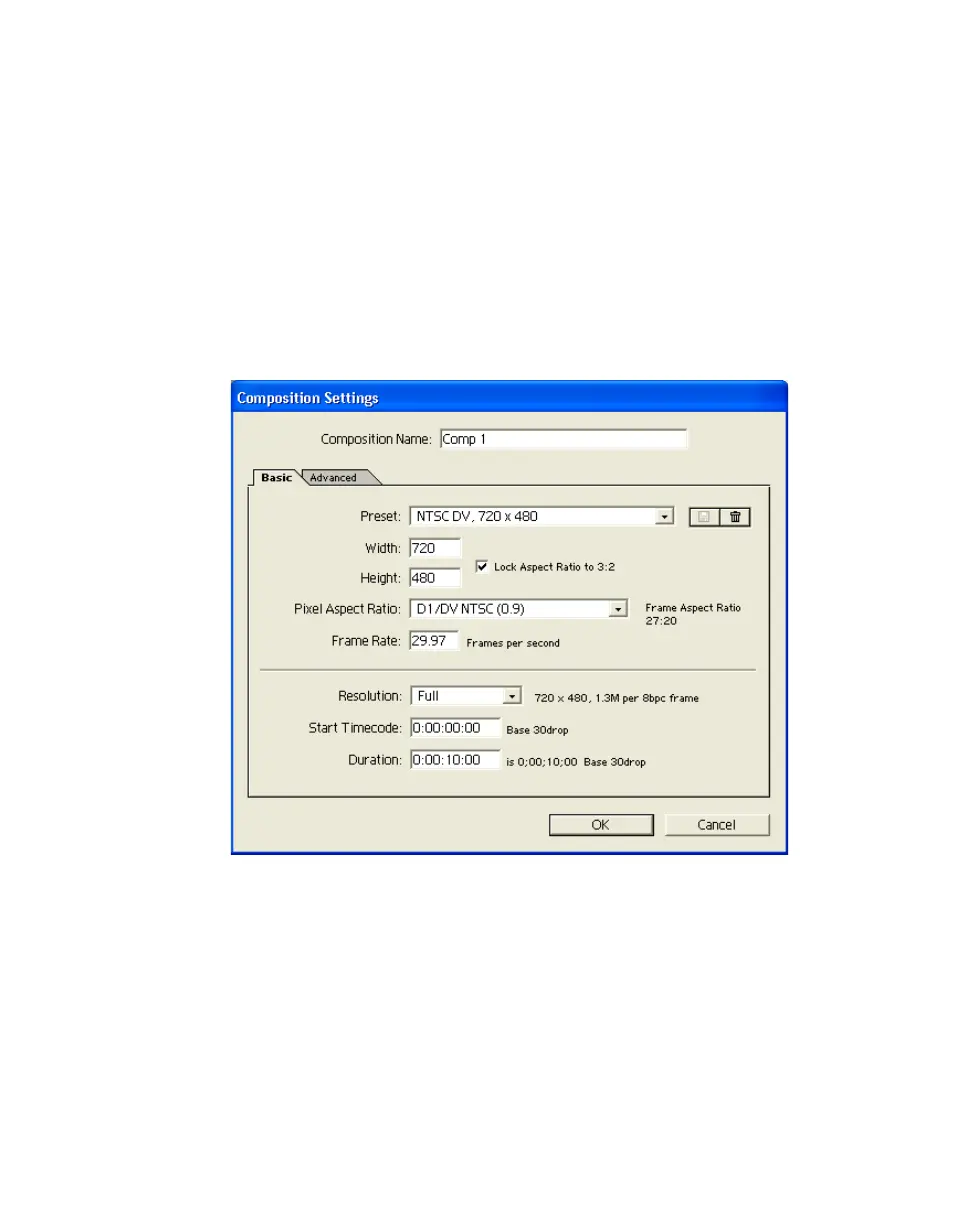
2 Open the Composition Settings dialog box by choosing Composition >
New Composition
.
3 Set the Frame Rate to either 29.97 for an NTSC composition, or 25 for a
PAL composition.
4 You can specify additional composition settings as explained in your Adobe
After Effects User Guide.
¡Important The following steps are applicable only if you are using After
Effects version 5.0 or later. If you are using an earlier version of After
Effects, you cannot change your preview settings. Therefore, you will not be
able to run Adobe Premiere at the same time as After Effects.



 To Next Page