100
Chapter 6, Setting Up Realtime Effects with Adobe Premiere
Applying a pre-created blur effect
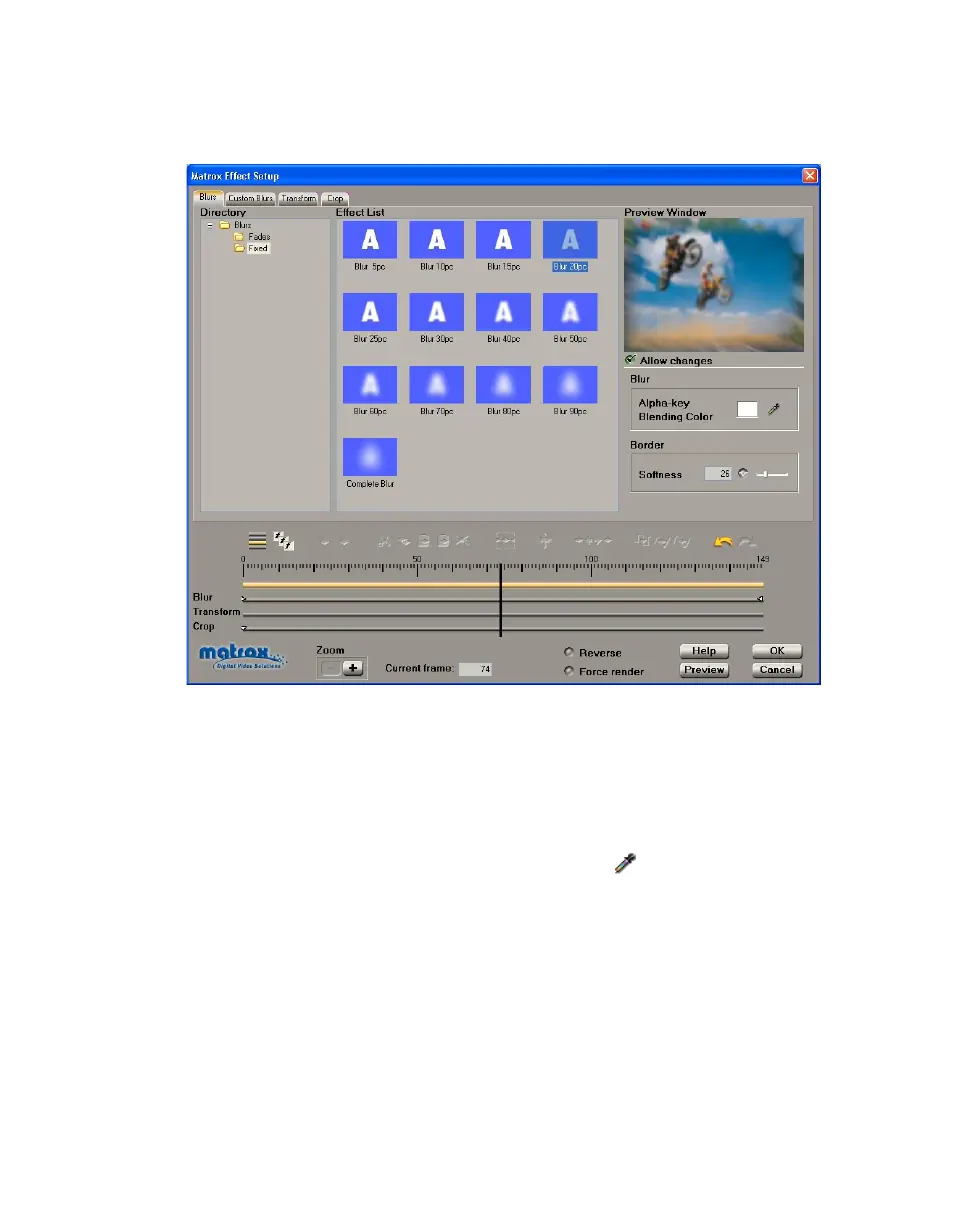
When you apply a Matrox blur effect, the Blurs page appears:
°To set up a blur effect:
1 Choose the type of effect you are looking for in the Directory.
2 Click the particular effect you want from the Effect List.
3 To see a preview of your effect at any time, click the Preview button.
4 If your clip contains an alpha channel, you can change the alpha-key color
that is used to blend your blurred clip with the underlying (background) clip.
To do this, select
Allow changes, then click the button beside
Alpha-key Blending Color to select the color you want.
5 To adjust the softness on the border of your clip, drag the Softness slider, or
enter a value in the text box.
6 If you want to apply custom settings to your effect, see “Creating a custom
blur effect” on page 101.
7 If you want to apply or change various transform settings, such as to change
your clip’s size, position, and rotation settings, see “Transforming your clip”
on page 149.
8 When you are satisfied with your effect, click OK to return to your Timeline.



 To Next Page