129
Applying a pre-created mask DVE effect
Applying a pre-created mask DVE effect
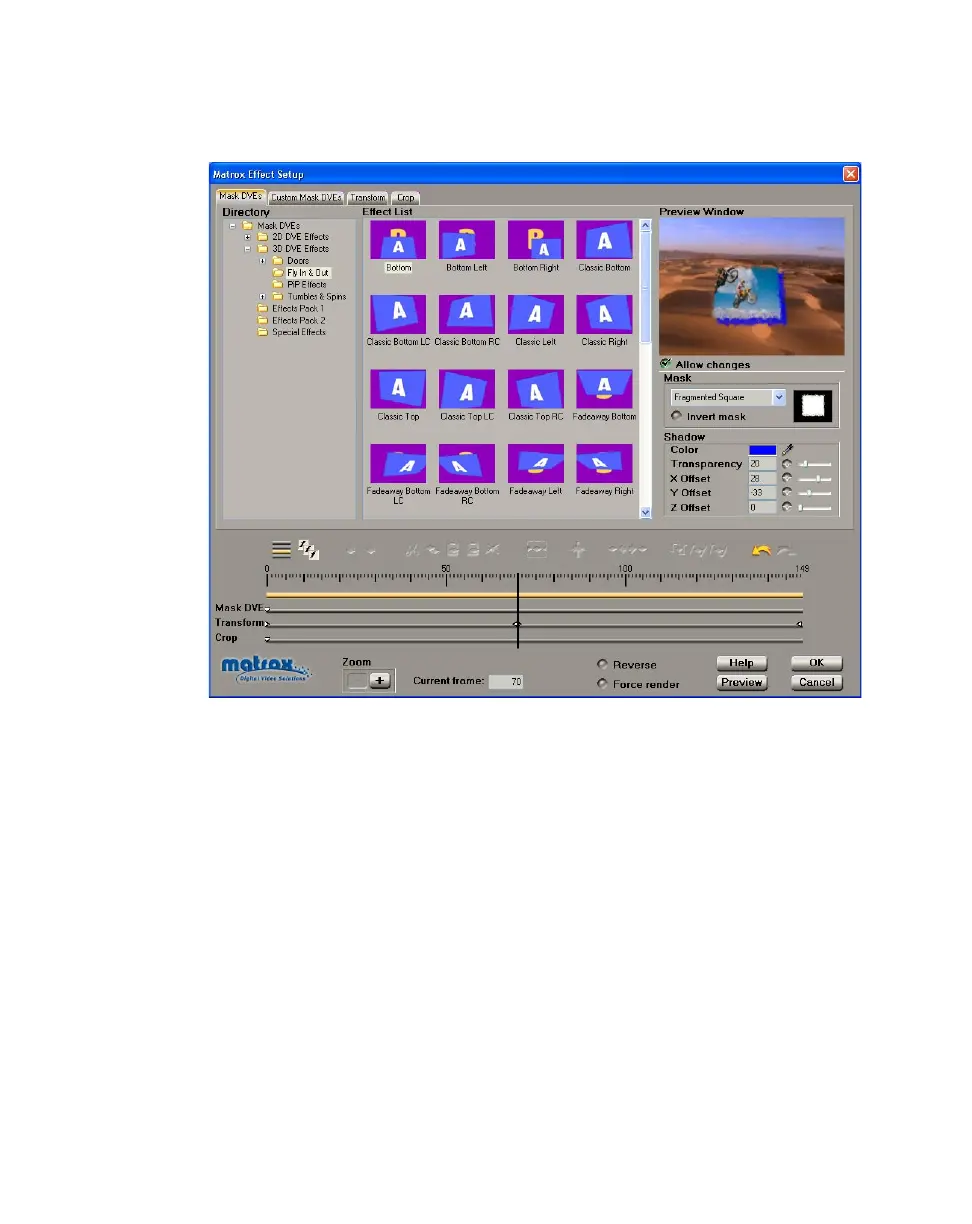
When you apply a Matrox mask DVE effect, the Mask DVEs page appears:
°To set up a mask DVE effect:
1 Choose the type of effect you are looking for in the Directory. For example,
click the
PiP Effects folder under 3D DVE Effects to display a list of
available 3D picture-in-picture effects.
2 Click the particular effect you want from the Effect List.
¦NoteThe effects in this Effect List are the same as on the Advanced DVEs
page, but with the default mask pattern applied.
3 To see a preview of your effect at any time, click the Preview button.
4 To change the pattern for your mask effect, select Allow changes, then use
the list under
Mask to select a pattern. You can see an icon representing your
selected mask pattern.
5 If you want to invert the opaque and transparent areas of your effect, select
Invert mask.
6 To display a shadow behind your mask pattern, make sure that Allow
changes
is selected, then use the Shadow modifiers as follows:



 To Next Page