69
Setting up DV-1394 device control
Setting up DV-1394 device control
With Matrox RT.X100 Xtreme, you can take advantage of the DV-1394 device
control on your DV camera or deck when capturing or recording material in
Adobe Premiere.
¡ImportantTo be able to perform a frame-accurate export to tape, you must use
Matrox DV-1394 device control.
°To set up this device control:
1 Choose Edit > Preferences > Scratch Disks and Device Control.
2 Under Device Control, select Matrox DV-1394 Device Control.
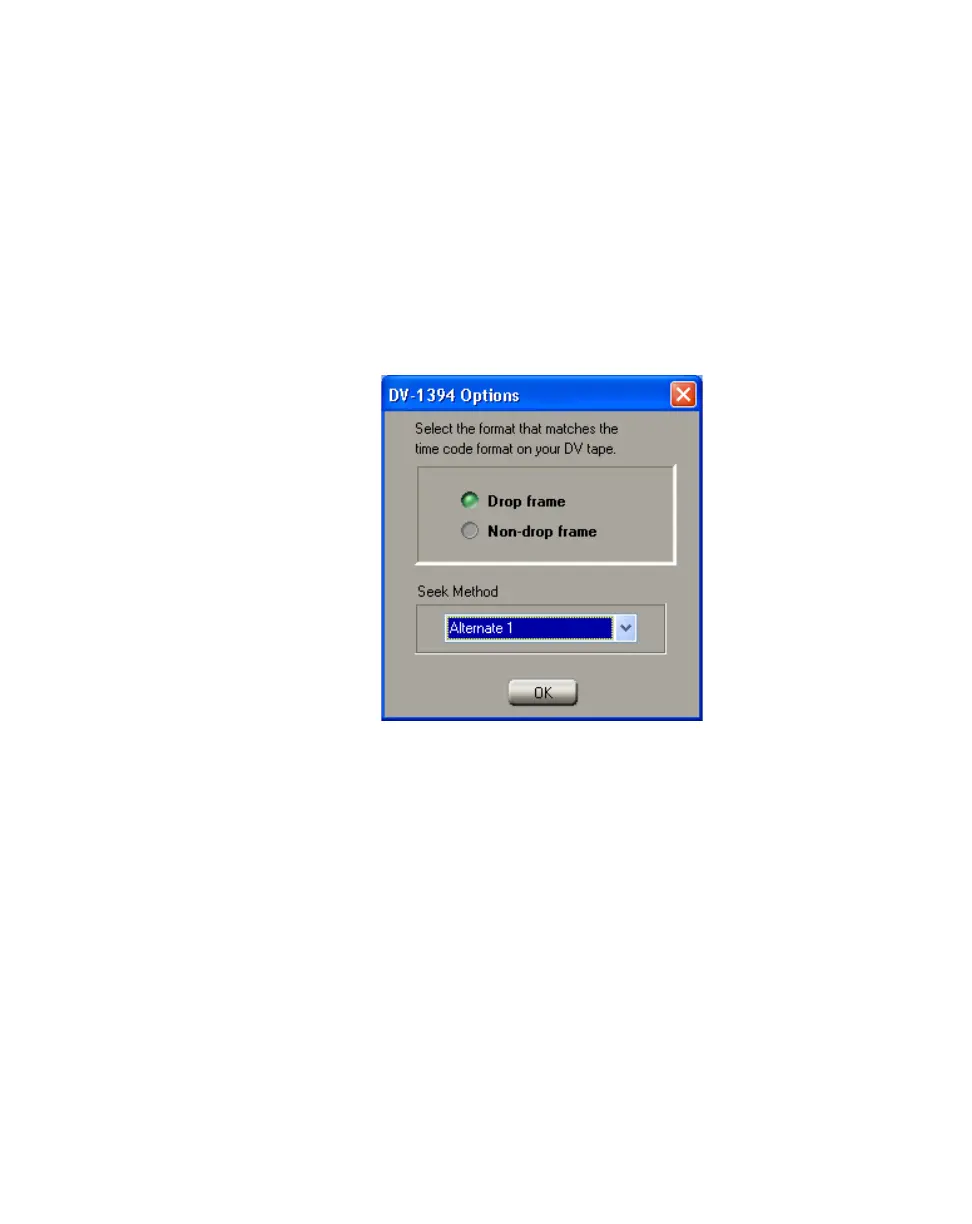
3 Click Options to display the following dialog box:
4 If you have an NTSC system, select the format that matches the time code
format on your DV tapes (
Drop frame or Non-drop frame).
5 Under Seek Method, if you’re having trouble controlling your DV-1394
device, select an alternate method to improve its performance. For example,
if your DV-1394 device stops responding after performing a batch capture or
cues incorrectly to an In/Out point on tape, you can experiment with
alternate seek methods until you find the one that works best with your
DV-1394 device.
¦NoteMost devices work best with the default seek method. If, however, an
alternate seek method improves the performance of an RT.X-compatible
DV-1394 device, this will be mentioned in the RT.X Support section of our
web site.
6 Click OK to return to the Preferences dialog box, then click OK to save
your settings.



 To Next Page