159
Working with keyframes
Creating new keyframes
°To create a keyframe:
1 In the Matrox Effect Setup dialog box, click the tab or track where you
want to create your keyframe.
2 Move the Positioner to the frame in your clip where you want the settings to
take place.
¥Tip Press the HOME key to move the Positioner to the first frame of your
clip.
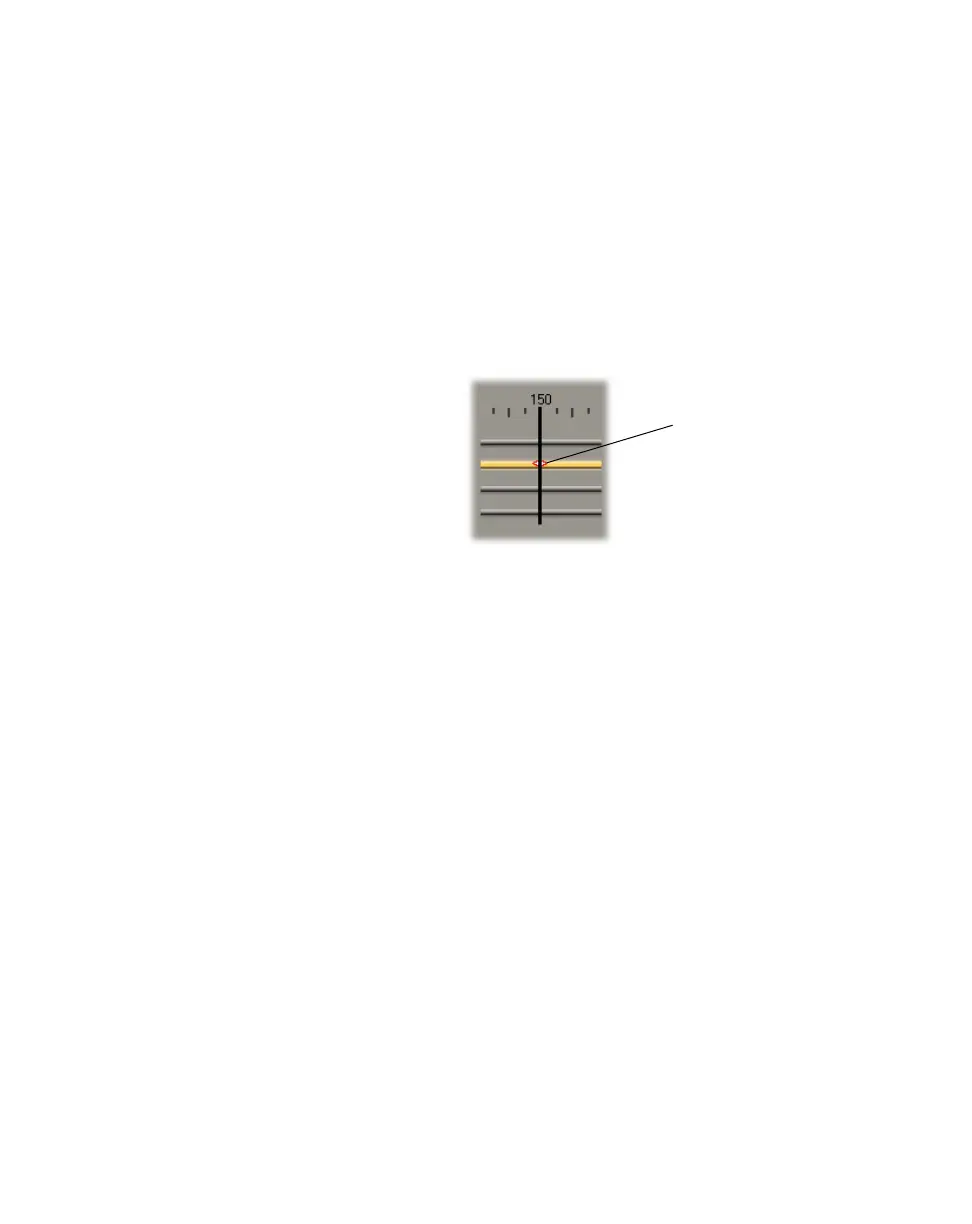
3 Use the effect controls in the dialog box to set up your effect. As soon as you
adjust a control, a keyframe is created on the corresponding track, behind the
Positioner:
You can create a keyframe with default settings by pressing
CTRL+INSERT or
by clicking the
Apply Default Settings button on the Toolbar. You can also
create a keyframe with the currently displayed settings by pressing
INSERT or
by clicking the
Apply Current Settings button on the Toolbar.
Modifying keyframes
°To edit a keyframe:
1 Double-click the keyframe. The current settings for the keyframe are
displayed on the page.
2 Edit the effect as needed. To apply default settings to the keyframe, press
CTRL+INSERT or click the Apply Default Settings button on the Toolbar.
Resetting a track to default settings
To reset a track to its default settings, right-click the track and choose Reset
Track Data
from the pop-up menu. Resetting clears all keyframes from the
track, including those that were pre-defined, and restores the default effect
settings.
¦NoteFor those effects for which the Simple edit option is available, resetting
the track to default settings replaces all keyframes on the track with a single
keyframe.
Newly created
keyframe



 To Next Page