154
Chapter 6, Setting Up Realtime Effects with Adobe Premiere
• Choose a command from the Crop menu to crop your effect by a preset
amount.
• Crop directly in the
Preview Window using your mouse.
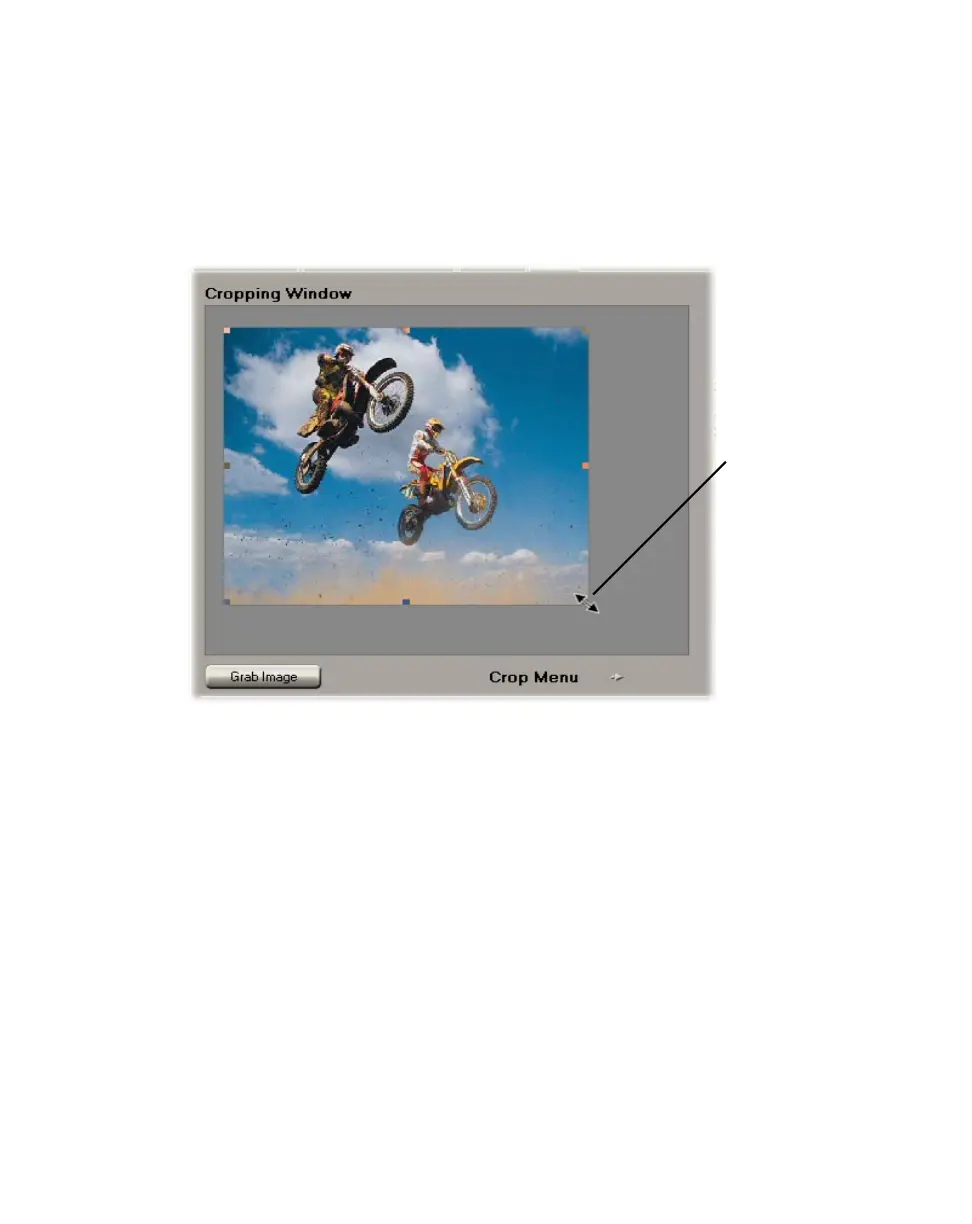
Using the Cropping Window
The Cropping Window allows you to adjust a cropping area using eight resize
handles.
To display a particular frame in the
Cropping Window, move the Positioner to
the frame you want displayed, and click the
Grab Image button.
To resize your cropping area, drag any of the resize handles. For example, drag
the middle right handle to crop the right edge of your clip. To resize the entire
cropping area at once, drag one of the corner handles (the corner that’s diagonally
opposite the handle you are moving will remain stationary).
Once you’ve cropped your image, you can drag the entire cropping area in the
Cropping Window to select a different area of your clip. You’ll notice that the
Preview Window displays your changes as you resize or drag the cropping area.
Mouse
pointer on
resize
handle



 To Next Page