143
Creating a custom particle effect
Creating a custom particle effect
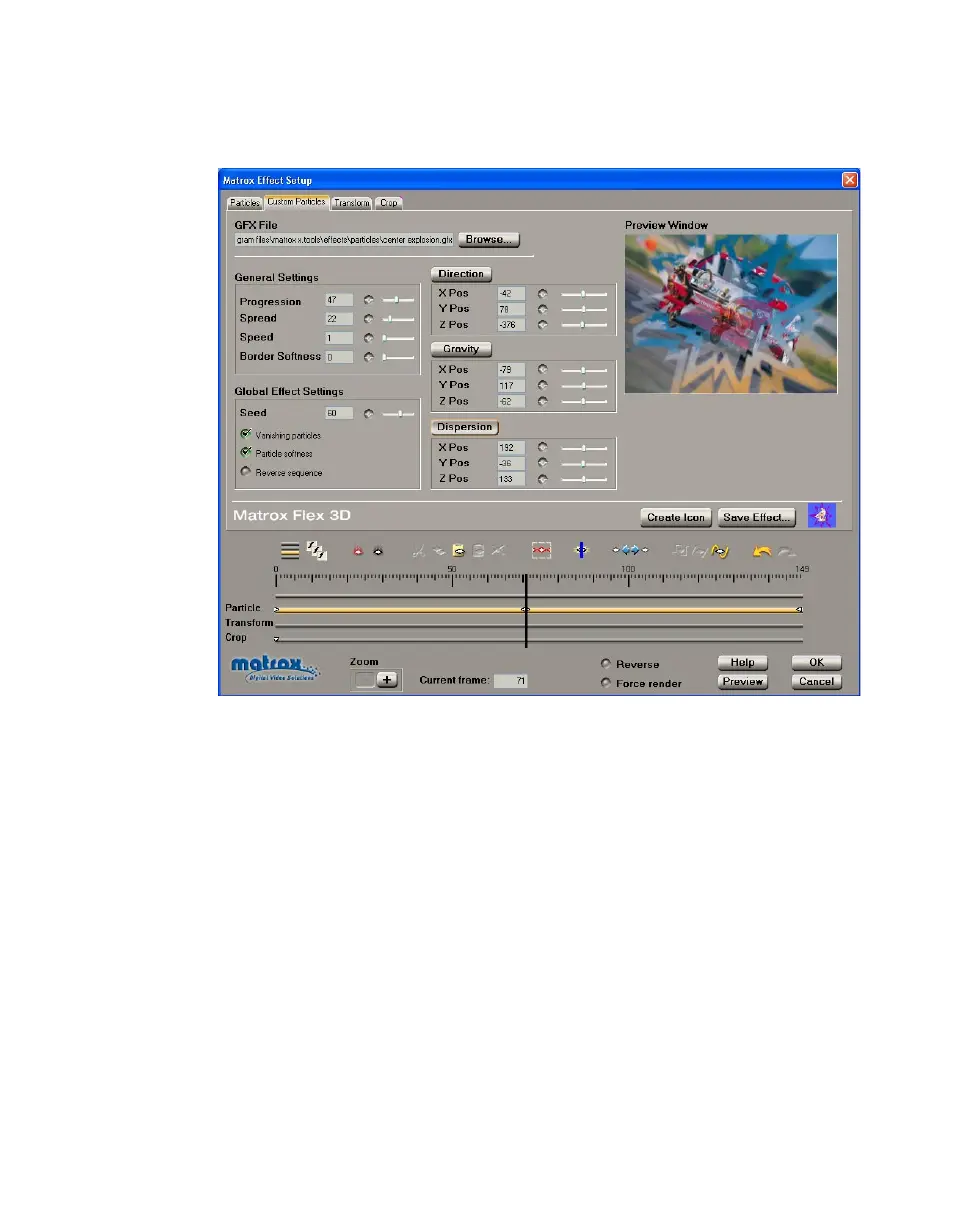
To customize the settings for your particle effect, click the Custom Particles tab
or the
Particle track:
Any settings that you applied under
Allow changes on the Particles page are
carried over to the
Custom page. You can further customize your effect using the
following:
• GFX File The pattern file for the effect that you selected on the Particles
page is displayed under
GFX File. If you want to select a different pattern,
click
Browse, and select a different .gfx file.
• General Settings
$ Progression Sets the progression of your particle effect, at any frame.
For example, you can set the progression to 50% at the first frame to make
your particle pattern start only at its mid-point.
$ Spread Determines the point at which the particles start to explode. The
higher the spread, the closer to the beginning of your clip the particles start
to explode. For example, a spread of 100 indicates that all particles start to
explode at the first frame of the clip, and a spread of 20 indicates that all
particles explode by the 80% point of the clip.
$ Speed Sets the speed at which the particles explode.



 To Next Page