178
Chapter 7, Using RT.X100 Xtreme with Video for Windows Programs
Selecting color space conversion options
When you render material to an .avi file using a Matrox VFW codec, you can
determine how you want the luminance levels and chroma information to be
processed during the color space conversion that’s performed during the render.
¦NoteThe default settings for color space conversion provide good results for
most applications. We recommend that you change these settings only when
needed for special purposes.
°To select the color space conversion options you want:
1 If you’re using Windows XP, do the following:
a Right-click My Computer, then choose Properties > Hardware >
Device Manager
.
b Under Sound, video and game controllers, double-click Video
Codecs
.
c Click Properties, then select Matrox Codecs.
d Click Properties, and then Settings.
2 If you’re using Windows 2000, do the following:
a Choose Start > Settings > Control Panel > Sounds and Multimedia.
b Click the Hardware tab. Under the list of devices, select Video Codecs.
c Click Properties, then the Properties tab, and select Matrox Codecs.
d Click Properties, and then Settings.
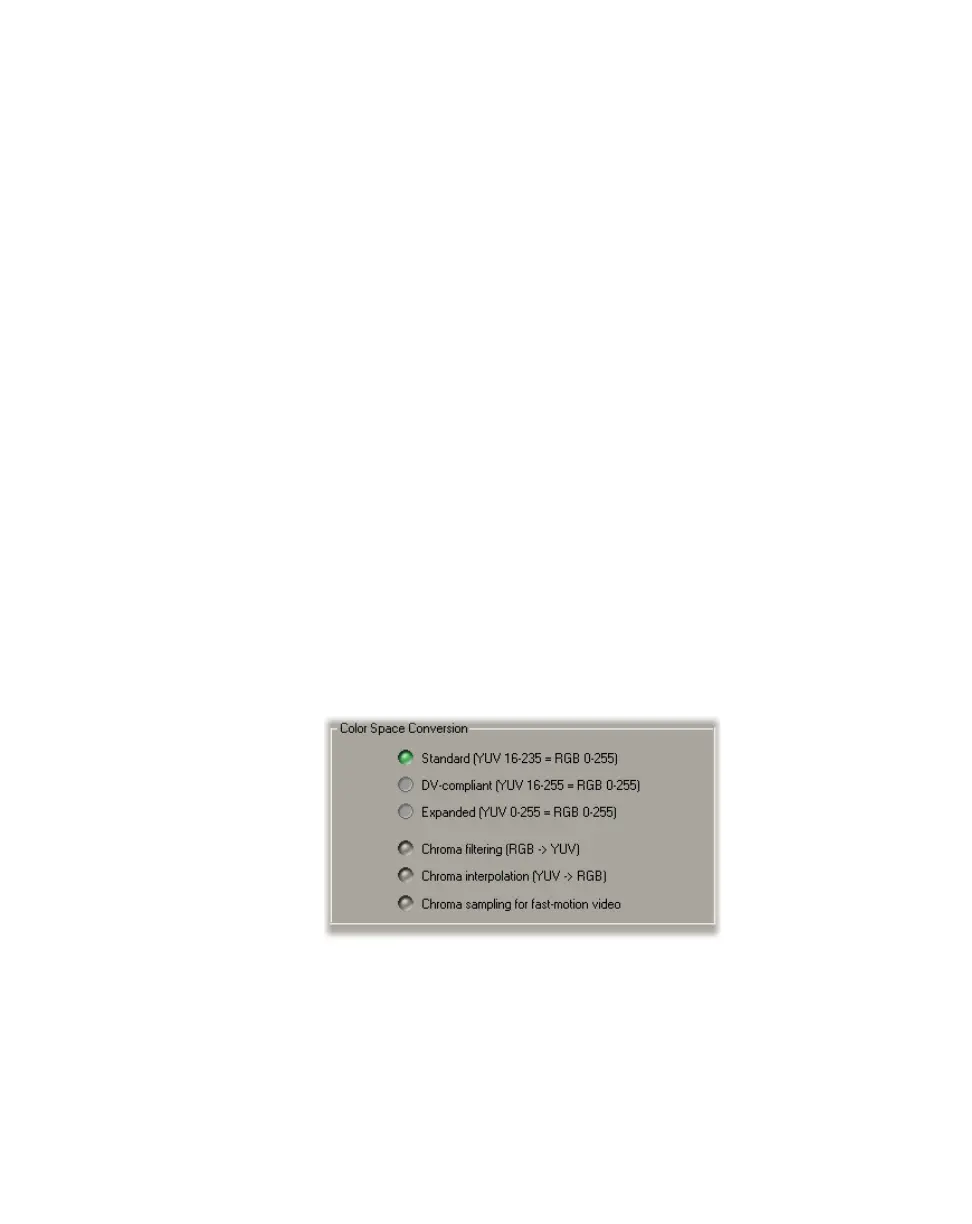
3 In the provided dialog box under Color Space Conversion, select the
options you want:
$ Standard Renders video using standard broadcast luminance levels.
Super black and super white luminance levels are clipped.
$ DV-compliant Renders video using luminance levels appropriate for DV
material. This ensures that the super white luminance levels of your video
are retained.
$ Expanded Renders video using the full range of luminance levels. Super
black and super white luminance levels are retained. You may want to use



 To Next Page