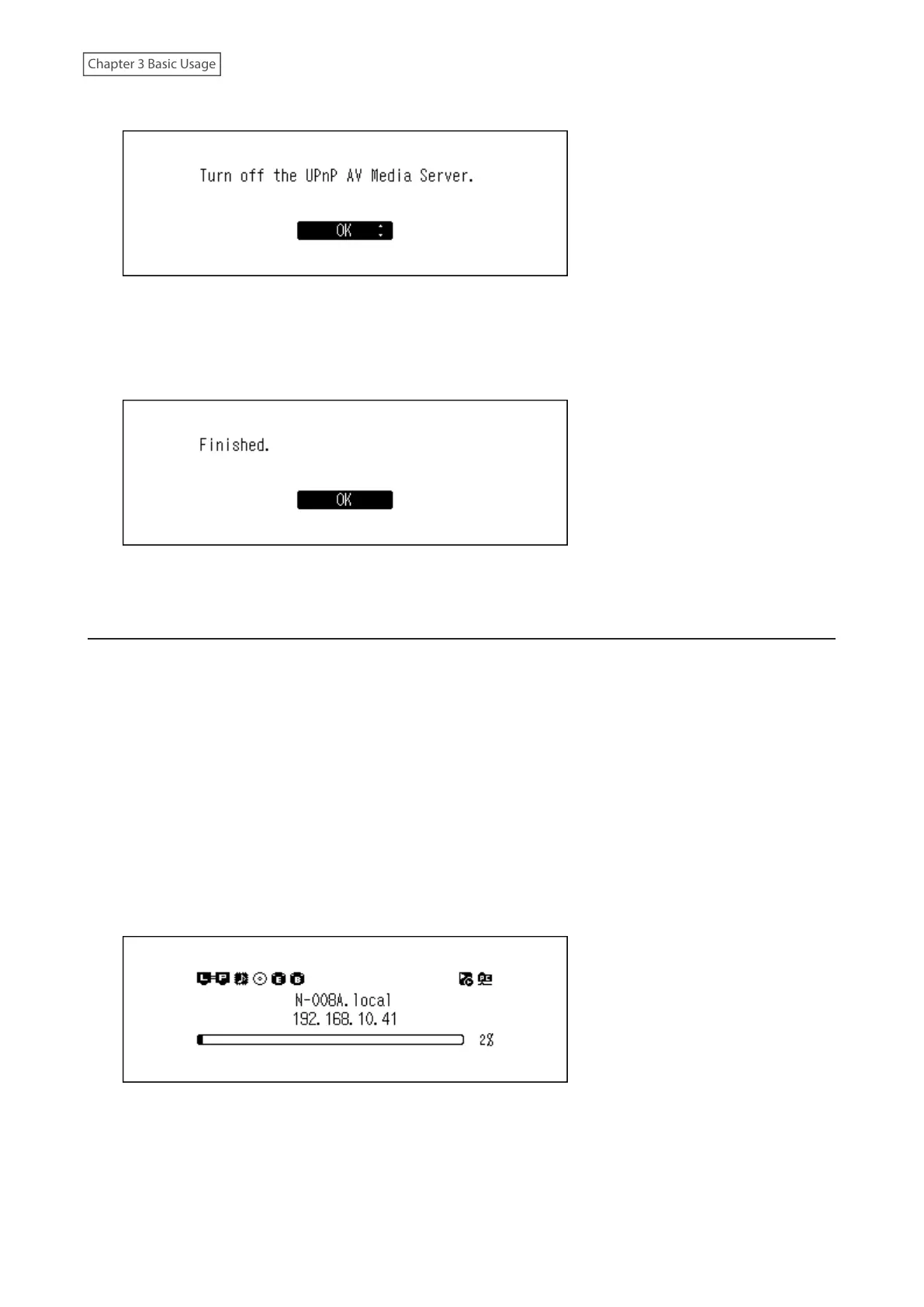
6 If the following message appears, press the Menu/Enter button. The media server app will be disabled.
Note: If you press the Back button, the media server app will not be disabled. While “Roon Ready Mode” is
selected, the media server app will not be used for playback while using USB-DAC. Therefore, we recommend
selecting “OK” to disable the media server.
7 Press the Menu/Enter button.
The controller mode will be changed.
Changing the DSD Playback Mode
The Digital Music Library supports three different playback modes for DSD files (.dsf, .dff). You can select from the
following modes:
• Standard: The default and recommended playback mode. If a connected USB-DAC device supports Melco
Markerless DSD, the DSD file will be played by the Markerless DSD playback; otherwise, the DSD file will be
played by DSD over PCM.
• DSD over PCM Priority Mode: This mode applies DSD over PCM even if a connected USB-DAC device supports
Markerless DSD playback. Except for this aspect, this mode is the same as standard mode.
• PCM Mode: This mode will convert DSD files to PCM files. If connecting a USB-DAC device that only supports
playing PCM files, selecting this mode is recommended. Except for this behavior, this mode is the same as
standard mode.
To configure USB-DAC on your Digital Music Library, follow the procedure below.
1 Press the Menu/Enter button to display the menu list at the home screen.
37



 To Next Page