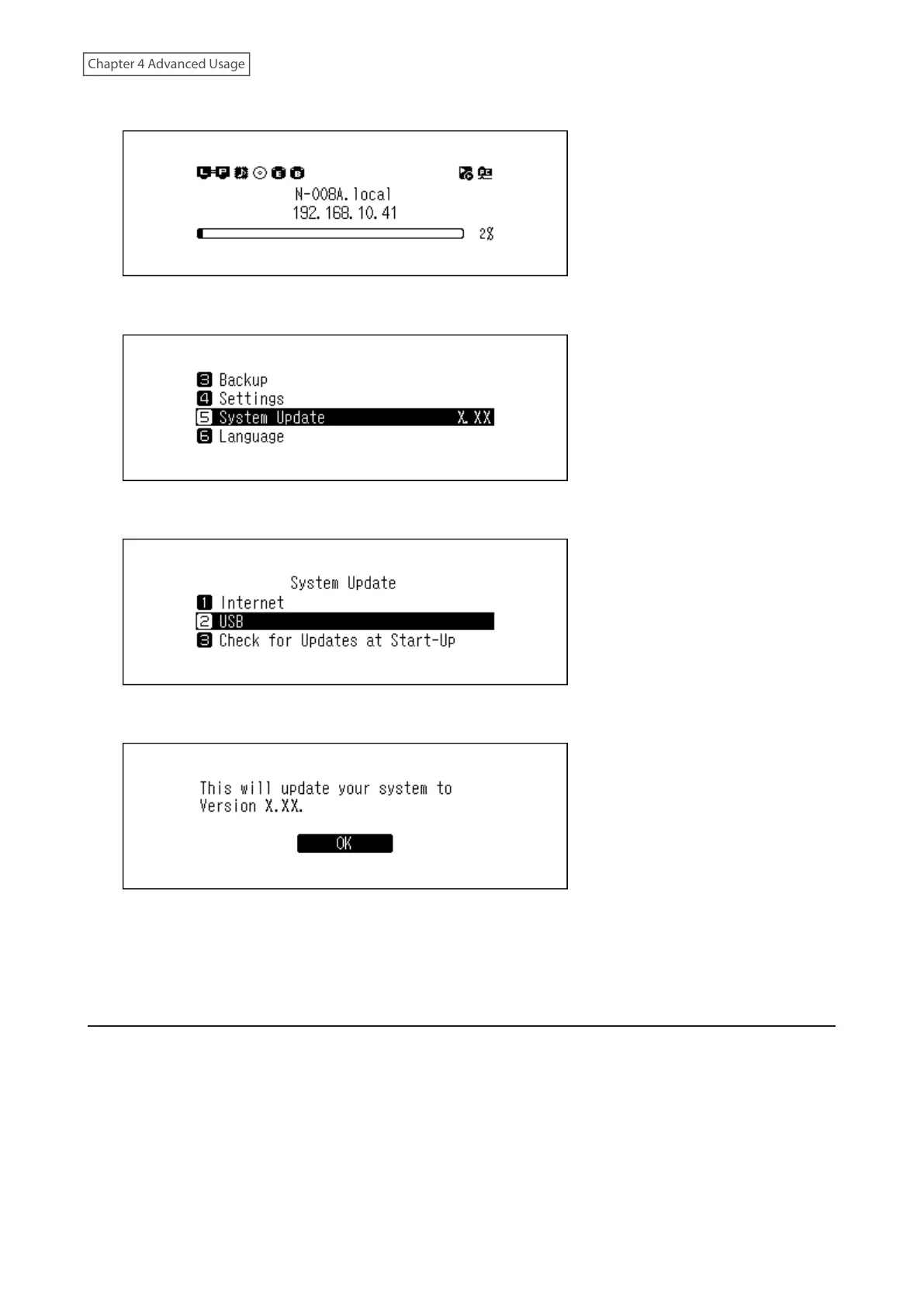
4 Press the Menu/Enter button to display the menu list at the home screen.
5 Press the Up/Down buttons and select “System Update”, then press the Menu/Enter button.
6 Press the Up/Down buttons and select “USB”, then press the Menu/Enter button.
7 Press the Menu/Enter button.
8 The Digital Music Library will restart. Wait until the home screen is displayed.
9 When the home screen is displayed, disconnect the USB drive.
Checking for Updates Automatically
The Digital Music Library can be configured to automatically check if newer firmware has been released when it
starts up. If new firmware is detected, you can continue to update the firmware. It is enabled by default. To disable
checking for firmware releases automatically, follow the procedure below.
62



 To Next Page