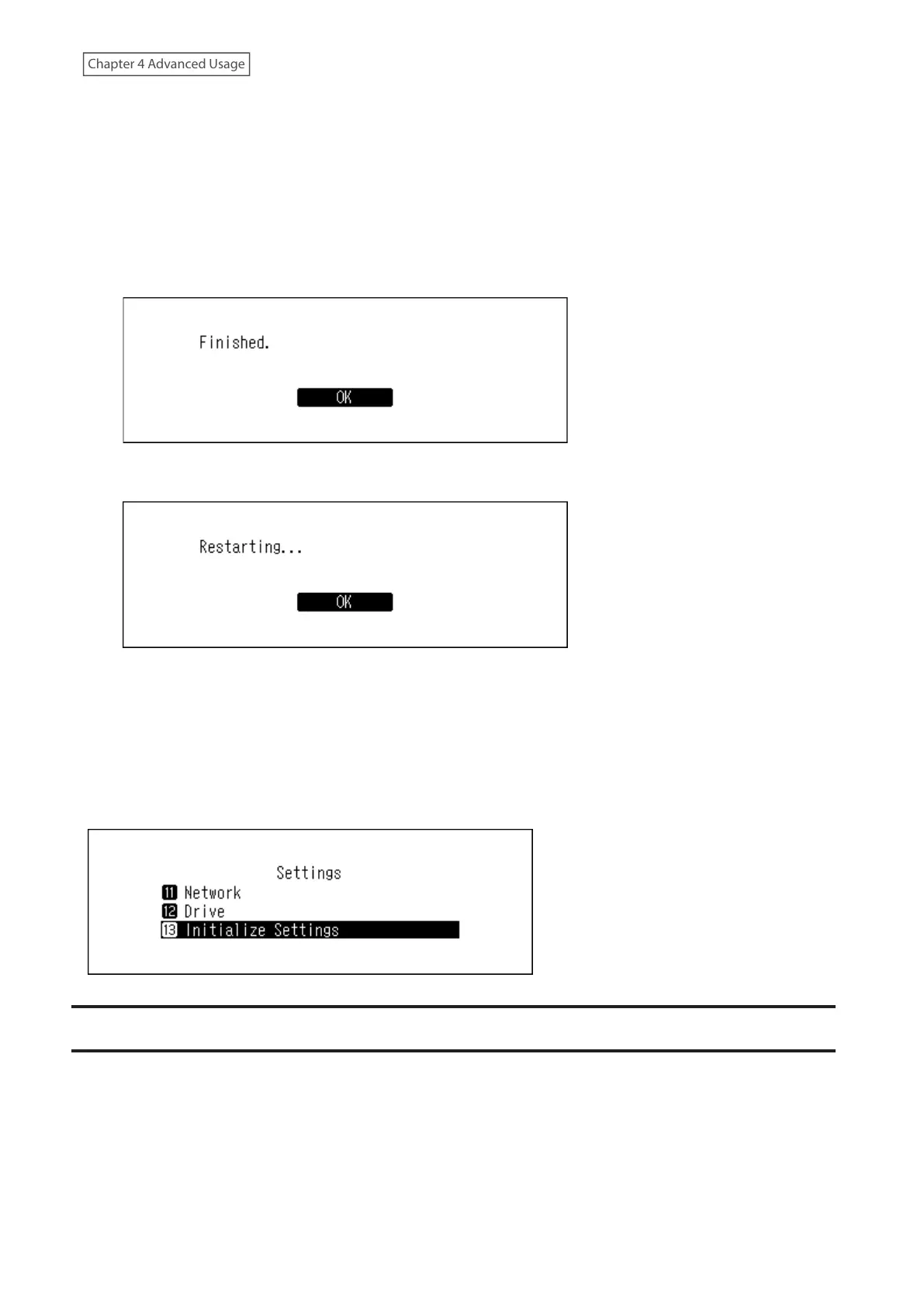
1 Turn off the Digital Music Library.
2 Turn on the Digital Music Library while pressing and holding the Down button. After the “MELCO” logo
disappears, let go of the Down button.
3 The message, “All settings will be initialized. Continue?” will be displayed.
Press the Menu/Enter button.
4 Press the Menu/Enter button.
5 If the screen below is displayed, press the Menu/Enter button.
6 The Digital Music Library will restart. Wait until the home screen is displayed.
7 After the restart process is completed, press the Up/Down buttons and set the display language and time
zone, then press the Menu/Enter button.
If you navigate to Settings > Initialize Settings on the display panel, you can initialize the settings by selecting “OK”,
then pressing the Menu/Enter button.
MELCO Intelligent Music Library
The Digital Music Library now supports apps that allow you to build your personal intelligent music library. These
apps provide richer metadata for your files, and introduce smarter methods to browse your collection with minimal
effort. You can install these apps directly onto the Digital Music Library.
SongKong is an application that scans your music collection and adds detailed information to each file as tags.
MinimServer is an application that scans and organizes your music collection by utilizing embedded tags on each
file.
64



 To Next Page