Notes:
• If a filename or folder name starts with a period (.), the file or folder cannot be imported.
• If the Back button is pressed while importing, the import process will be cancelled after the Digital Music Library
finishes importing the current file. If the imported file size is large, the cancellation process may take a few
minutes to finish.
Import Destination Details
Imported music files will be stored in the “import” folder. There are two options to store the imported data in the
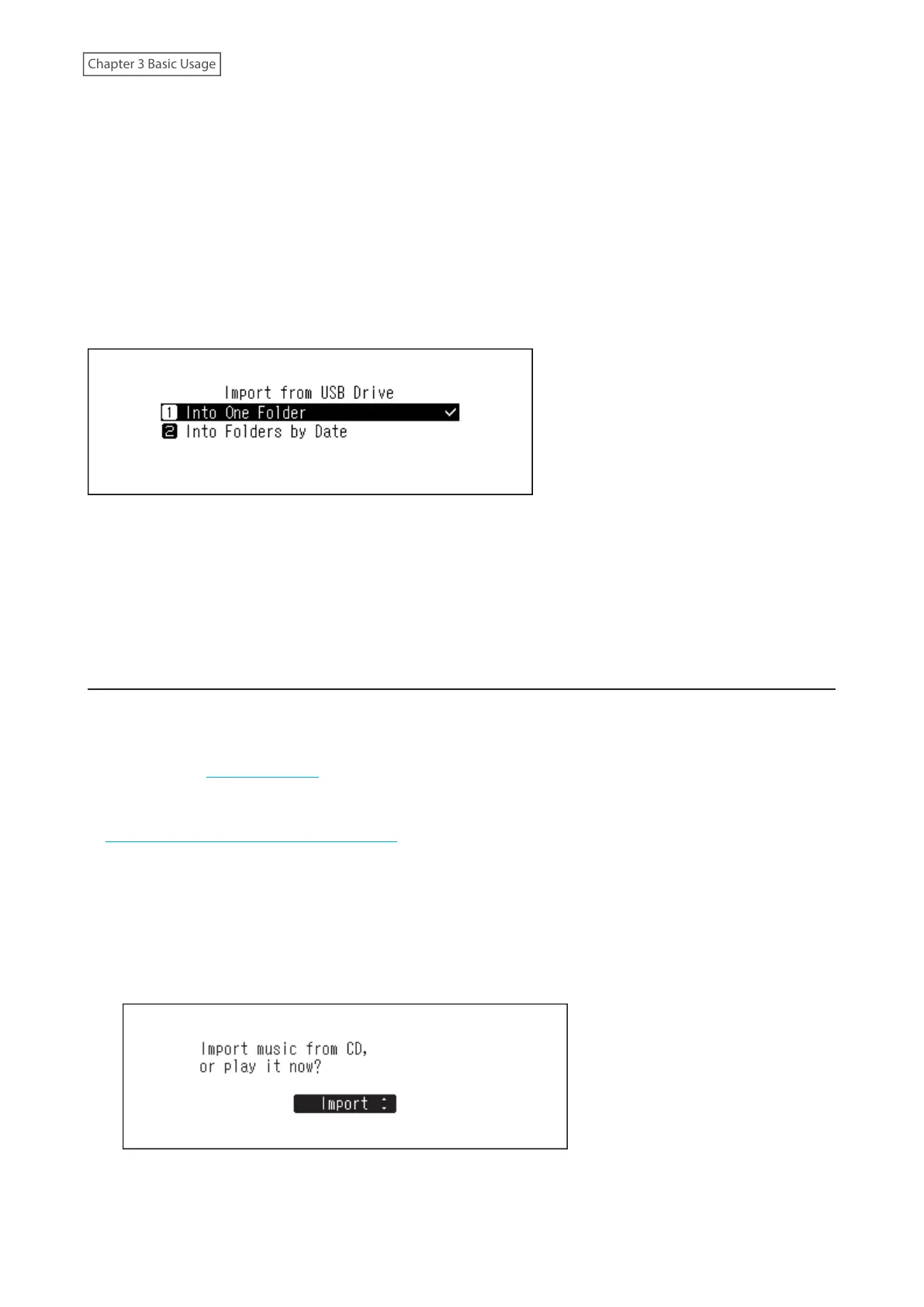
Digital Music Library. To change these options, navigate to Settings > Import from USB Drive and select “Into One
Folder” or “Into Folders by Date”.
• Into One Folder: If you select this option, data will be imported into the “all” folder within the “import” folder.
With this option, only files with changes will be imported to the Digital Music Library. Files with no changes from
the previous import session will not be imported.
• Into Folders by Date: If you select this option, a folder that contains the import date in the folder name will
be created within the “import” folder and all imported files will be stored in that folder. Even if the same data is
included in the USB drive, it will be copied to the Digital Music Library.
Importing from a Music CD
To import tracks from a music CD, follow the procedure below.
Notes:
• Importing tracks from a music CD requires an optical drive (not included). Use only the compatible optical
drives listed on melco-audio.com. Depending on the manufacture date, circumstances, and specifications of a
connected optical drive, it may not work even if the optical drive is listed as a compatible device.
• You can save the imported music files to the expansion drive. For more information about this setting, refer to the
“Importing Music Files to an Expansion Drive” section in chapter 4.
1 Connect an optical drive to the Digital Music Library.
2 Insert a music CD into the optical drive to import its tracks.
3 If the USB-DAC device is connected to the Digital Music Library, the following screen will be displayed. Press
the Up/Down buttons and select “Import”, then press the Menu/Enter button.
17



 To Next Page